
Last reviewed: August 3, 2026
Responding to owner application deficiencies is very similar to the previous process. Any owner receiving a deficiency notice must log into the system with their own account to respond.
The related owner application has a status of “Additional Information Needed”, and the deficiency amendment is listed below that.
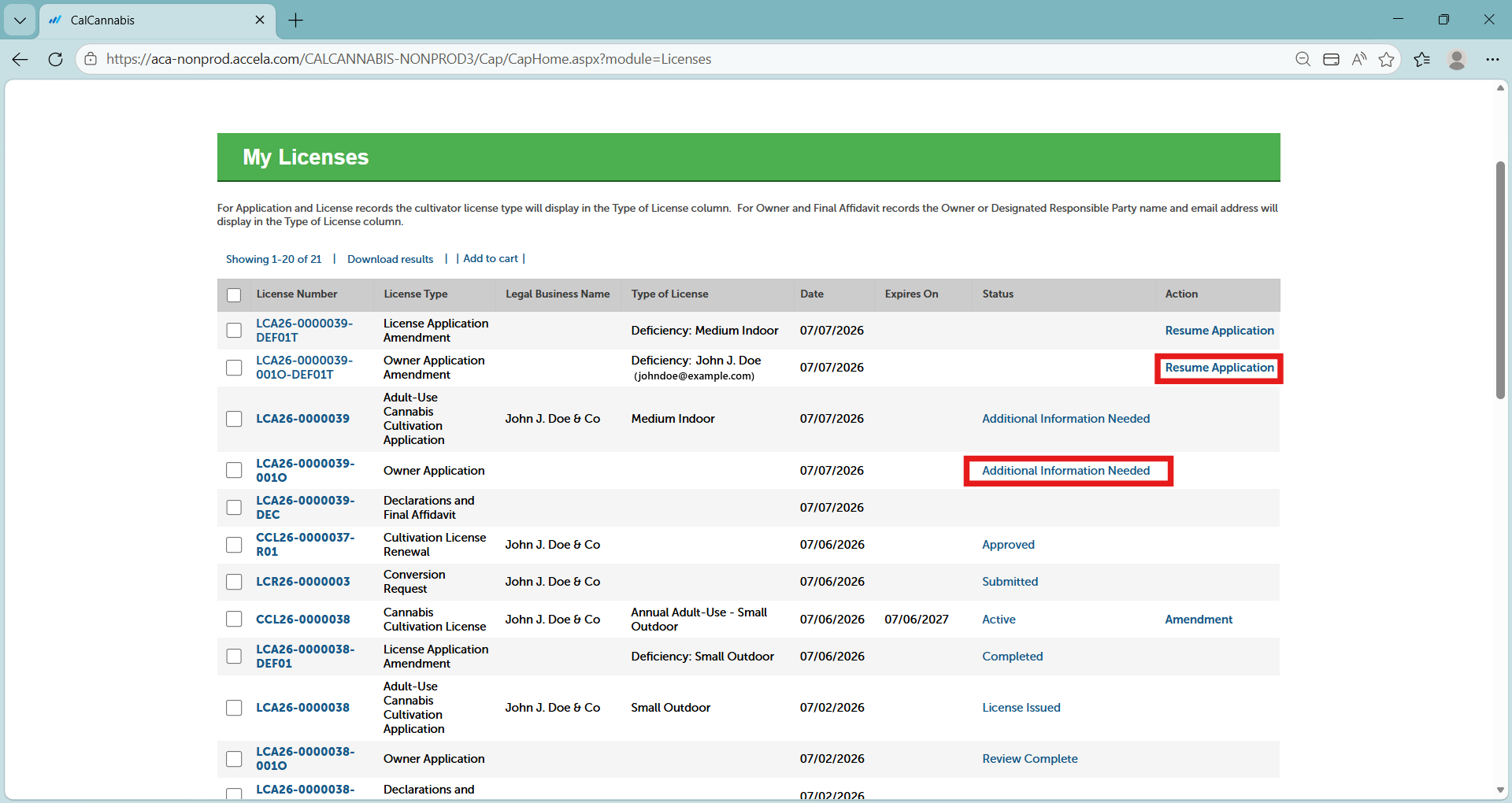
Click on Resume Application to begin.
Select deficiency
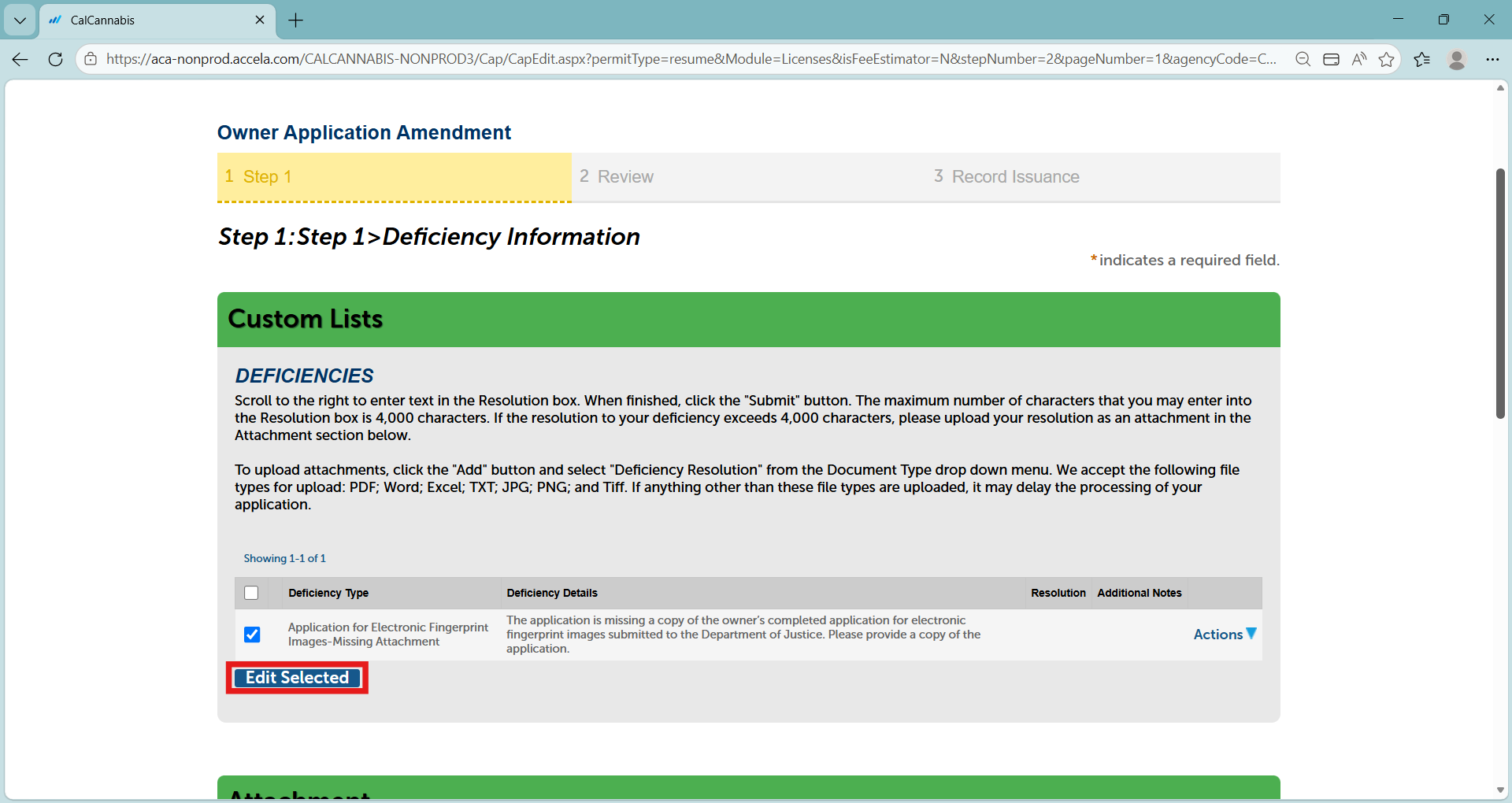
Any deficiencies found in the Owner Application are listed in the first section. To respond, click the checkbox next to the deficiency, then Edit Selected, or choose Actions/Edit.
One of the most common deficiencies is for the Electronic Fingerprint Application, shown here. There may be other deficiencies, including government ID or information related to convictions.
Note: As discussed earlier, any owner application deficiency also triggers a deficiency notice on the main application. The DRP must also respond to that deficiency prior to the license being issued.
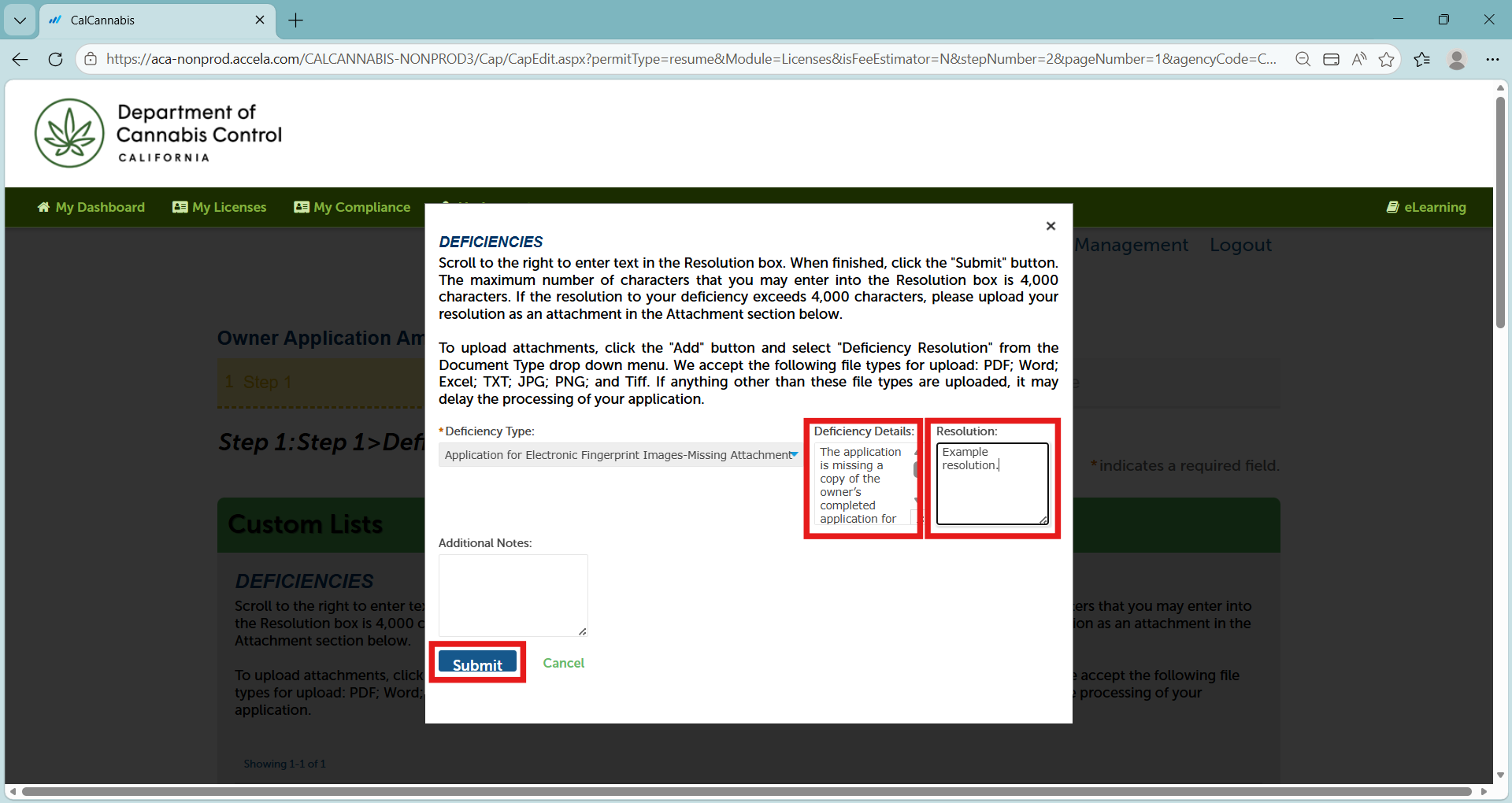
A pop-up window displays for you to enter a response to the deficiency.
Use the Resolution text box to explain that the requested item is attached. For example: “Requested document is attached.”
Then click Submit.
Resolution explanation
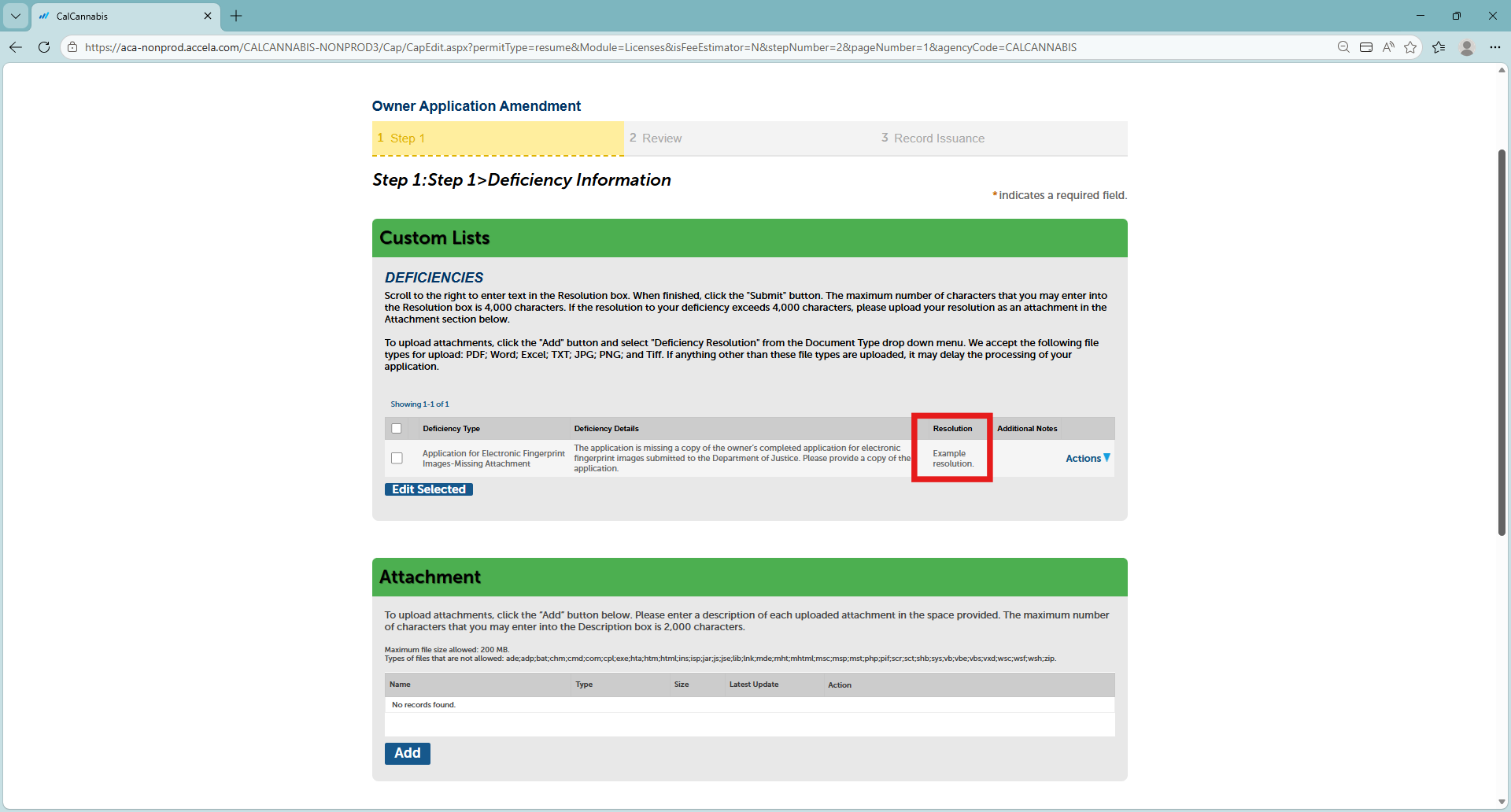
Your note back to DCC staff is now listed next to the deficiency.
Below the list of deficiencies is an Attachment section. Here you can upload any documents needed to satisfy deficiencies in the notification.
Adding attachments
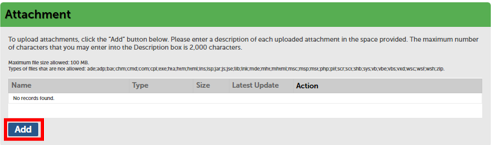
Clicking Add brings up a pop-up window for locating and attaching your file.
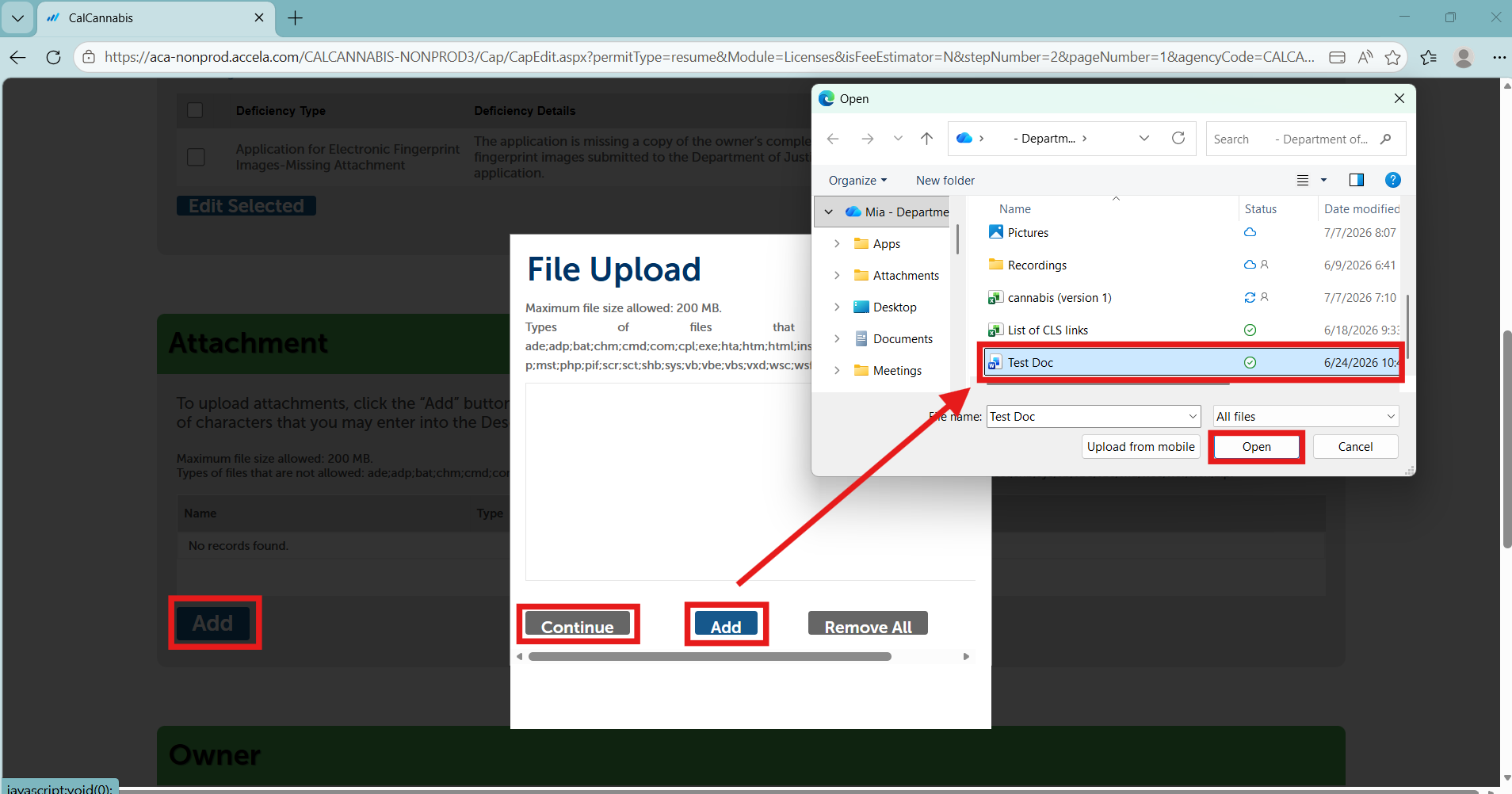
After selecting and double-clicking or clicking Open, click Continue in the pop-up window to close it and add the file.
View the attachment list
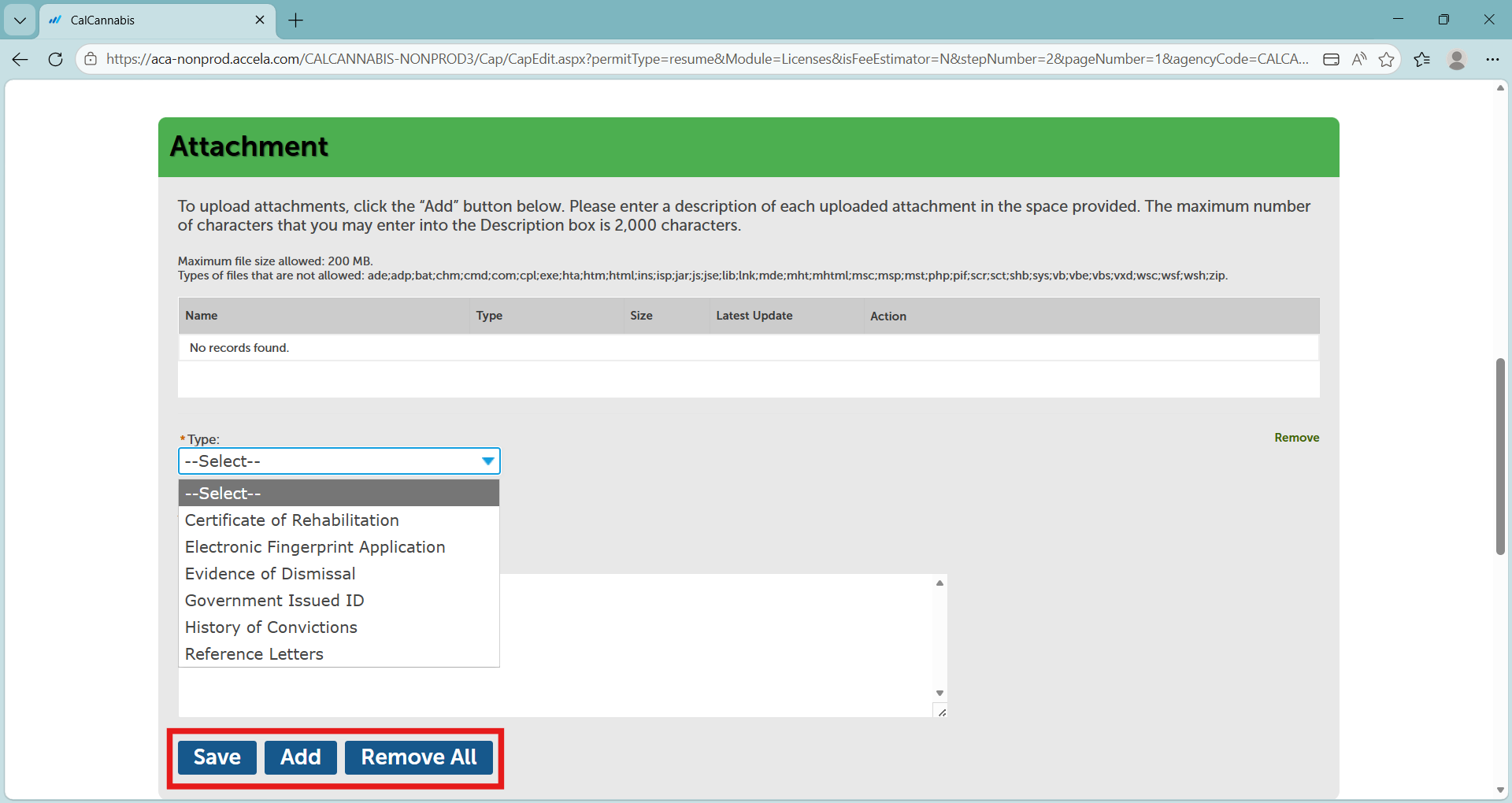
The pop-up window closes, and the Attachment section shows one or more files recently uploaded. Identify each file by using the Type dropdown list to select a category.
You may also enter a descriptive note explaining your uploaded file.
Click Add to attach other files, or Save, once you’ve selected a Type for each. You can’t move forward until you click Save.
Owner information
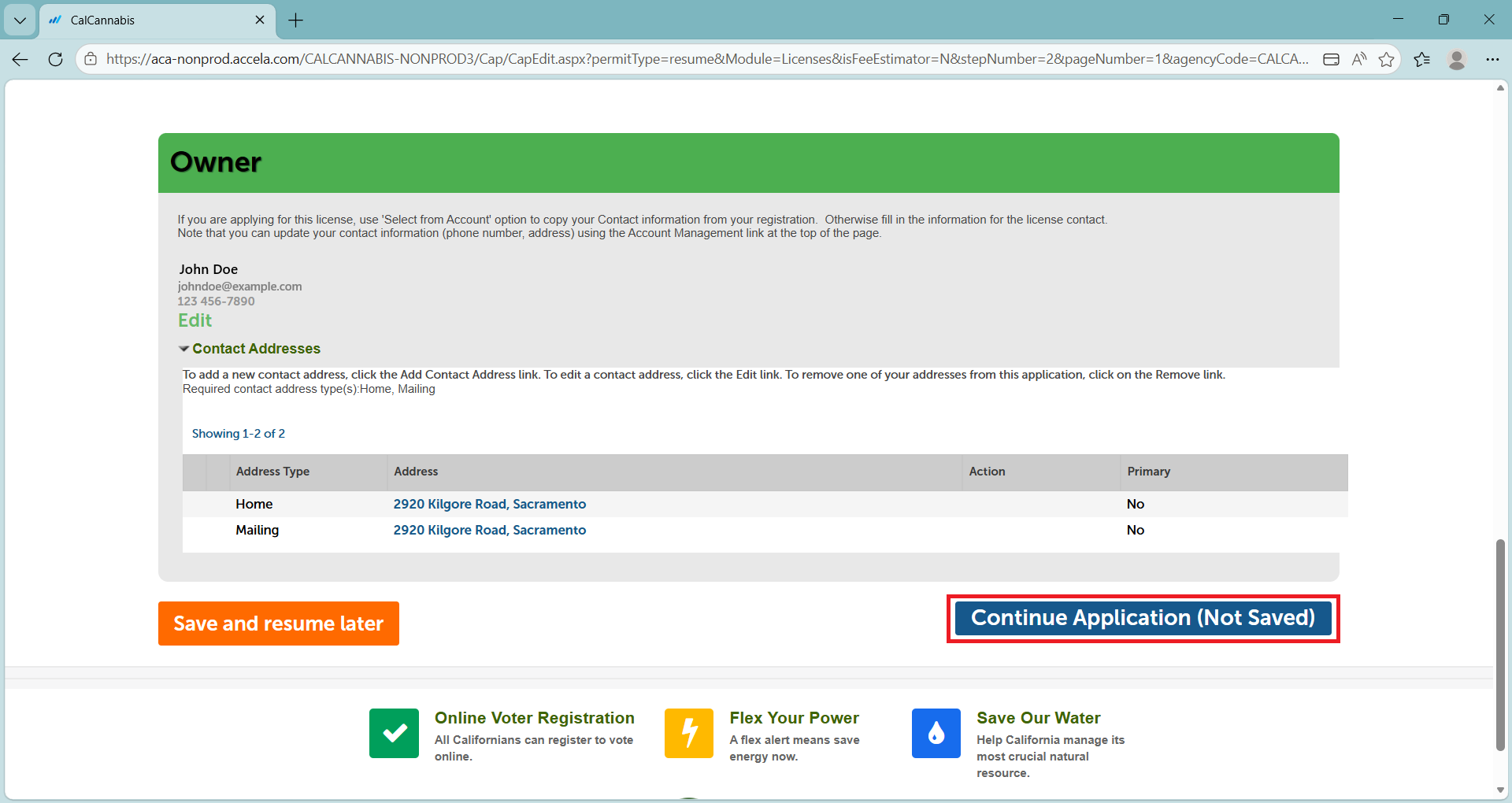
In the Owner section, your contact information is displayed. Do not change anything in this section.
Click Continue Application.
Review and submit
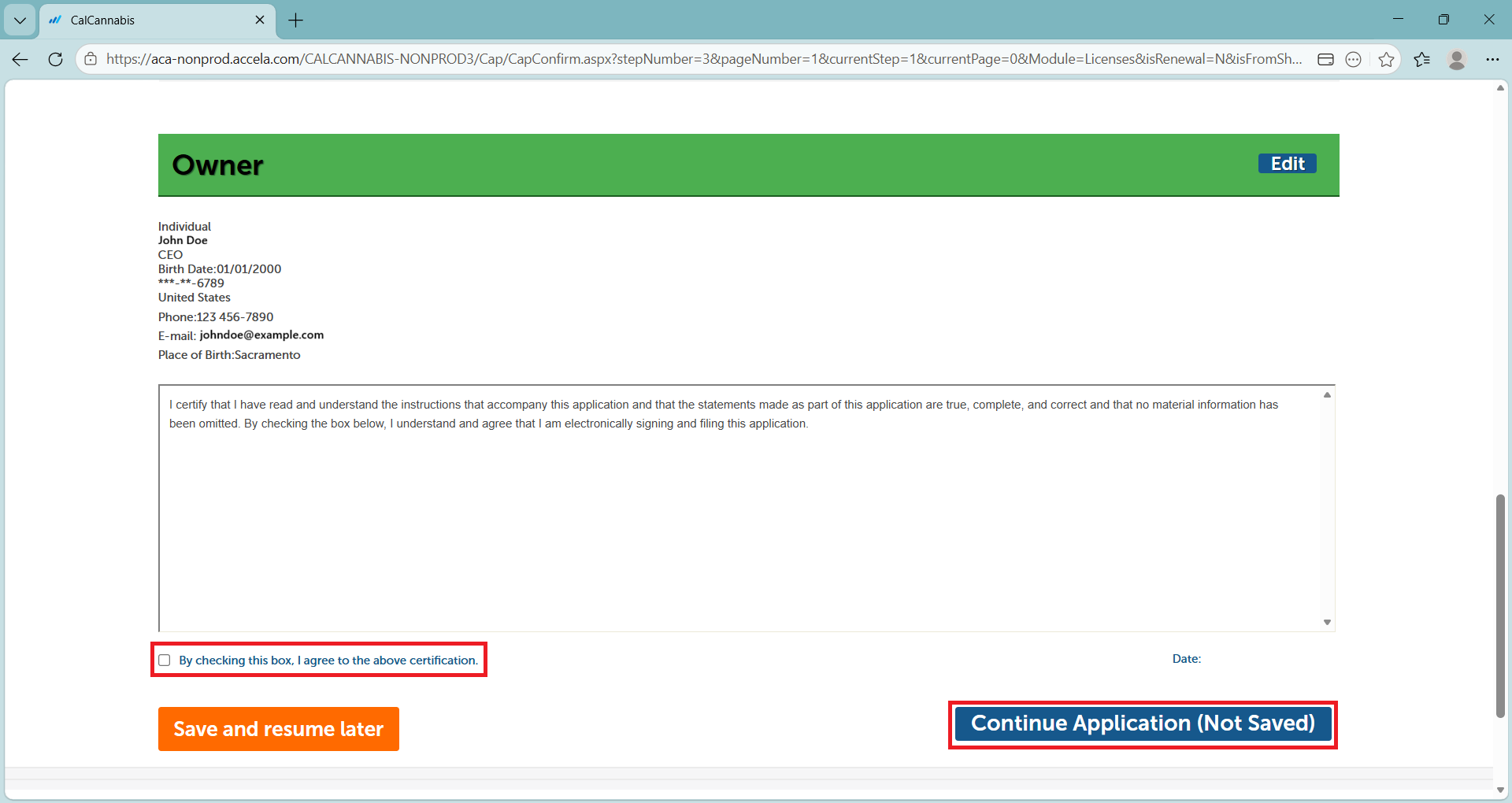
In the Review section, check over your Owner Application Amendment before submitting it.
At the bottom of the screen, check box to certify, then click Continue Application. Your Owner Application Amendment has been submitted.
Note: Remember that all amendments (deficiencies) must be responded to and cleared by the DCC before your cannabis cultivation license can be issued.