
Last reviewed: August 3, 2026
This guide provides a comprehensive overview of the steps and requirements for starting an annual license application. It covers general terms, application type and license type options, including cooperatives.
Key sections include:
- Saving and resuming later
- Business structure details
- Foreign corpotation information
- Doing Business As (DBA) details
- Relevant numbers such as Employer Identification Number (EIN), CDTFA seller’s permit, and SOS Registration
It also outlines necessary contact information and details required for the business, individuals, and owner’s list. Also included is information on premises, required documents, water and power supply, loca authorization, and more.
In this section, we will cover how to apply for a cannabis cultivation license. Here is an overview of the process, and what you will need to do:
- Choose Application Type: Adult-Use or Medicinal
- Choose License Type: the size of your site and cultivation method
- Define Business structure and financial interests
- Supply contact information for required roles:
- Designated Responsible Party (DRP, must also be an owner)
- Agent for Service of Process (ASOP)
- Owner(s)
Note: Each person is identified by their unique email address – assign only one email address per person.
- Provide premises address and Assessor’s Parcel Number (APN), water sources, power sources, local jurisdiction that authorized you or your business to cultivate cannabis within your city or county
- Upload required documents
- Electronically sign the application
- Each owner must create their account and submit an Owner Application, as well as apply for fingerprinting and a background check
- When Owner applications are submitted for all owners, complete and sign the Declarations and Final Affidavit (the Designated Responsible Party must do this)
- Pay the application fee, online (credit or debit card), by mail, or in person (at the offices of the Department of Cannabis Control in Rancho Cordova, Eureka or North Hollywood). See more details for payment methods on our Payments and office locations home page.
- If your application is approved, pay the license fee (see above).
- Access and print your cultivation license.
Begin annual license application
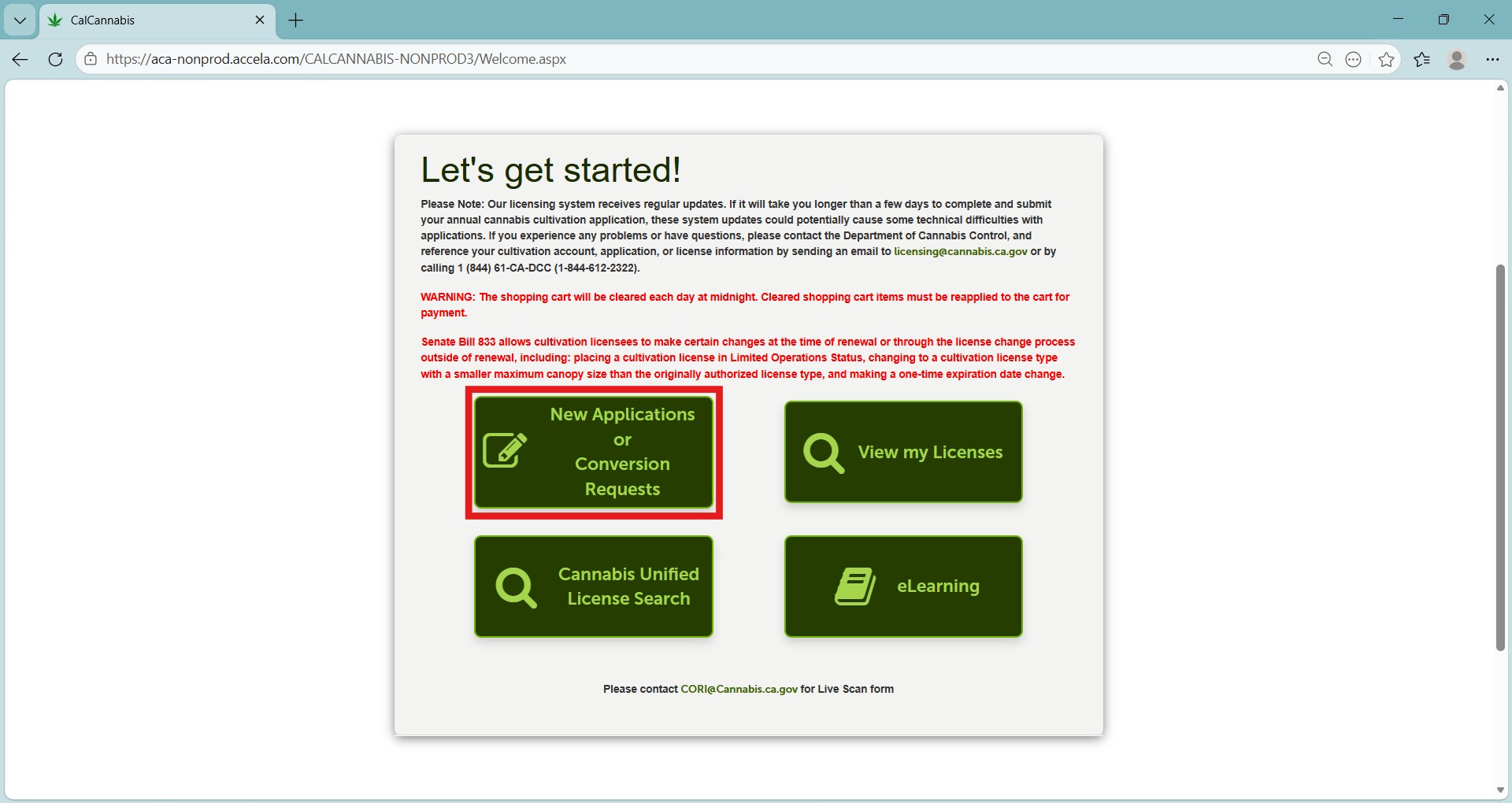
Log into the Licensing system.
Click New Applications or Conversion Requests.
General terms
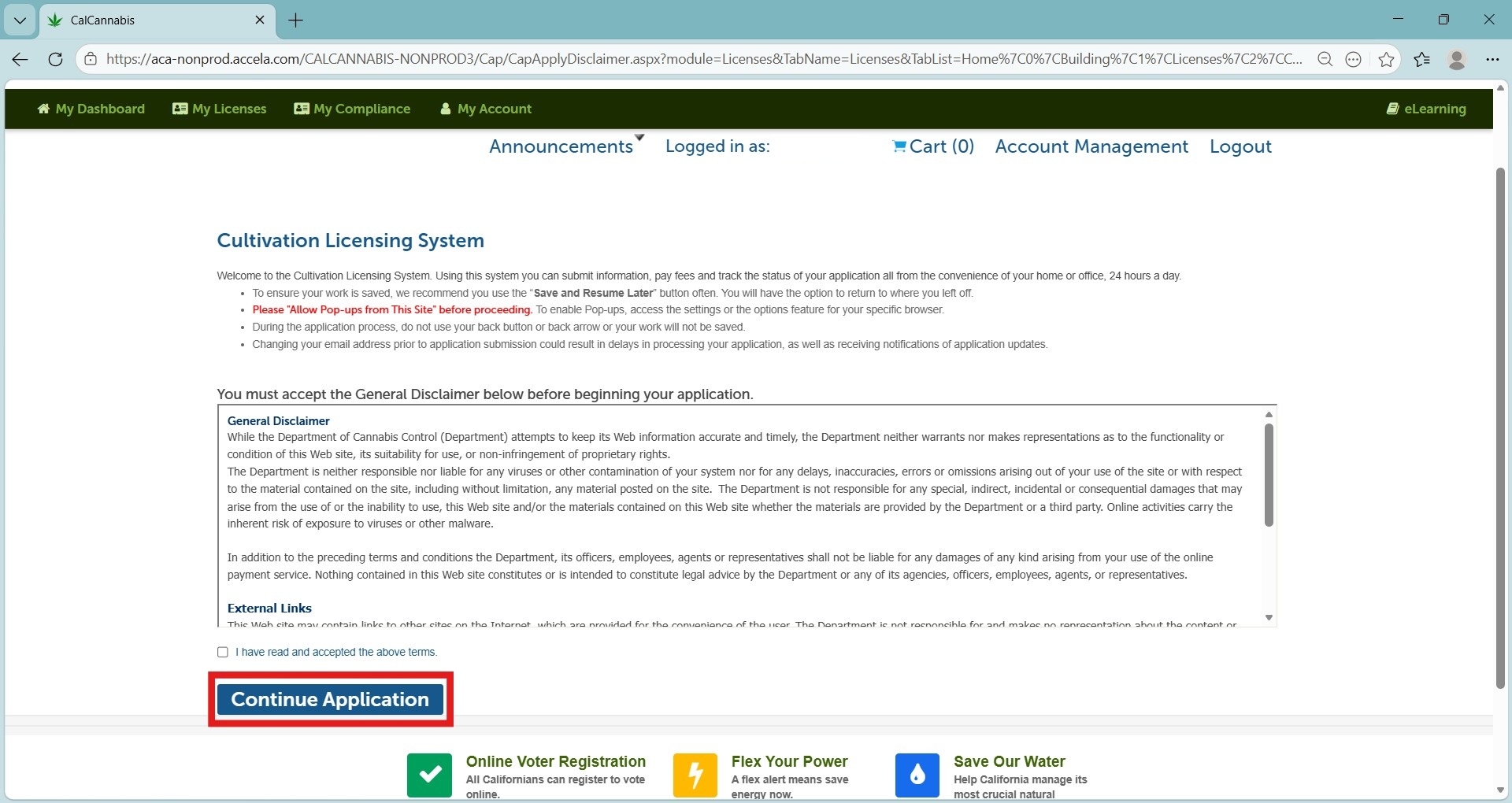
Review the General Disclaimer statement and check the box to accept the terms of use for the website.
Click Continue Application.
Application type
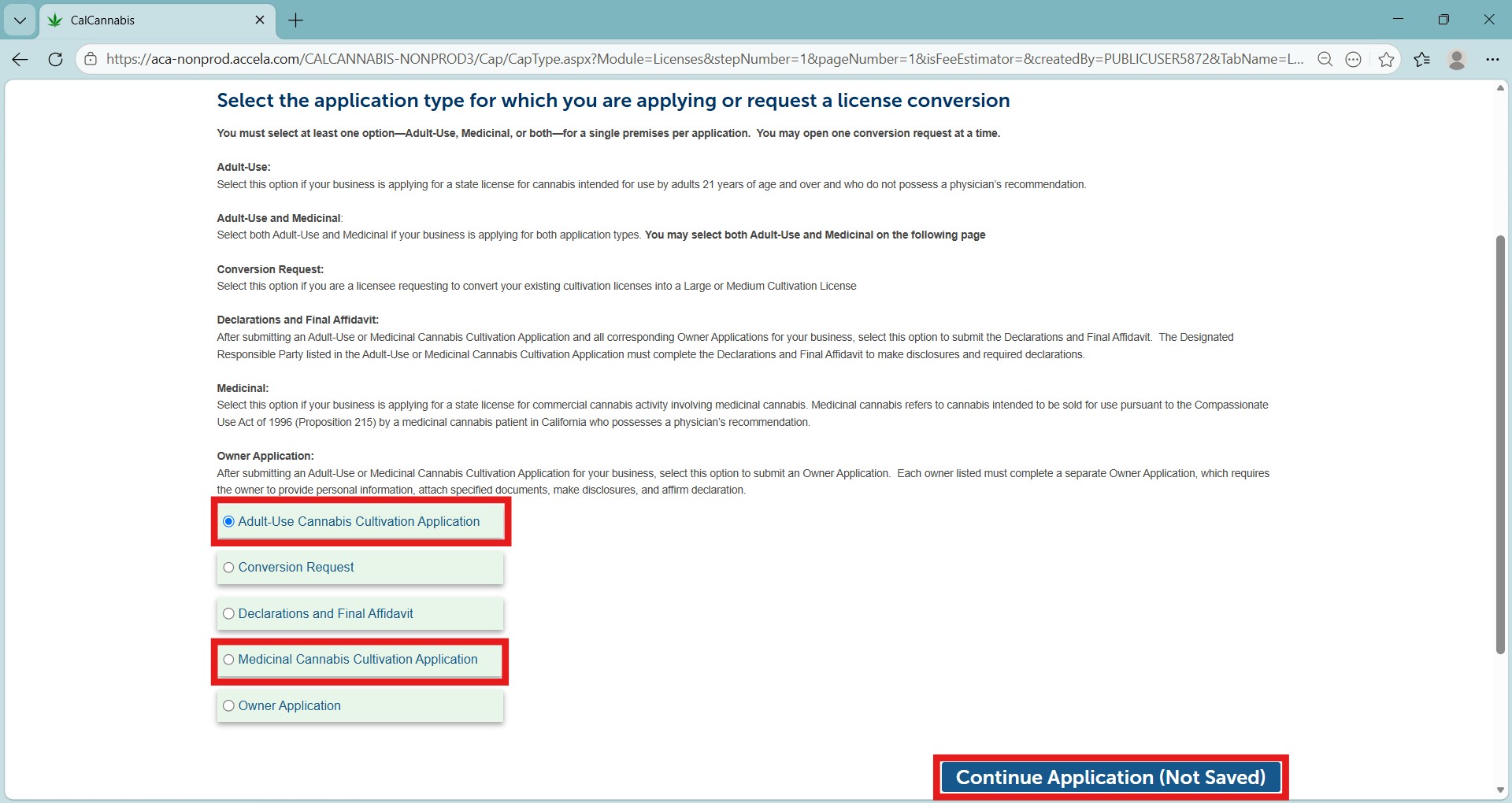
Select the type of application.
Select Conversion Request if you are requesting to convert your existing cultivation licenses into a Large or Medium Cultivation License.
The Owner Application and Declarations and Final Affidavit are records you will create after submitting your main license application. They will be discussed later.
Click Continue Application (Not Saved).
License type
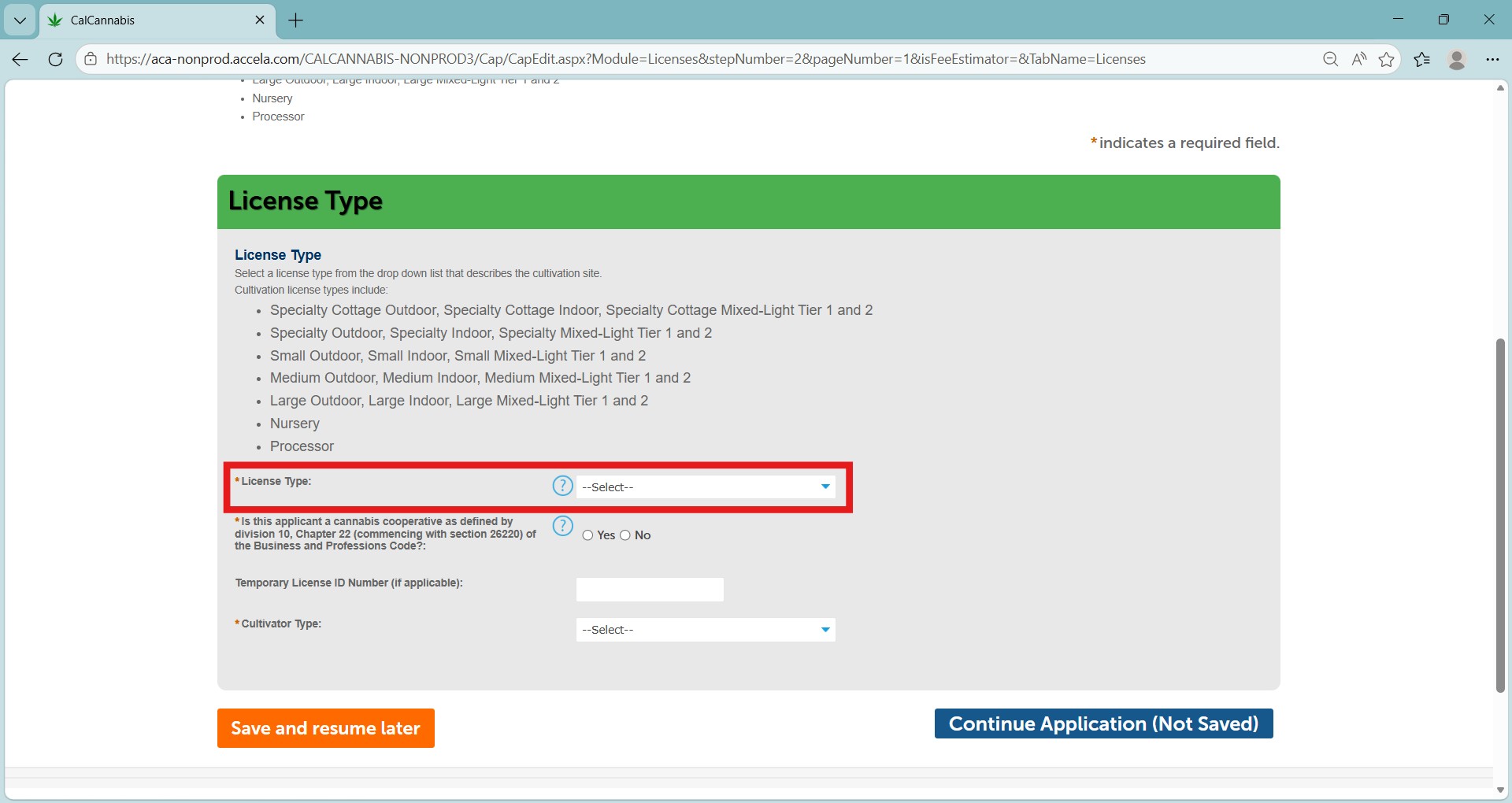
Select the License Type for your business.
There are 22 license types that you can apply for. These types combine the size of your site and the cultivation method.
Note: Select the correct license type. Changing it requires a new application.
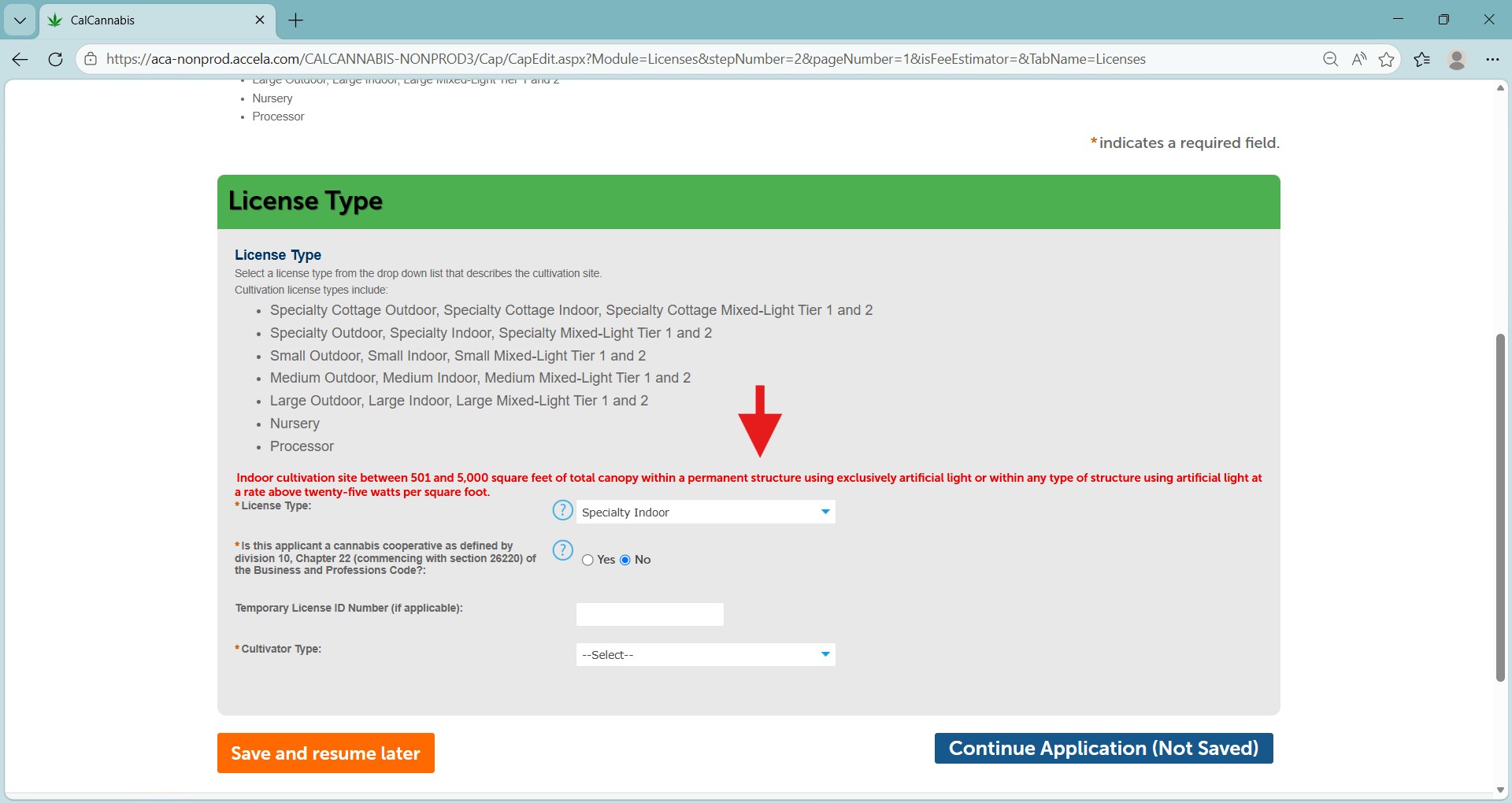
The red text above the license type field explains the requirements for the selected license type.
For example, a Specialty Outdoor site has less than or equal to 5,000 square feet of total canopy or up to 50 mature plants on noncontiguous plots without the use of artificial lighting in the canopy area.
Cooperatives
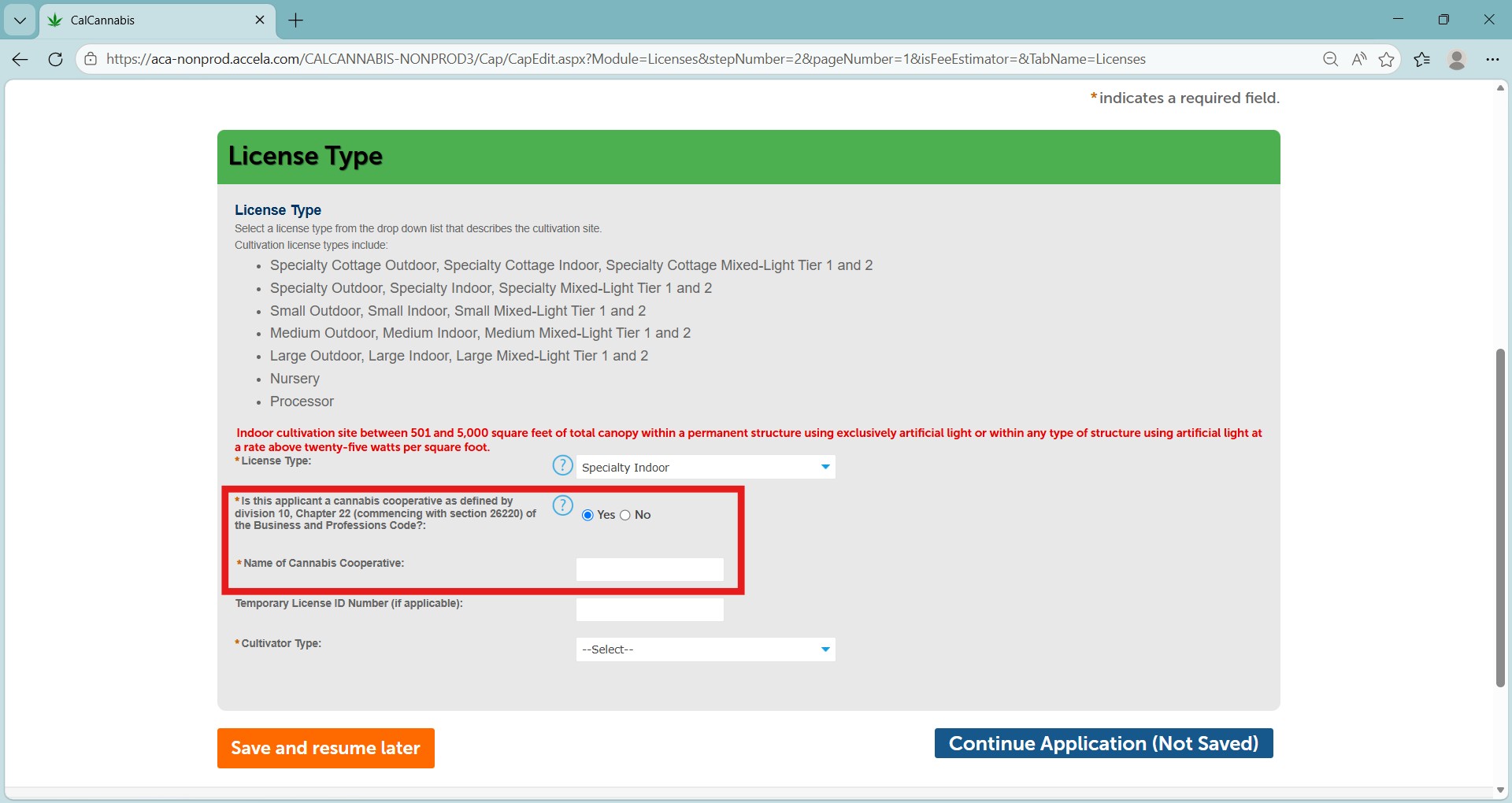
Check Yes or No to indicate whether your business is part of a cooperative.
Clicking Yes displays another field to enter the name of your cooperative.
Note: Use the “Help” function to see the legal definition of a cooperative, per Business and Professions Code Chapter 22.
Save and resume later
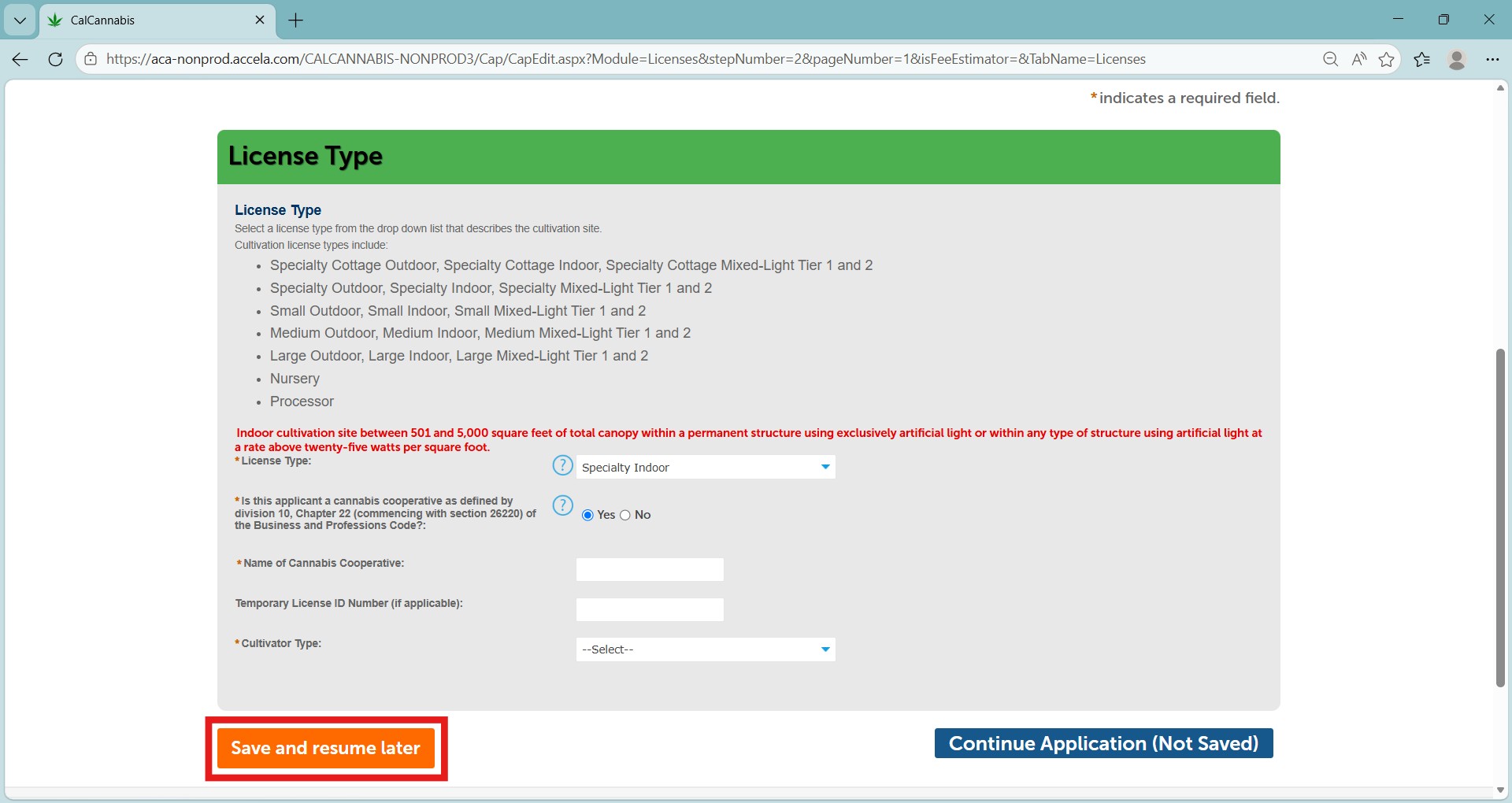
Click Save and resume later to save your work. To avoid losing work if you step away from your computer, save before your session times out after one hour.
The application will be waiting in the “My Licenses” list. You can click Resume Application to continue.
Business structure
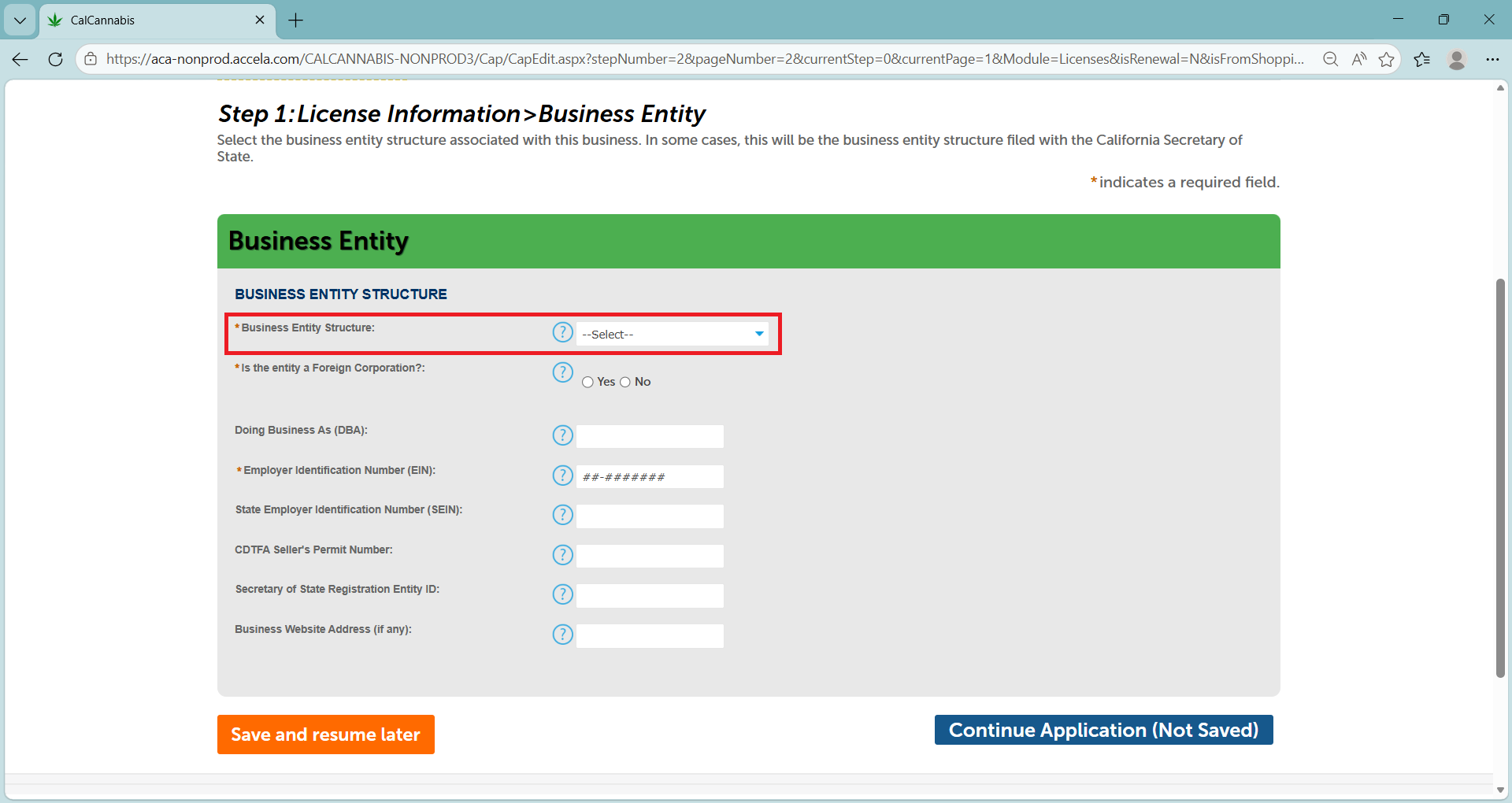
Select your Business Entity Structure from the dropdown list.
This choice determines some of the documentation you will need to provide later in the application.
Foreign corporation
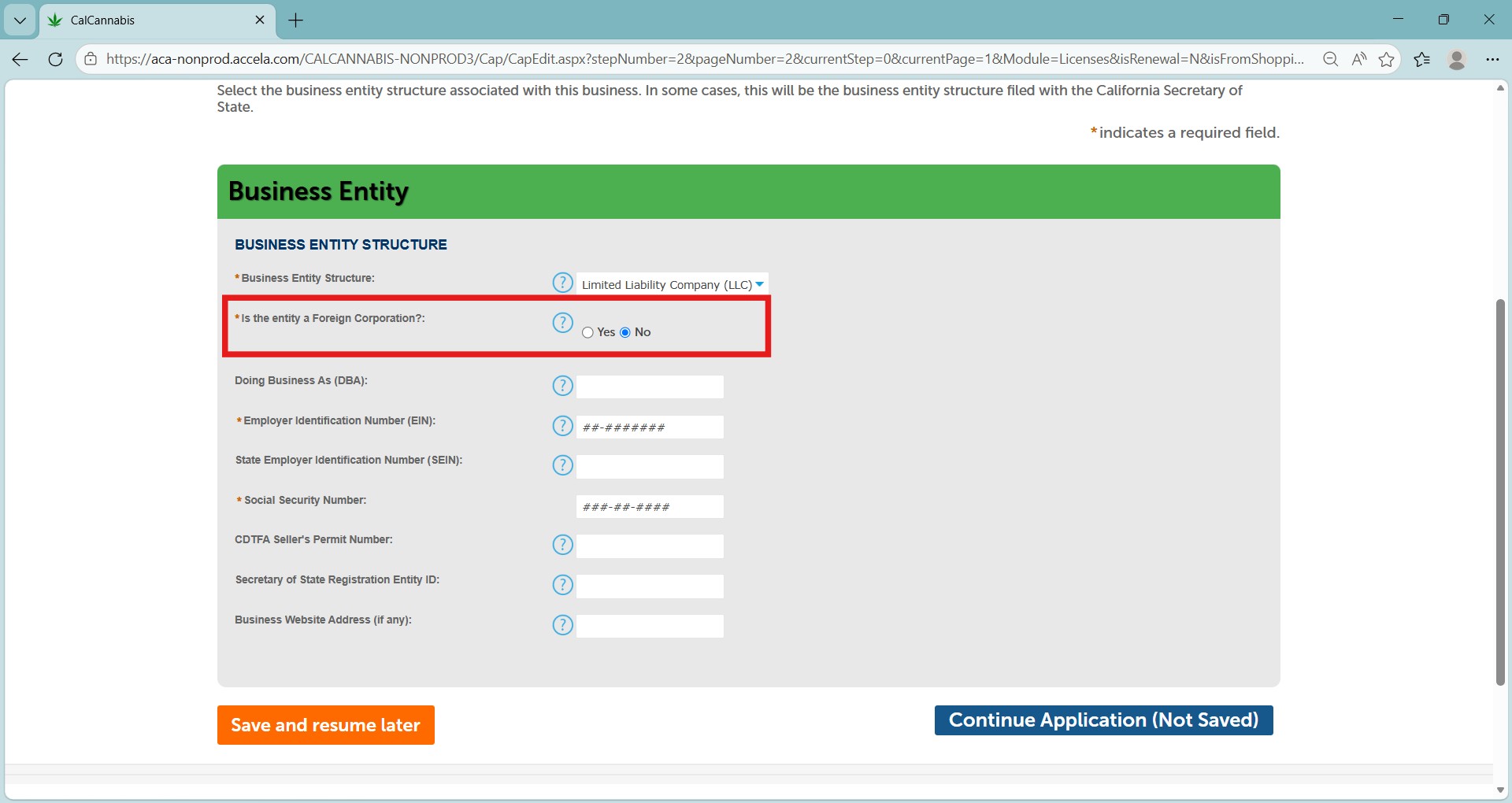
Indicate whether your business is a Foreign Corporation.
Checking Yes will require later documentation.
Doing business as (DBA)
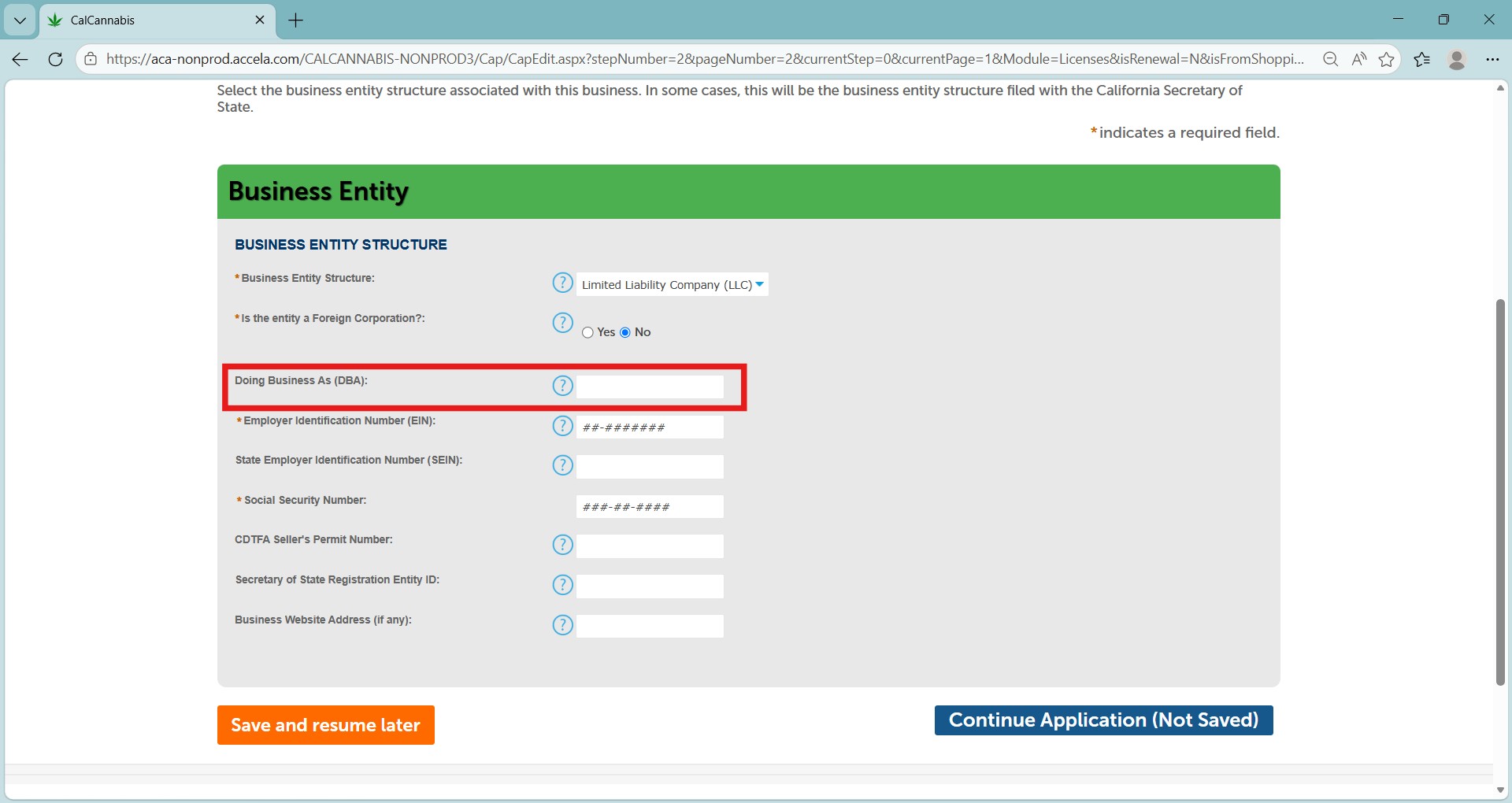
List every business trade name, fictitious business name and/or doing business as (DBA) name under which the commercial cannabis business will operate.
Separate each name by a comma.
Employer identification number
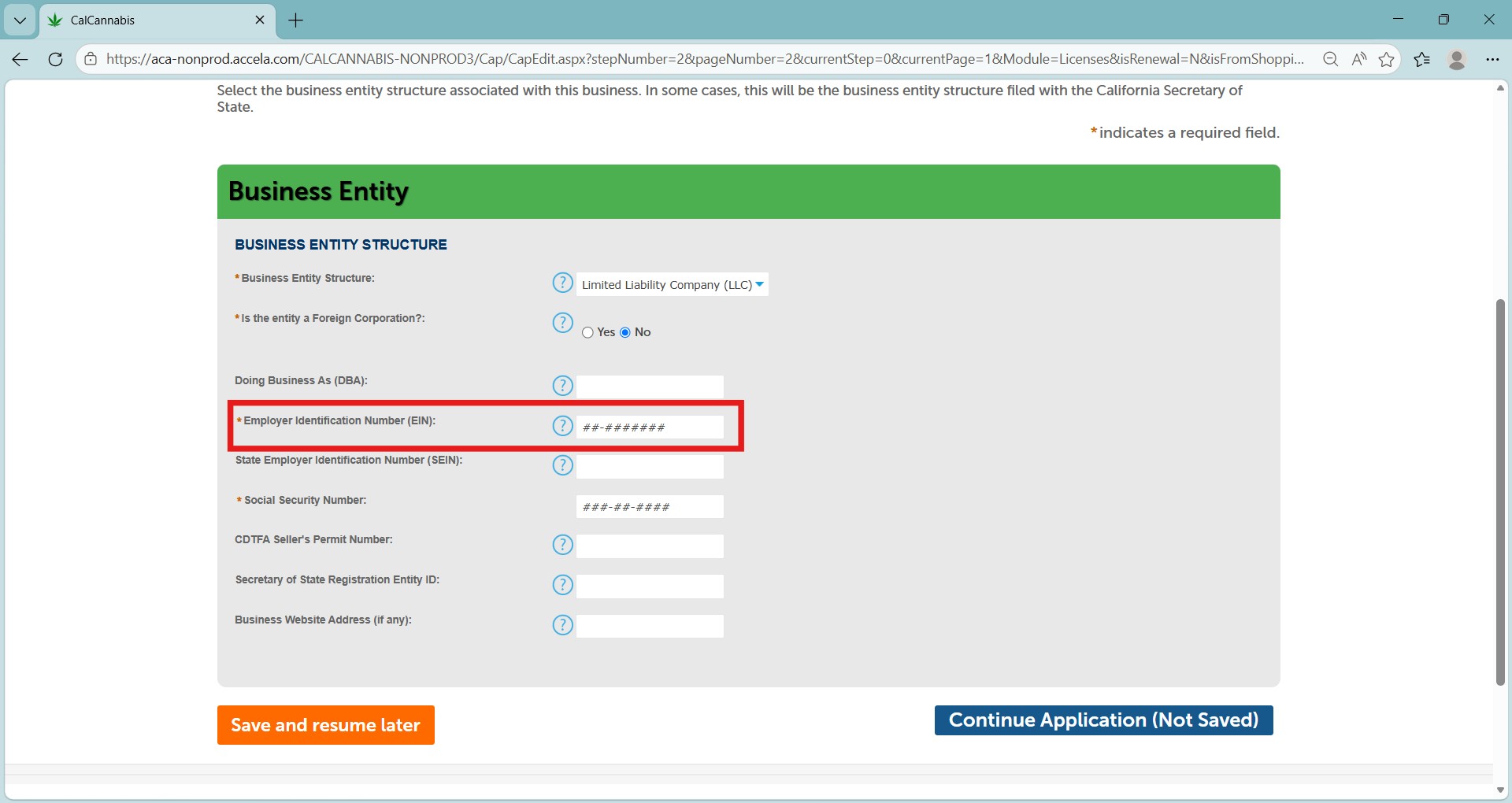
Enter your Employer Identification Number (EIN).
If you chose Sole Proprietorship as your Business Entity Structure, a field for your Social Security Number or ITIN also displays, should you wish to report income through either of those numbers.
CDTFA seller’s permit and SOS registration number (optional)
The Seller’s Permit Number from the California Department of Tax and Fee Administration (CDTFA) and the Secretary of State Registration Entity ID are optional.
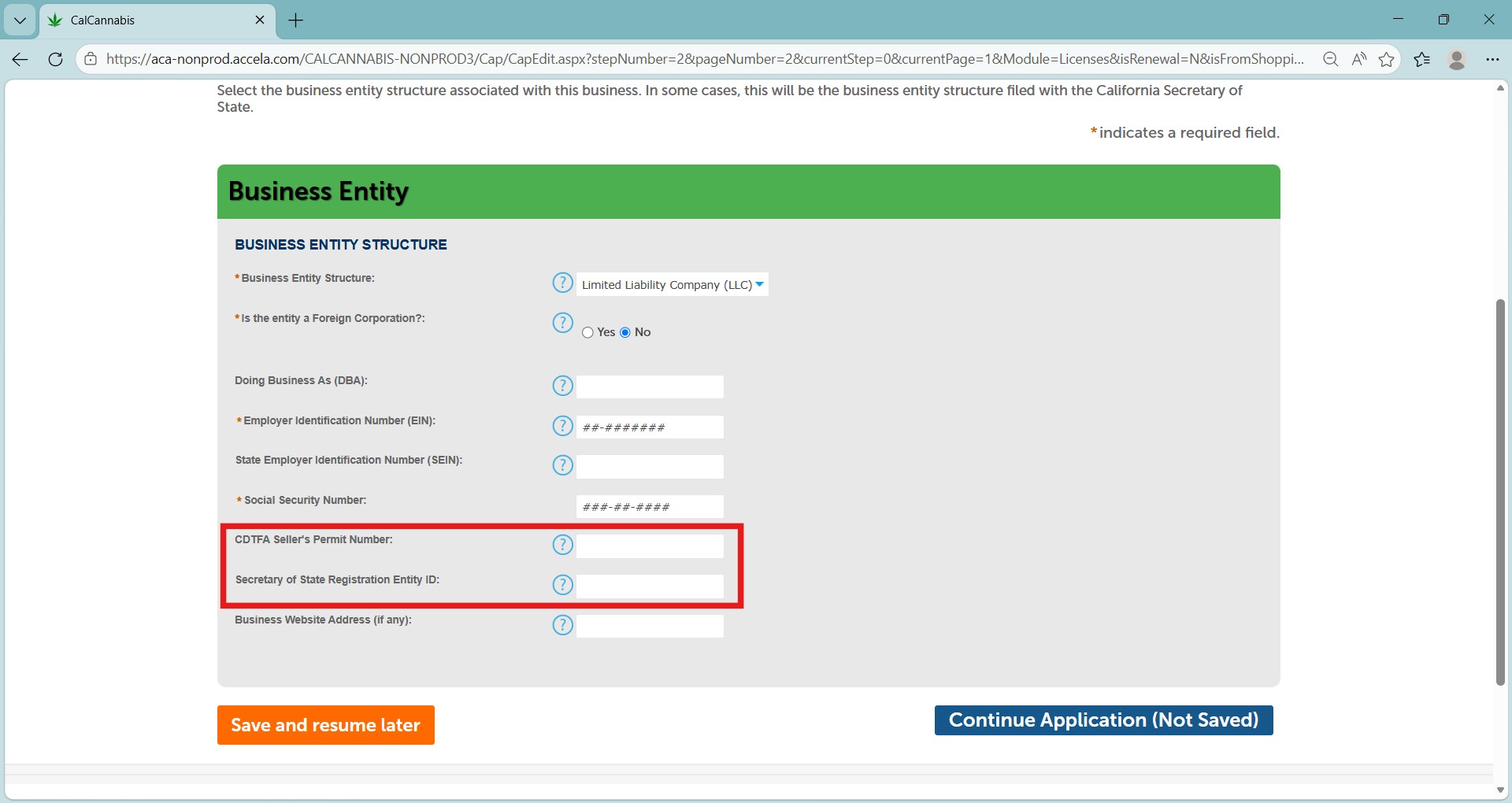
If you do not enter a Seller’s Permit Number, you will need to attach proof from CDTFA that your business is in the process of obtaining one.
Click Continue Application when finished.
Business contact information
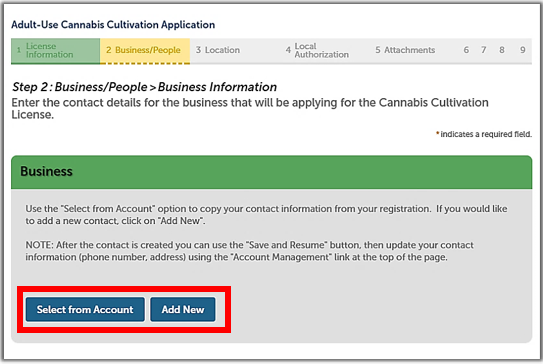
The Business section asks for the applicant’s contact and address information.
Click Select from Account to get this information from your own CLS account or click Add New to enter another person’s contact information.
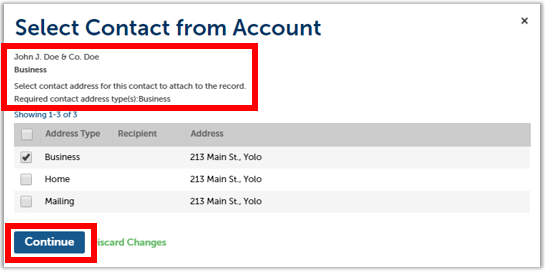
Choose the Business address type. It will be preselected if you created one when you registered. Click Continue.
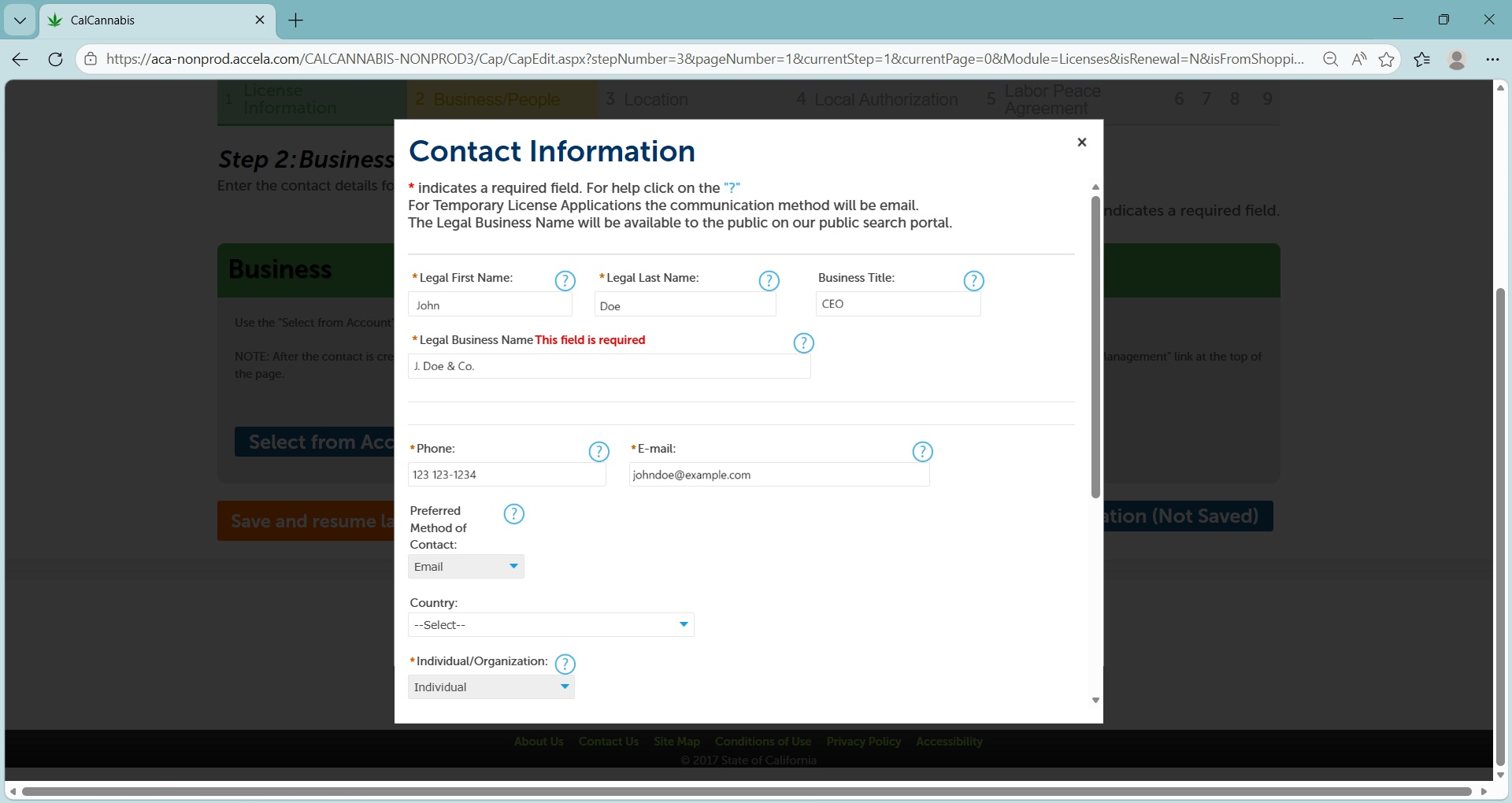
A pop-up window opens with the contact information from your account, including the business address type. All fields in the window are required. Enter anything that has not already been captured.
Note: Not all fields may be marked with an asterisk, but all are required.
Click Continue to save this information to your application.
Designated Responsible Party
Next, enter your business’s Designated Responsible Party (DRP). The DRP is the individual owner identified by the commercial cannabis business who has legal authority to bind the commercial cannabis business and who is the primary contact for the application and license-related issues.
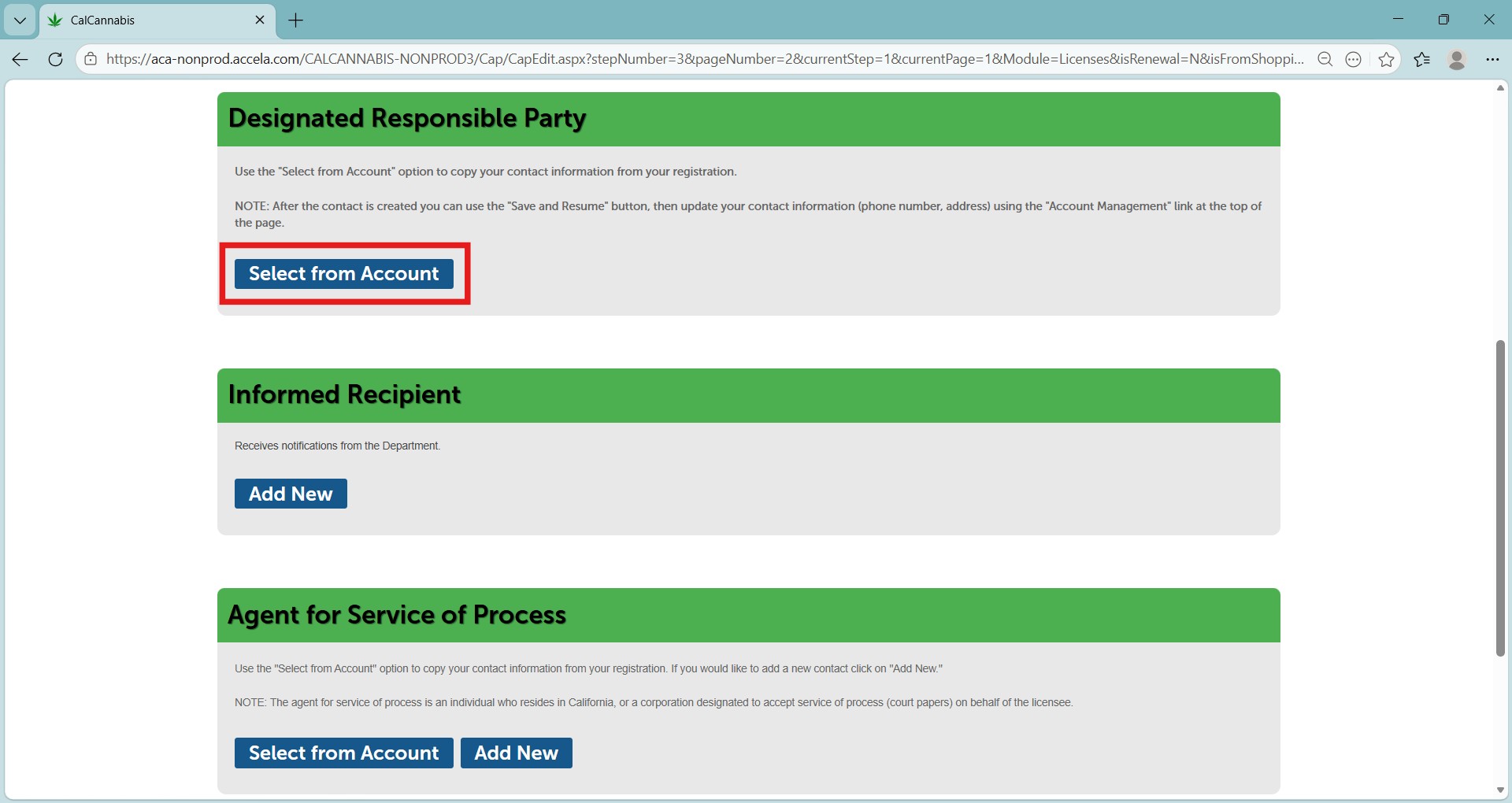
To add the DRP, select Select from Account for your own contact information.
To select your contact information, the mailing address type is required.
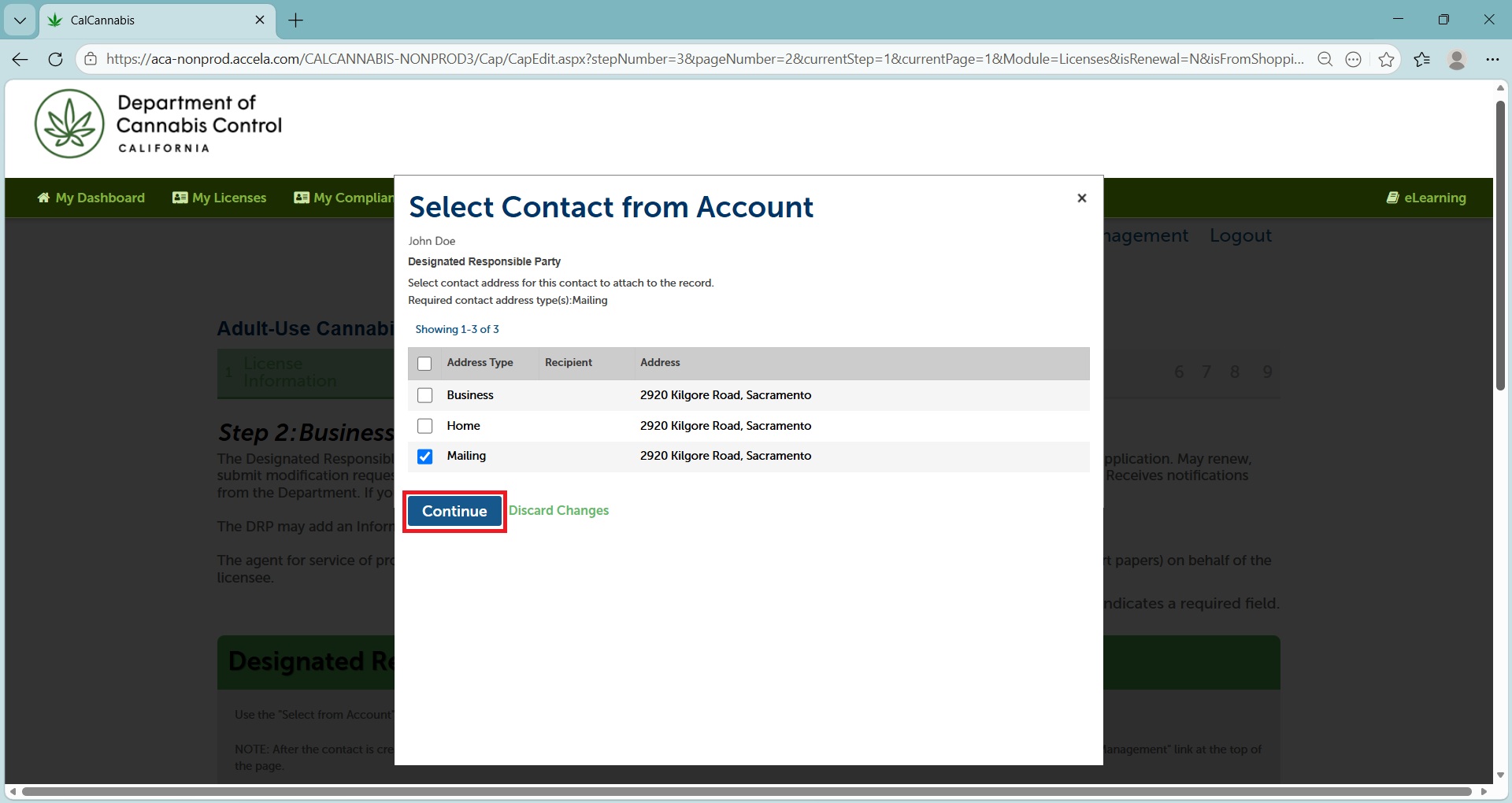
Confirm the address in the pop-up window and click Continue.
Note: One person, one email address. Use the same email registered by the DRP in their CLS account in the contact information window. Any issues caused by using different email addresses will significantly delay your application processing.
Informed Recipient
The Informed Recipient receives automated system notifications from the Department. They do not have access to application or license records.

If you plan to add an Informed Recipient, click Add New to enter the individual’s contact information.
The required information is first and last name and email address.
When you have saved contact information for all roles on this page, click Continue Application.
Agent for Service of process
The Agent for Service of Process (ASOP) must be an individual residing in California or a business entity designated to accept court papers on behalf of the licensee.
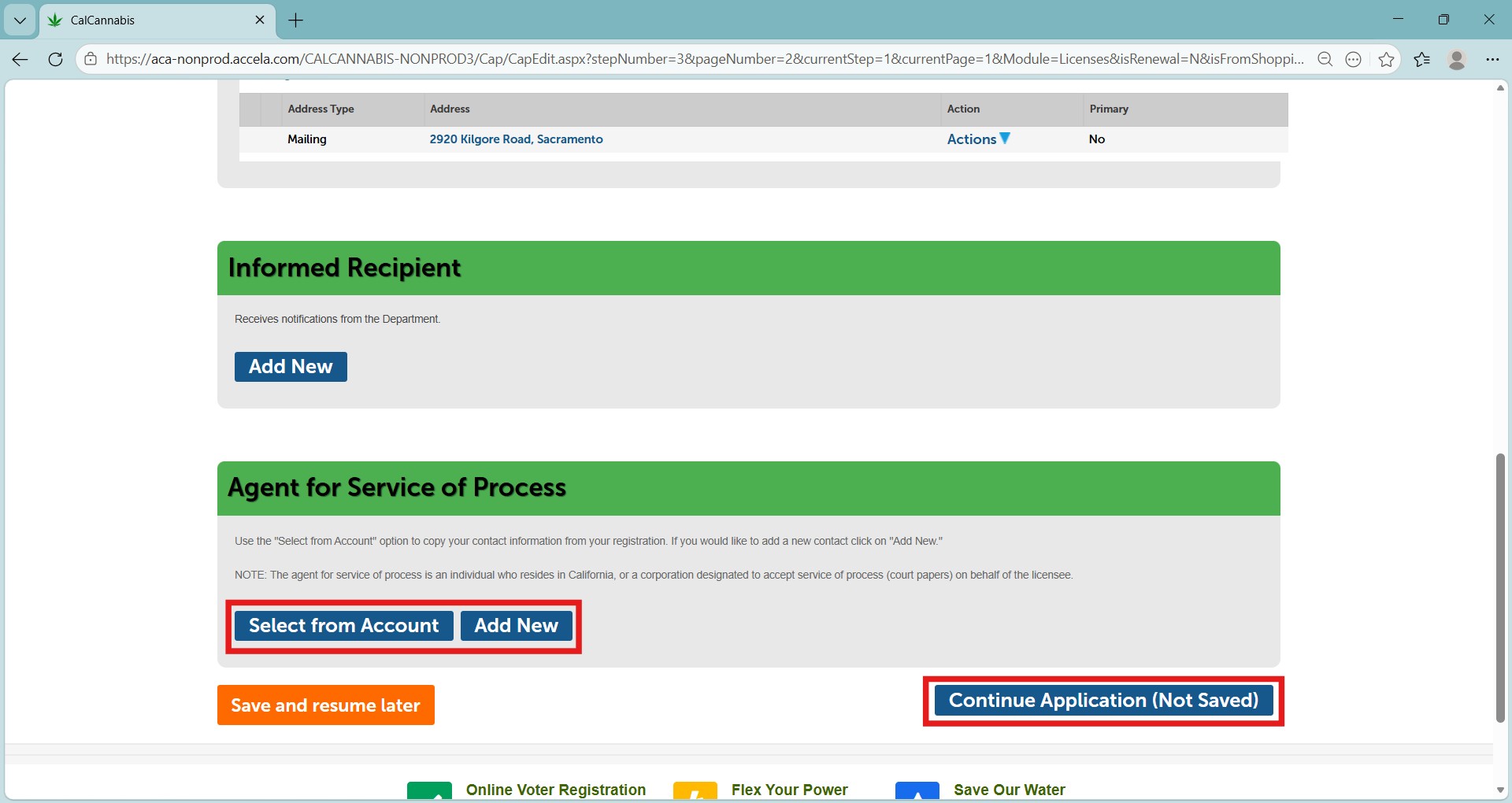
If you plan to add an Agent for Service of Process, click Select from Account or Add New to enter a different individual.
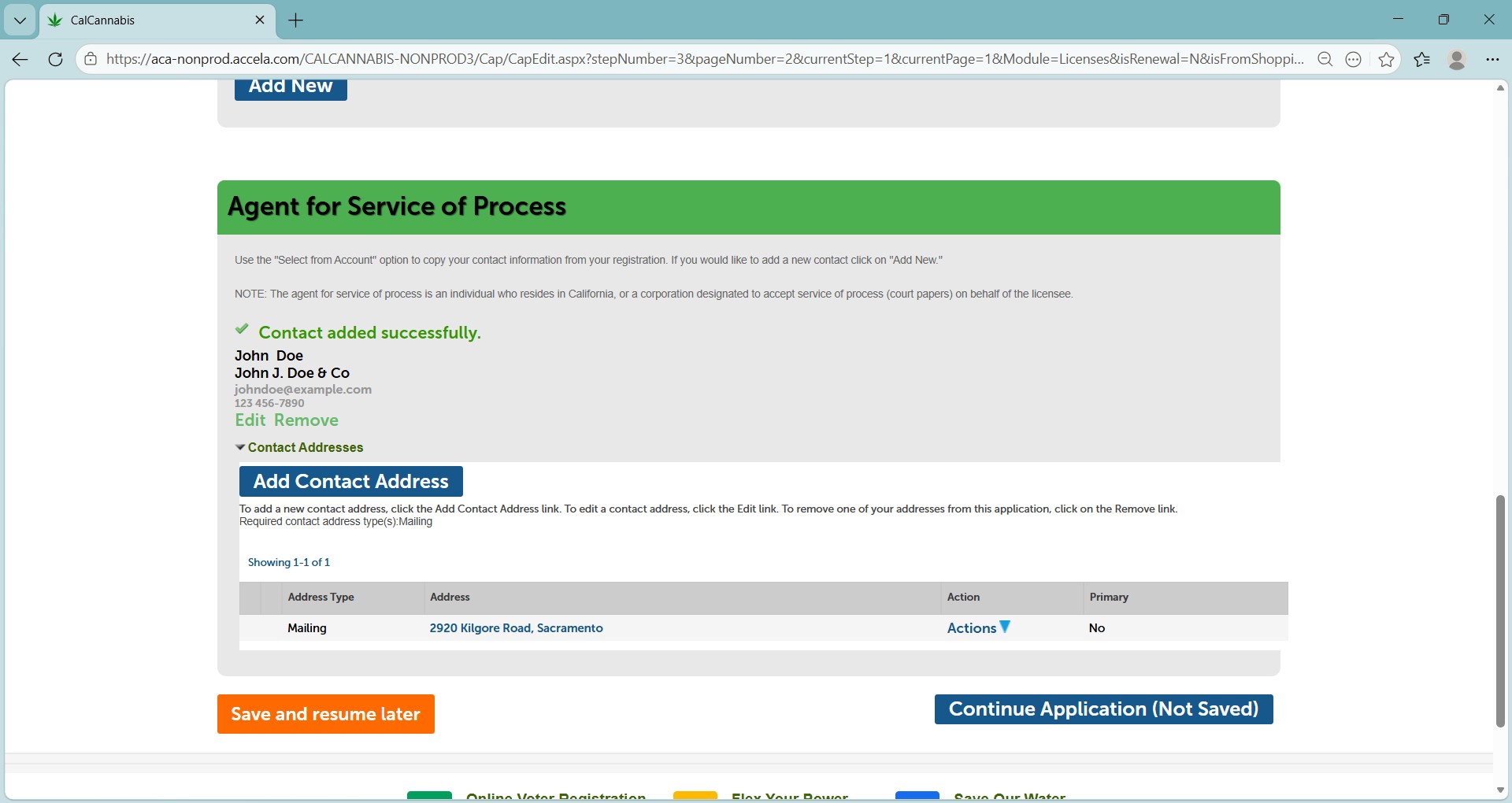
The required information for adding or changing an ASOP is full legal name, mailing address, phone number, email address, and preferred method of written communication (ex. standard mail or email).
When you have saved contact information for both roles, click Continue Application.
Business, people, and owners list
In this section, create a list of owners of the cannabis business entity.
An “Owner” is any of the following:
- A person with an aggregate ownership interest of 20% or more in the cannabis cultivation business applying for a license or a licensee, unless the interest is solely a security, lien, or encumbrance.
- The chief executive officer of a nonprofit or other entity.
- A member of the board of directors of a nonprofit.
- An individual who will be participating in the direction, control, or management of the person applying for a license.
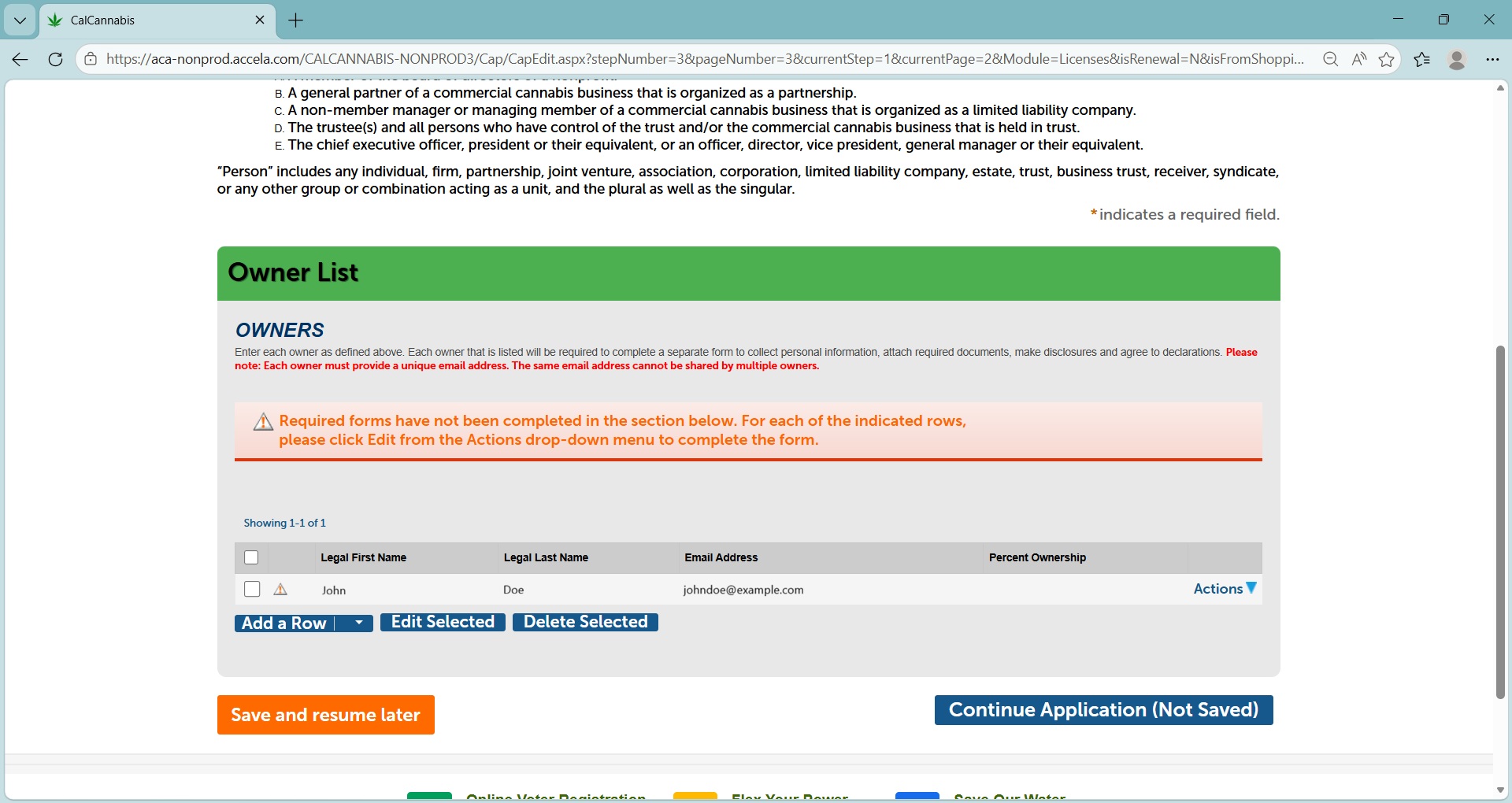
The Designated Responsible Party is prefilled on the Owner List. You must edit the contact information before proceeding.
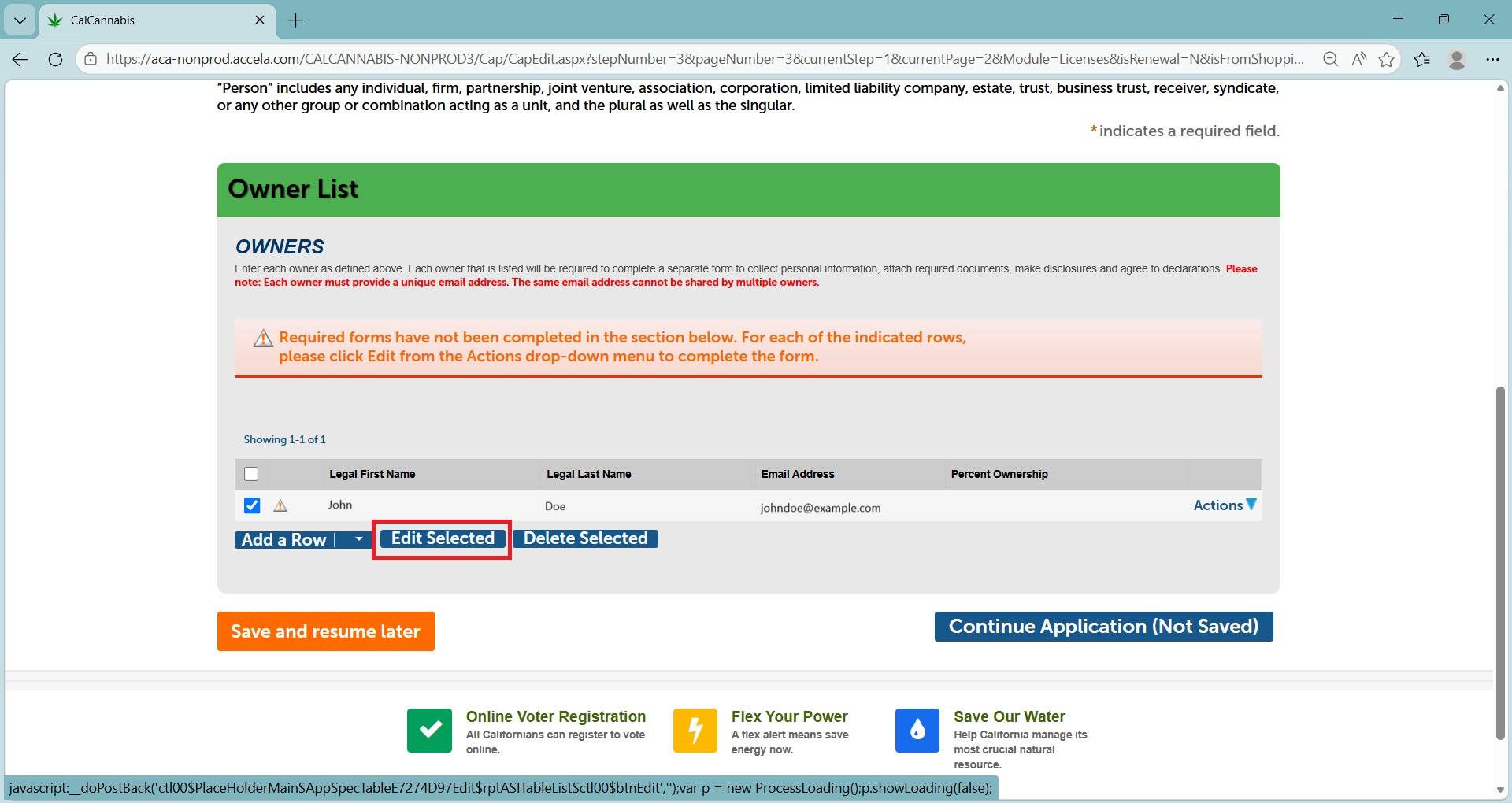
Confirm the name and email address in the DRP’s owner entry.
Note: Do not provide a different email address than the one you registered with. Do not share the email address between multiple owners.
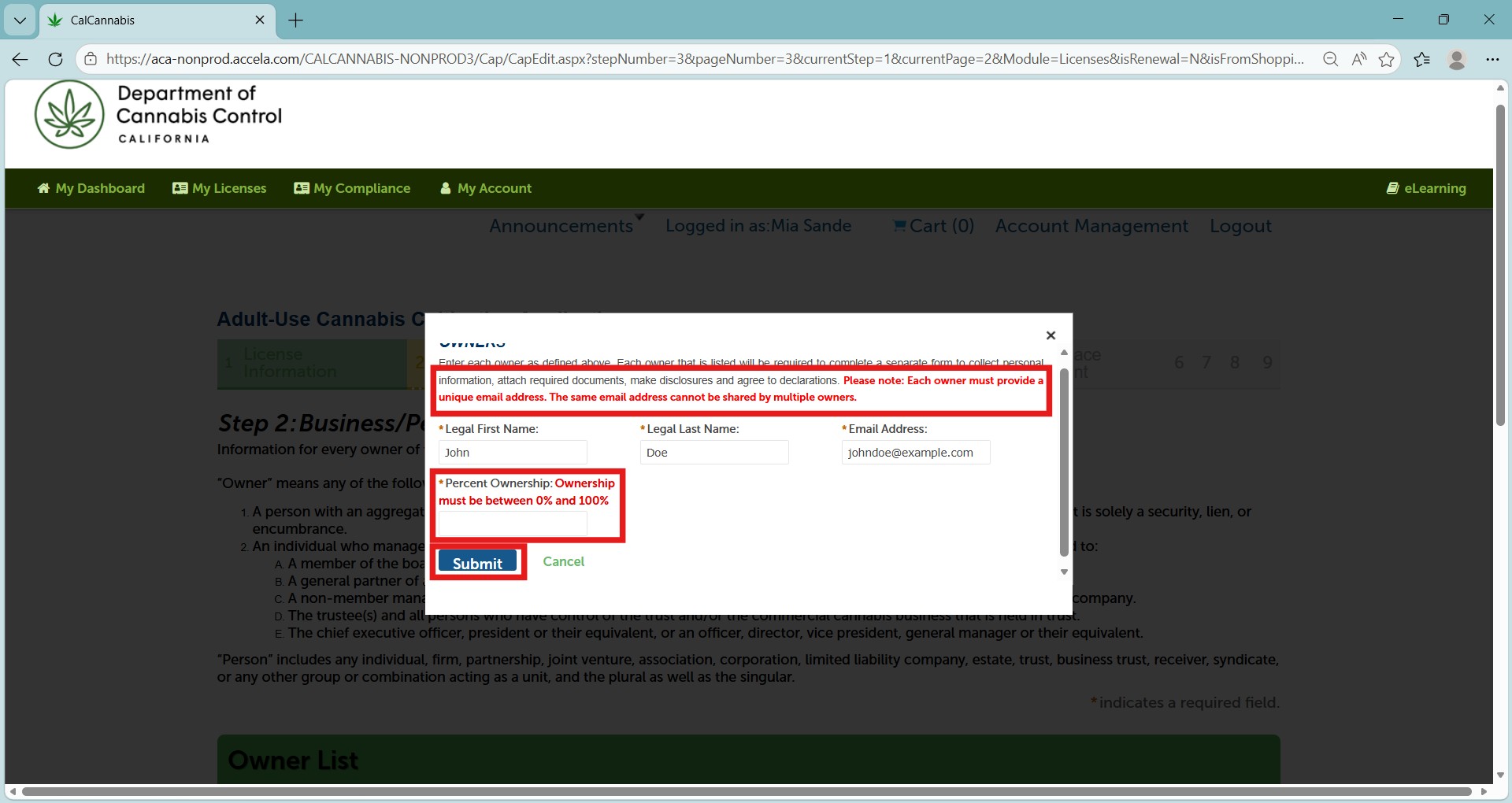
Enter the percentage of the business owned by the DRP and click Submit.
Note: You can create one or more entries for other owners in the business entity. If you have multiple owners, click Add a Row.
Enter each owner’s legal first and last name. This is case-sensitive for owners with preexisting accounts. Add the email address and percentage ownership in the pop-up window.
Click Submit to save each owner entry.
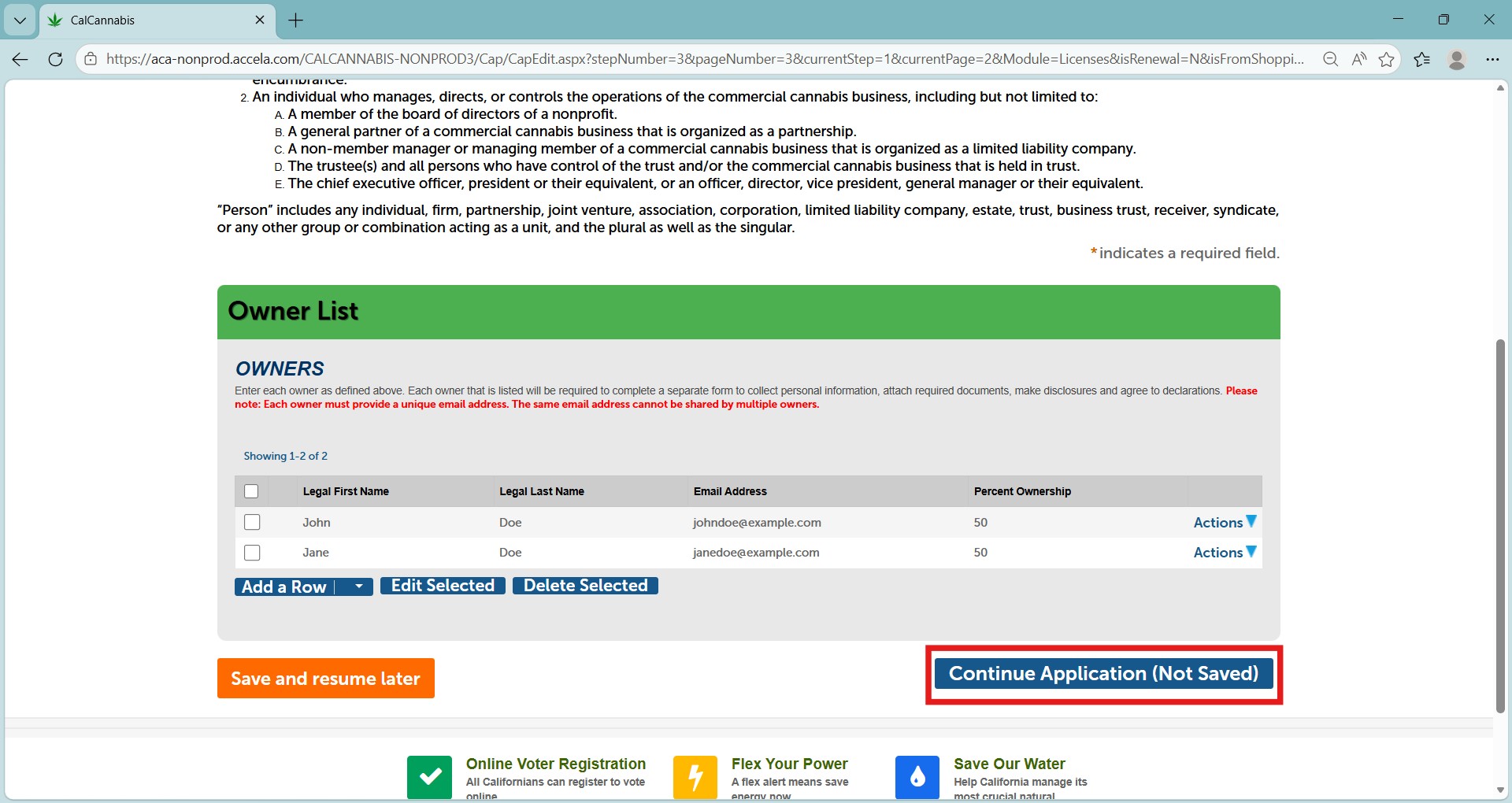
Click Continue Application when finished.
Note: When the main application is submitted each individual on the Owner List receives an email from the Cultivation Licensing System notifying them to complete their Owner Application. Each owner needs to create an account if they have not previously.
Financial interest holders
“Financial interest holder” means any of the following:
- A person with an aggregate ownership interest of less than 20 percent.
- A person providing a loan to the commercial cannabis business.
- A person entitled to receive 10 percent or more of the profits of the commercial cannabis business, including:
- An employee who has entered into a profit share plan with the commercial cannabis business.
- A landlord who has entered into a lease agreement with the commercial cannabis business for a share of the profits.
- A consultant who is providing services to the commercial cannabis business for a share of the profits.
- A person acting as an agent, such as an accountant or attorney, for the commercial cannabis business for a share of the profits.
- A broker who is engaging in activities for the commercial cannabis business for a share of the profits.
- A salesperson who earns a commission.
Financial interest holders do not include any of the following:
- A bank or financial institution whose interest constitutes a loan.
- Persons whose only financial interest in the commercial cannabis business is through an interest in a diversified mutual fund, blind trust, or similar instrument.
- Persons whose only financial interest is a security interest, lien, or encumbrance on property that will be used by the commercial cannabis business.
- Persons who hold a share of stock that is less than 10 percent of the total shares in a publicly traded or privately held company.
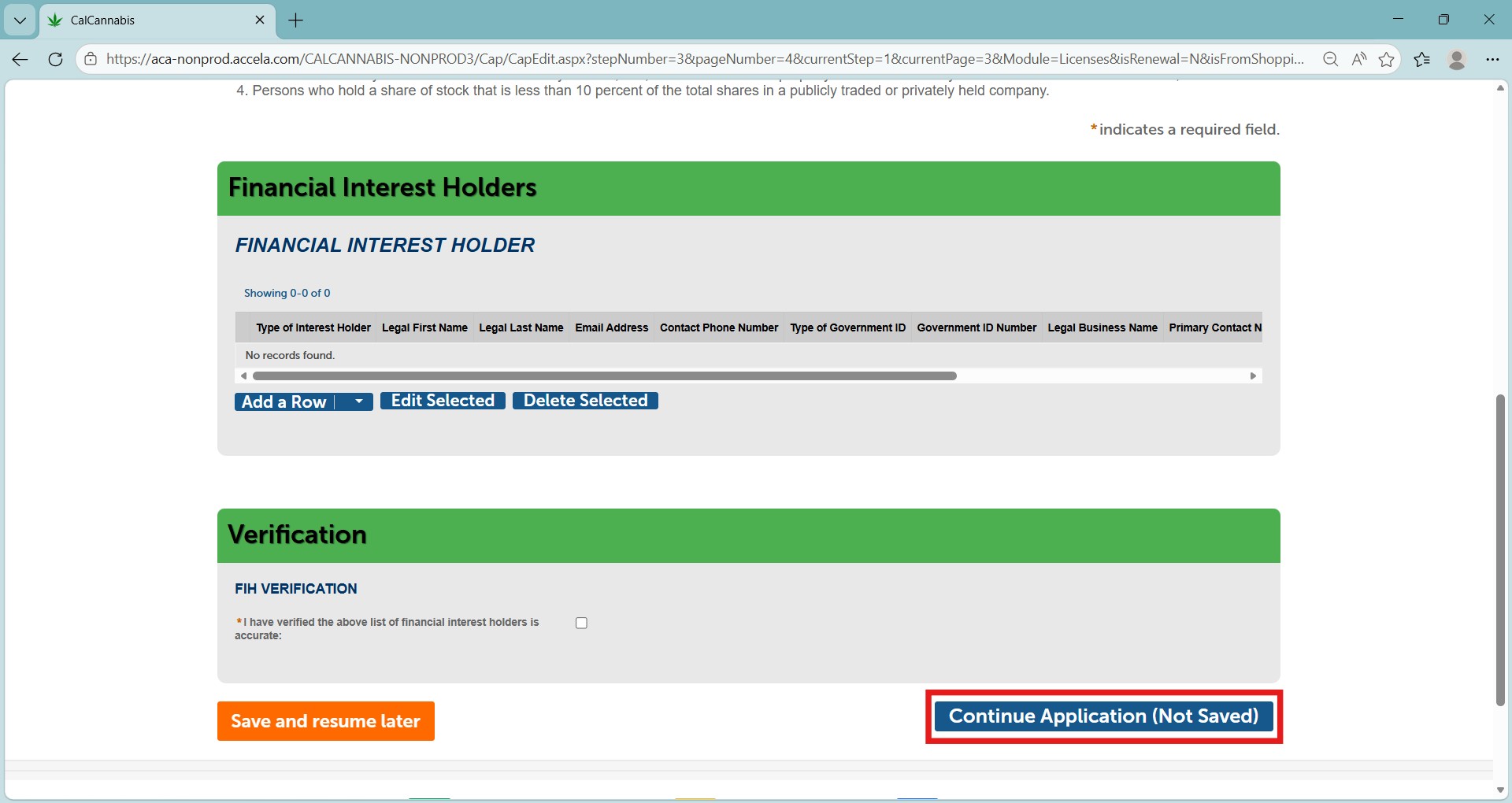
Click Add a Row to add the contact information for one or more financial interest holders.
Check the verification box to acknowledge accuracy of the listed financial interest holders.
Click Continue Application (Not Saved) to continue.
Premises information
Note: Your premises address is not considered confidential and may be disclosed pursuant to a California Public Records Act request.
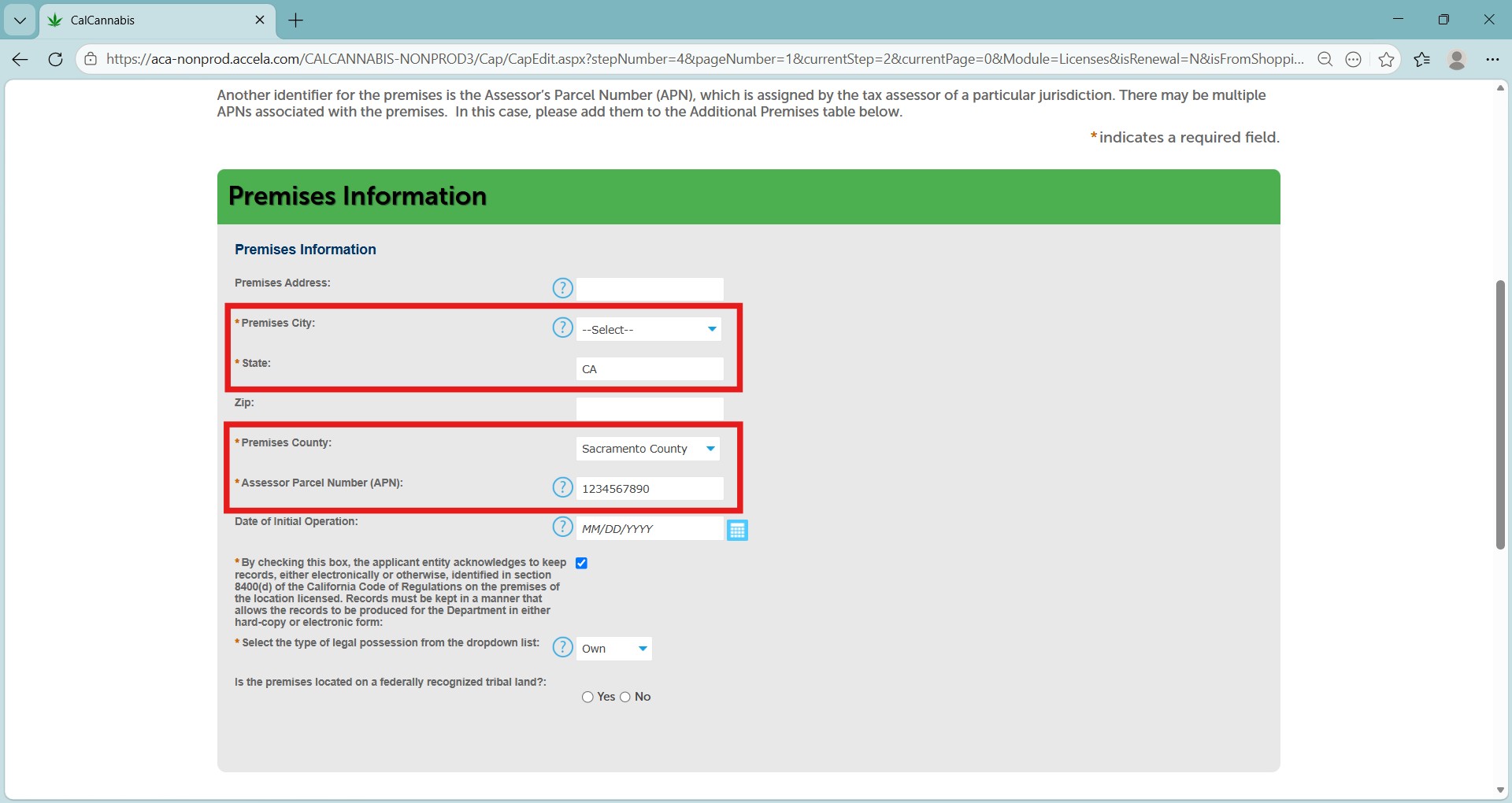
Enter the location of your cultivation site. Required fields are:
- City
- Premises County
- Assessor Parcel Number (APN)
The Premises address, zip code, and date of initial operation are optional, but you must add all of them if you choose to add one.
If you enter a date into the optional Date of Initial Operation field, you will be required later to attest to its accuracy.
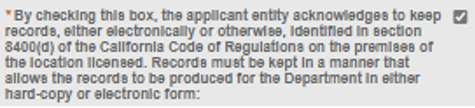
Check the box acknowledging that all records will be furnished to the DCC on request.
Additional premises information
If your contiguous cultivation site has multiple parcel numbers or more than one postal address, then you must enter that information in the Additional Premises Information section. You can enter more than one address using the dropdown function under Add a Row.
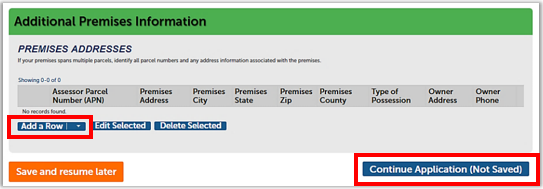
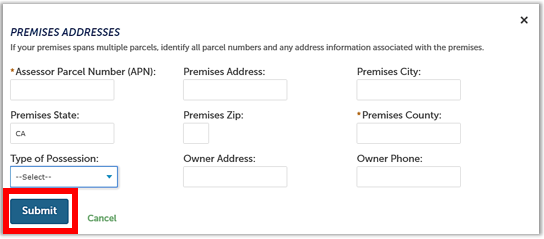
Click Add a Row to enter other premises parcel numbers or addresses in the pop-up window as you did in the Premises Information section.
Click Submit to save to the Additional Premises table.
Click Continue Application to go to the next page.
Note: The Additional Premises Information section is not for listing additional cultivation sites. A different, non-contiguous cultivation site must have a separate license. Use this section only if your contiguous cultivation site has more than one APN or postal address.
Water supply section
A source of water supply is required for all license types. You can list multiple water sources of different types.
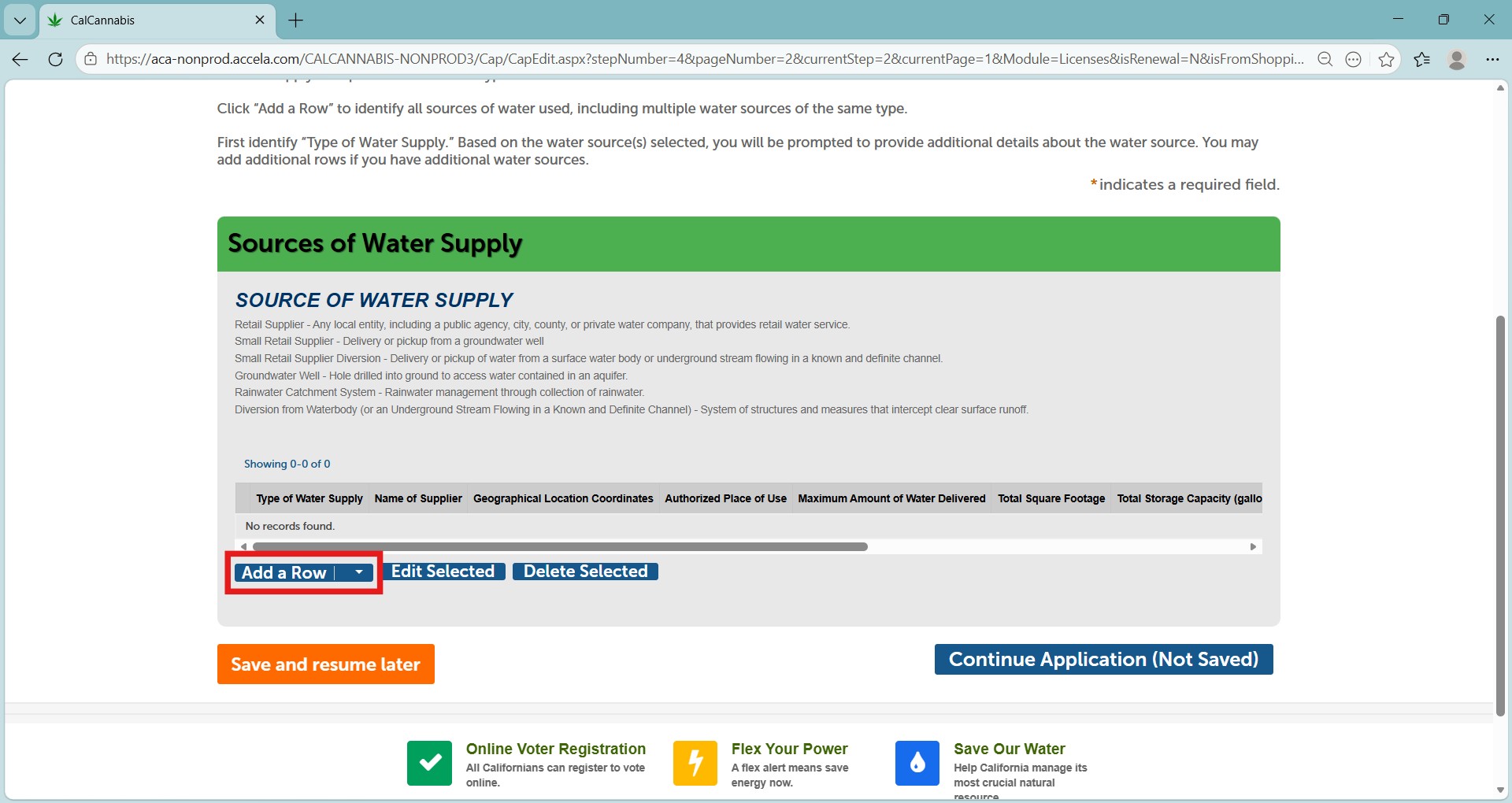
Click Add a Row.
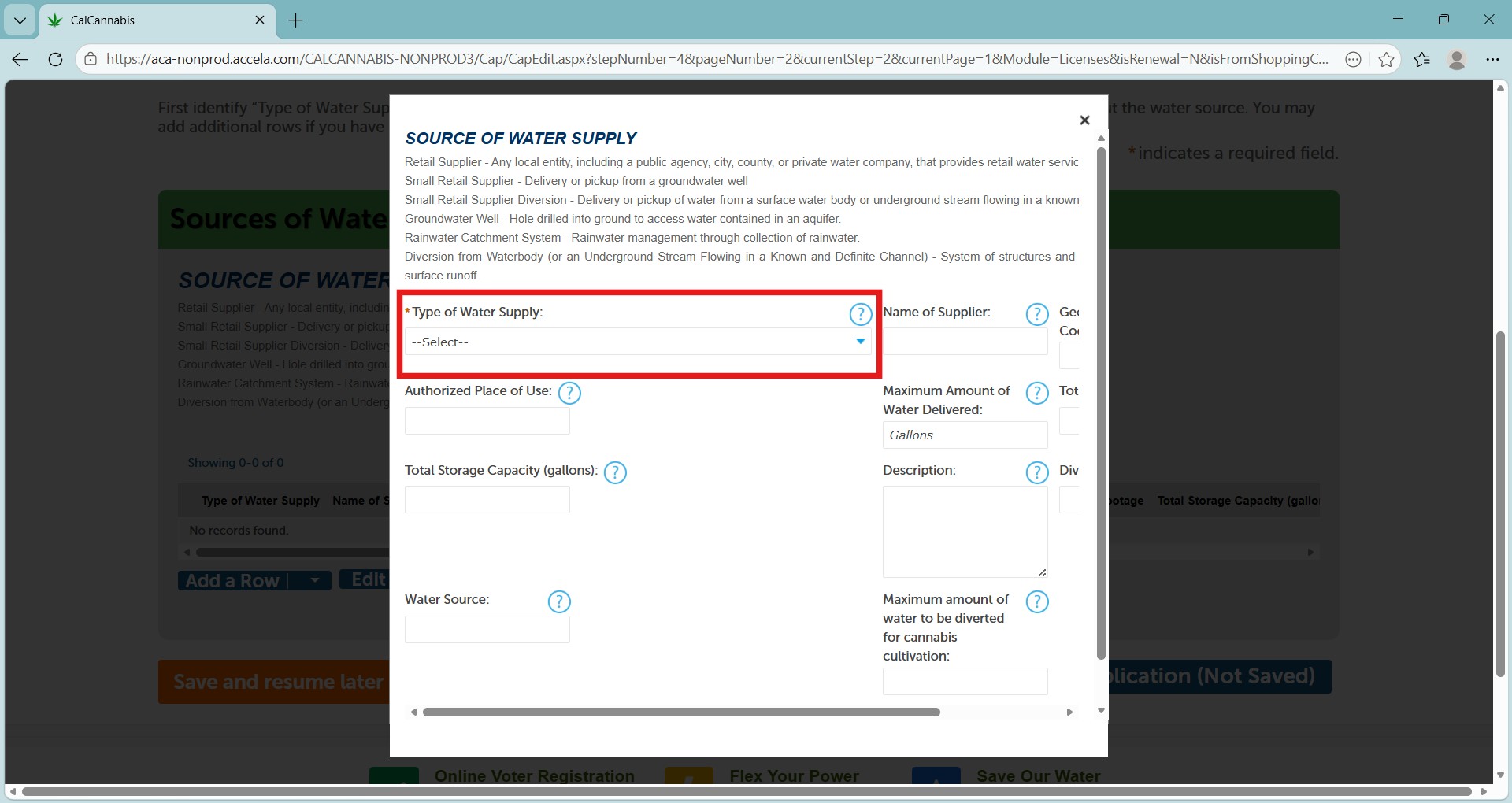
The pop-up window asks you to choose a Type of Water Supply. The window then displays only the fields needed for that type of supply.
Click Submit when finished.
The selected water sources and accompanying information you entered display in the Water Supply table in this section.
Click Continue Application when finished.
Power source section
Specify your site’s power source in this section. If your application is for an Indoor or Mixed-Light license type, you are required to specify one or more types of power source for cultivation activities. Selecting Other presents an additional field for you to enter an explanation.
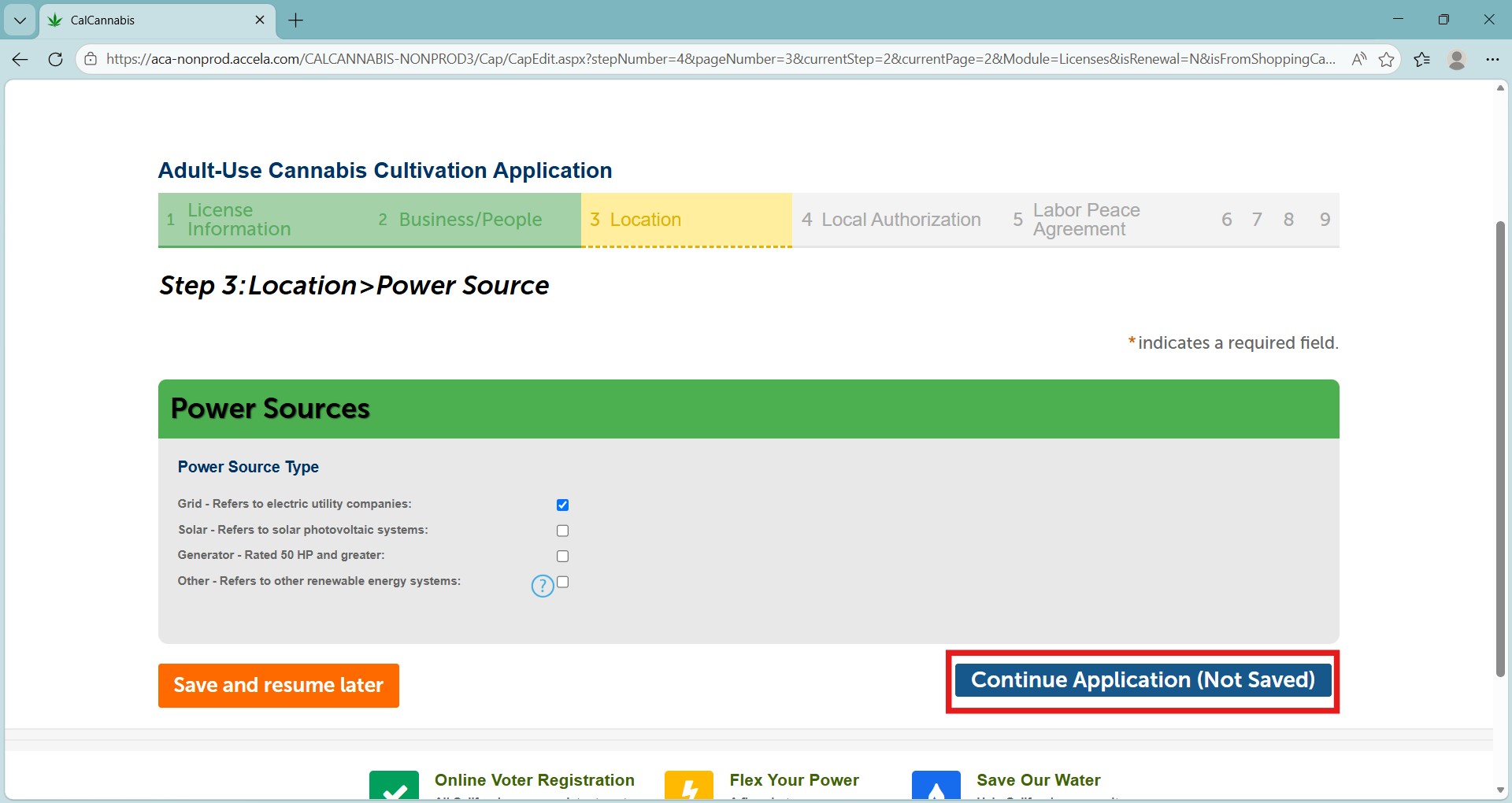
Click Continue Application when finished.
Local authorization section
Your premises must be in good standing with your local authority. Select the local authority type that provided your authorization – either City or County.
Depending on your choice, enter the Local Authority name (for County) or Local Authority City. The other fields are optional, but providing this information will help with processing your information.
If you are a locally verified equity applicant or licensee and are looking to apply for an equity waiver of the license fee, you must answer the additional questions and complete the attestation.
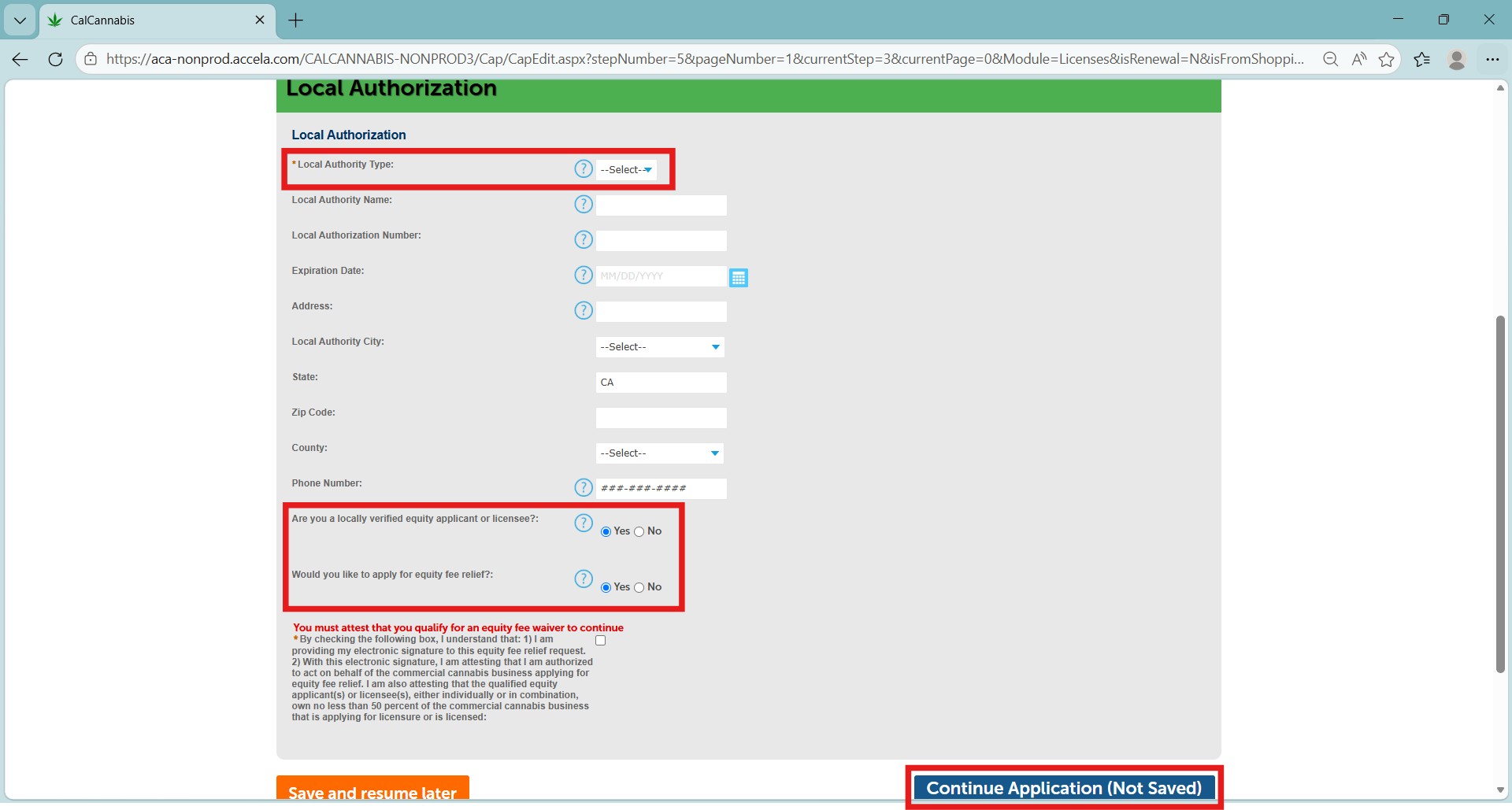
Click Continue Application when ready.
Labor peace agreement
Here you see the Labor Peace Agreement. Select the number of employees you have from the dropdown. Also select the number of employees with the Labor Peace Agreement.
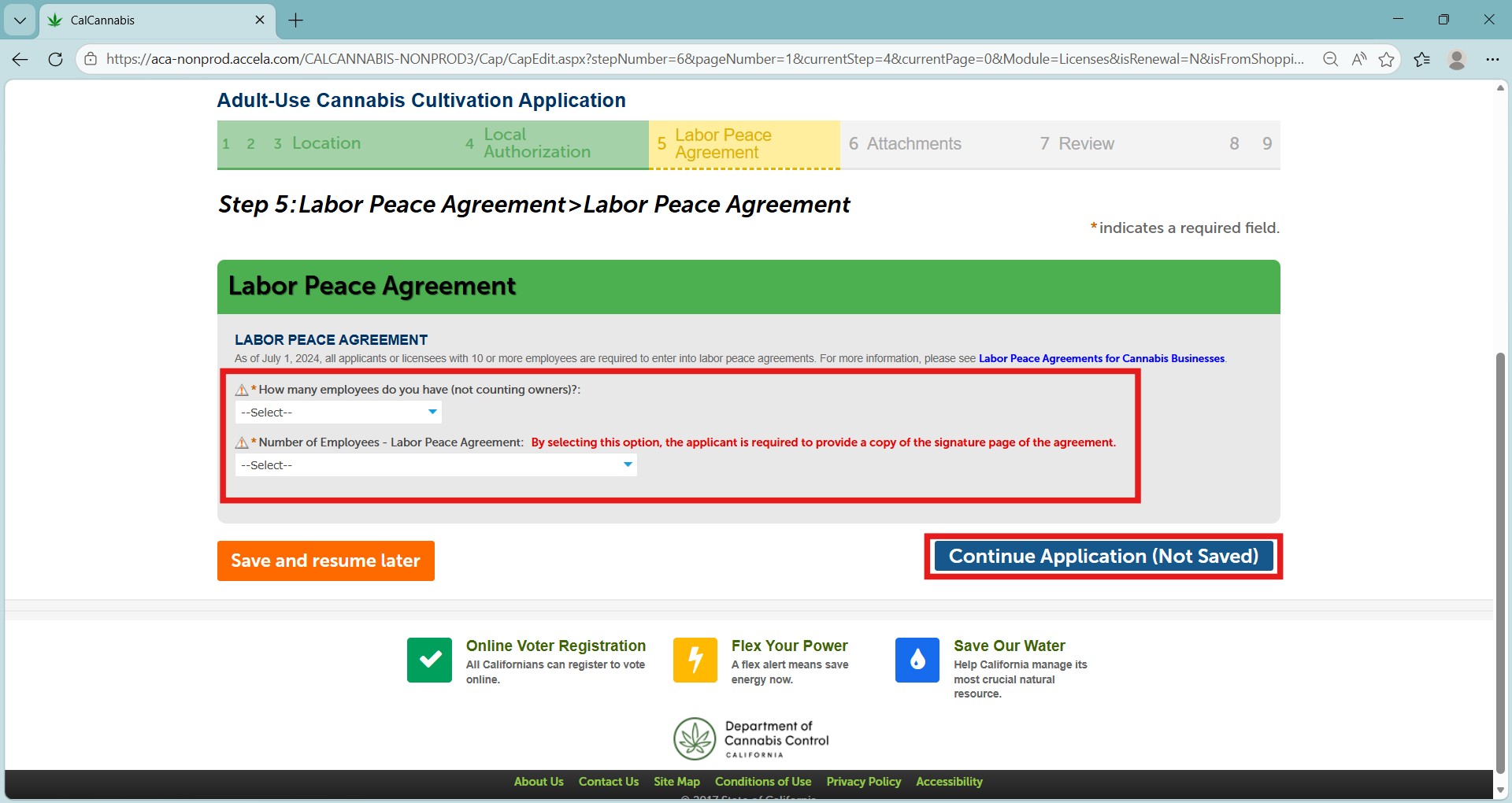
Select Continue Application (Not Saved) to continue.
Required documents section
The screen displays a list of documents you need to provide for your application.
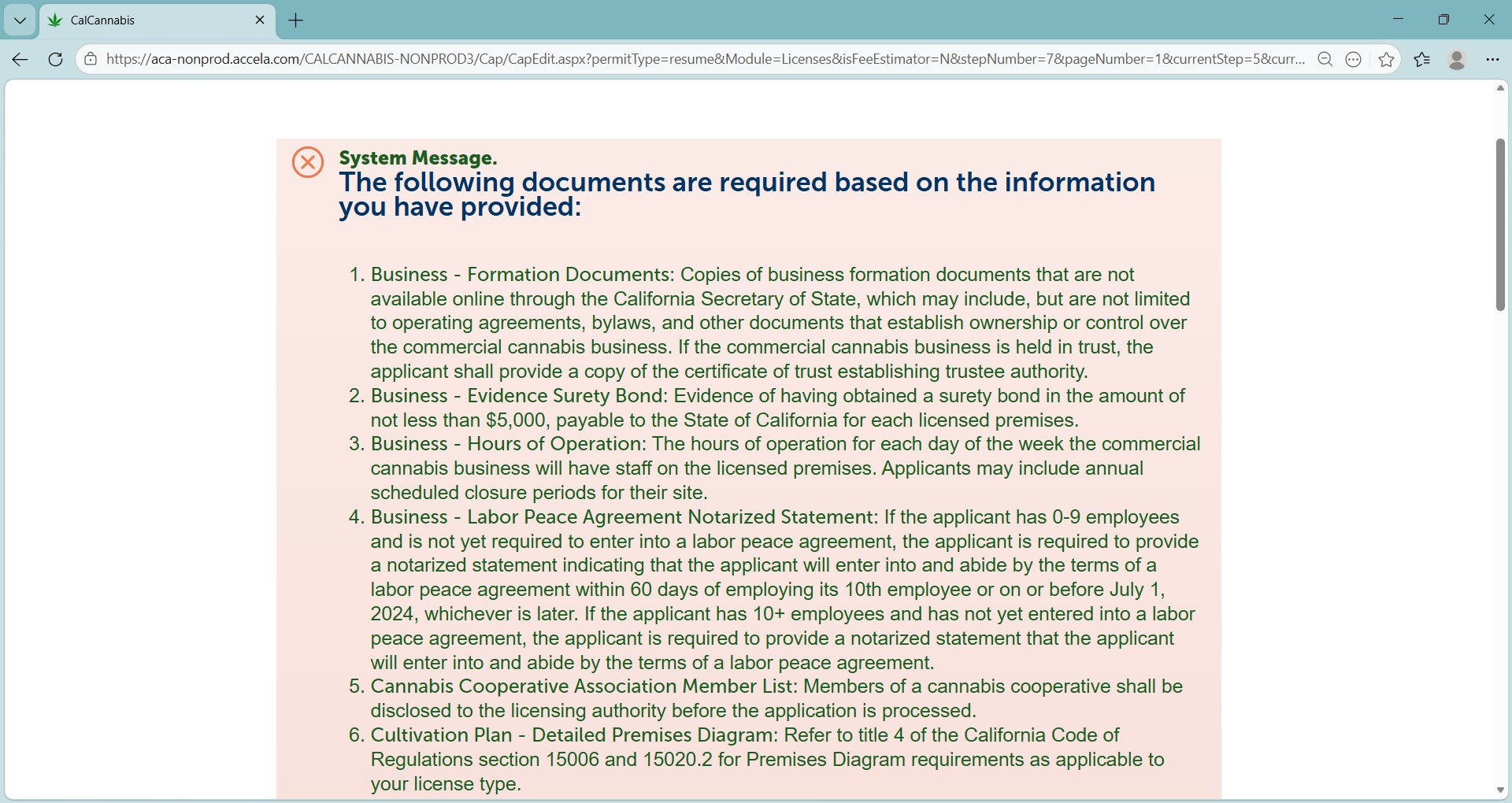
Gather the listed documents on your computer for easy upload.
Click Save and resume later if more time is needed.
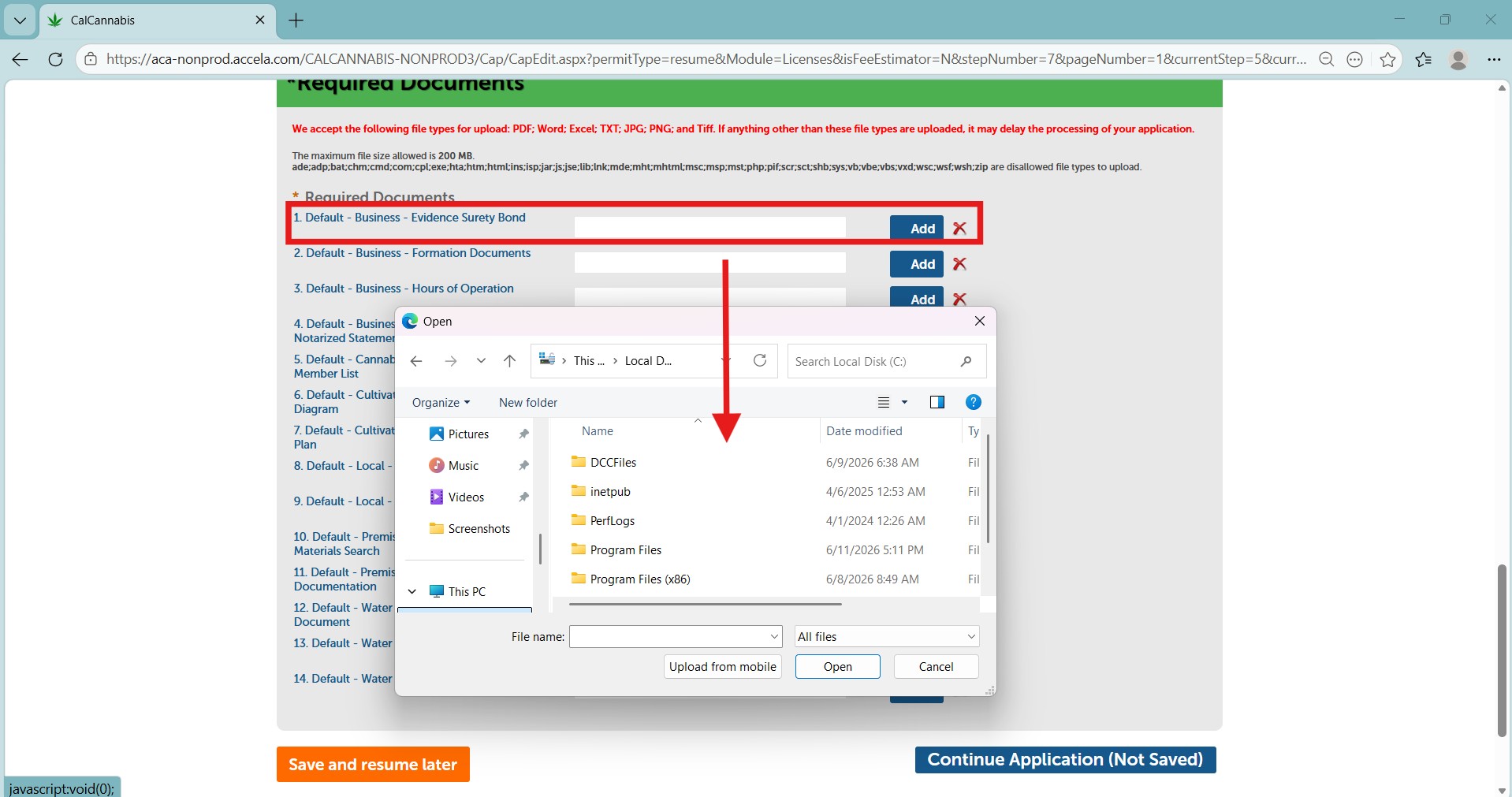
Click Add to open a pop-up where you can upload documents.
Select the desired file and click Open. If you upload the wrong file, click the red X to the right of Add to delete it, or click Add again and select the correct file.
Click Continue Application when finished.
Note: The maximum file size allowed is 16 MB. The only accepted file types are PDF, Word, Excel, TXT, JPG, PNG, and TIFF. Please make sure your document has the file type at the end of the file name.
- Example: Surety Bond.pdf
If you need to upload other documents, they can be attached after submitting the application. A reference guide on attaching documents to your application can be found in this guide: CLS: Submit additional documents and requirements.
Application review section
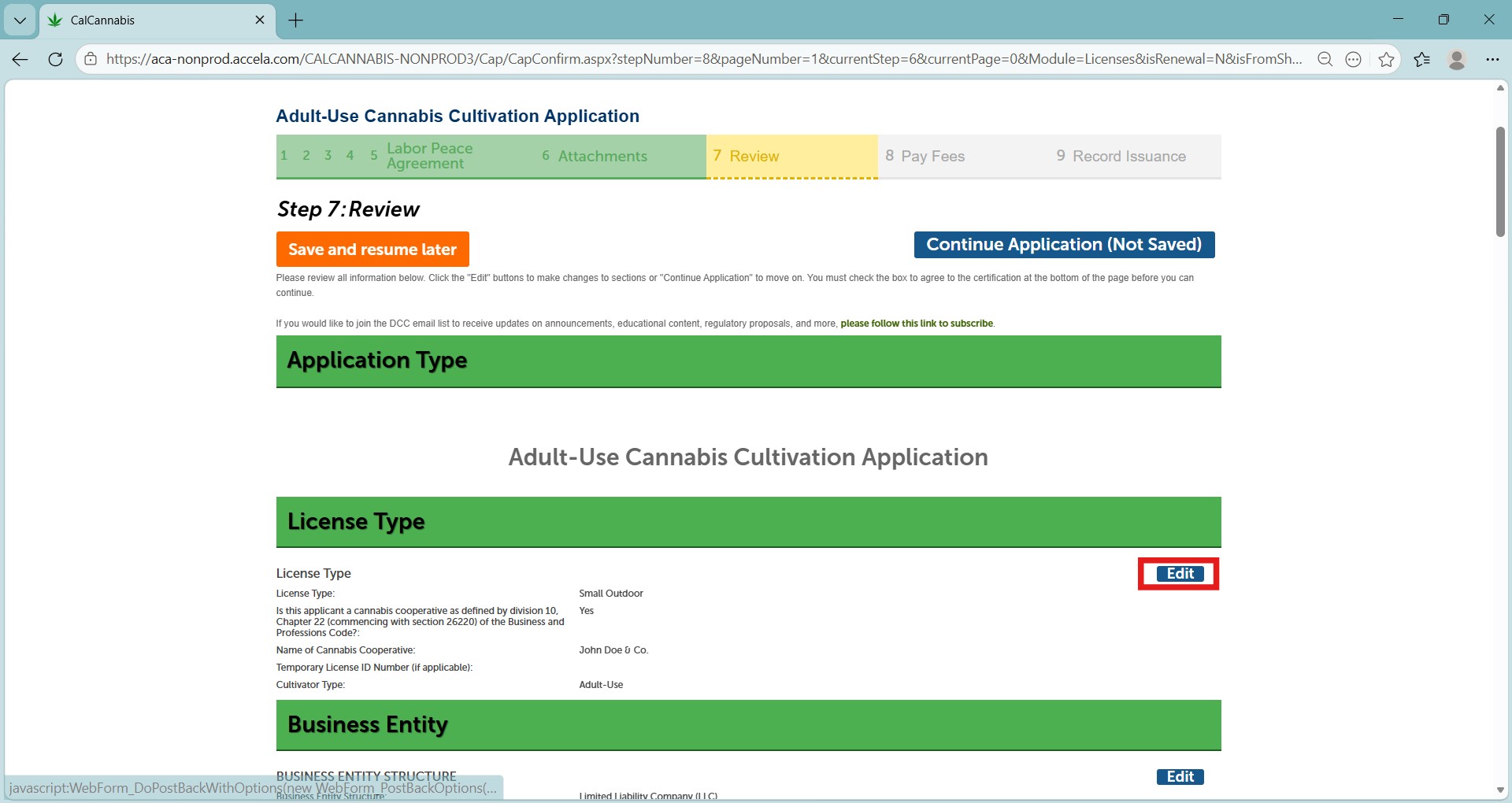
The next screen displays a list of each section in which you have entered information so far.
You can use the blue Edit button next to each section to go back and revise your entries as needed.
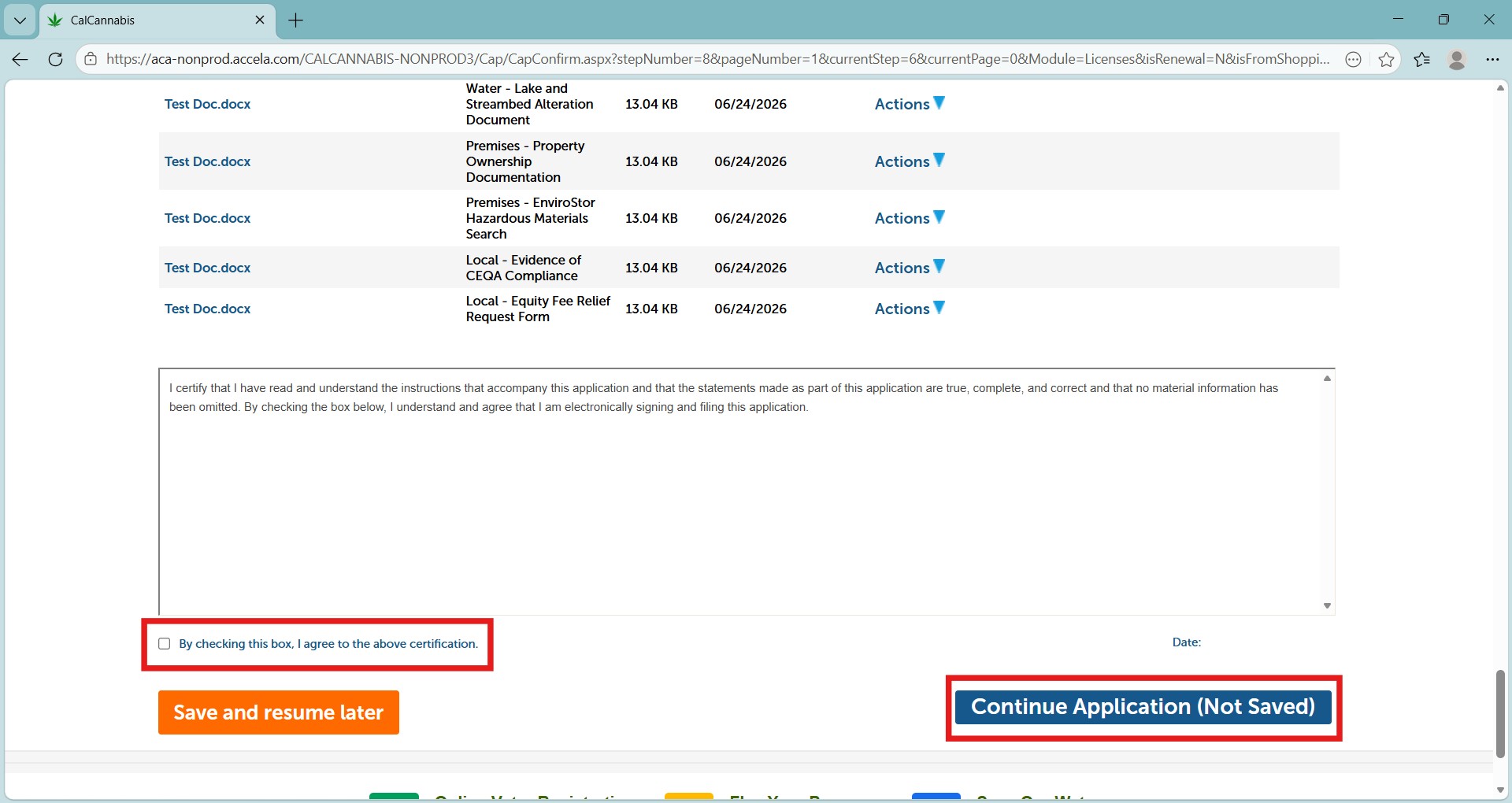
At the bottom of the page is an attestation statement
Click the checkbox to certify your application, which automatically enters the date, then click Continue Application.
Record issuance
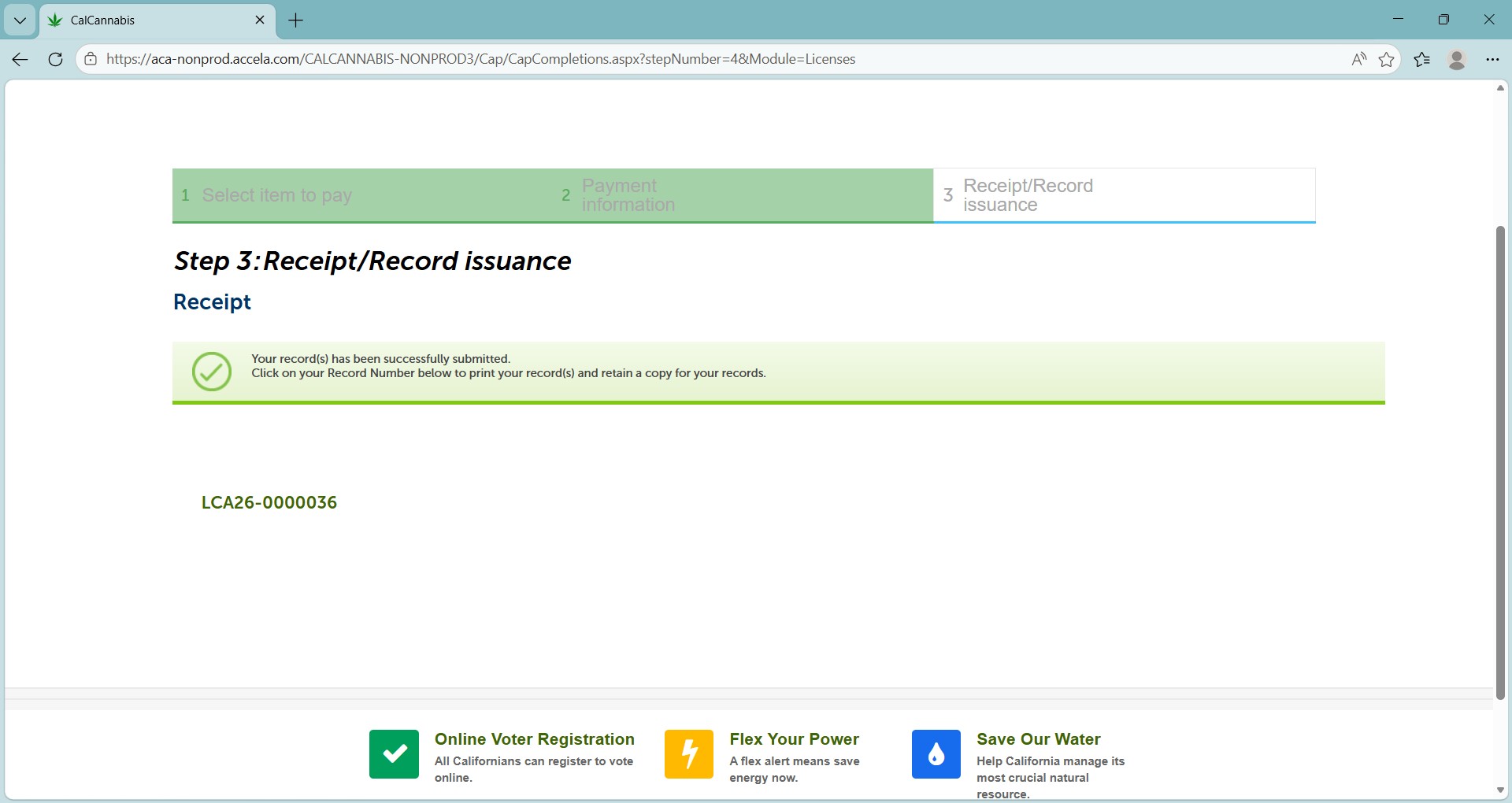
You have submitted your main application for a cultivation license. You will see a confirmation of receipt on your screen.
There are several additional steps you must complete before your license can be reviewed.
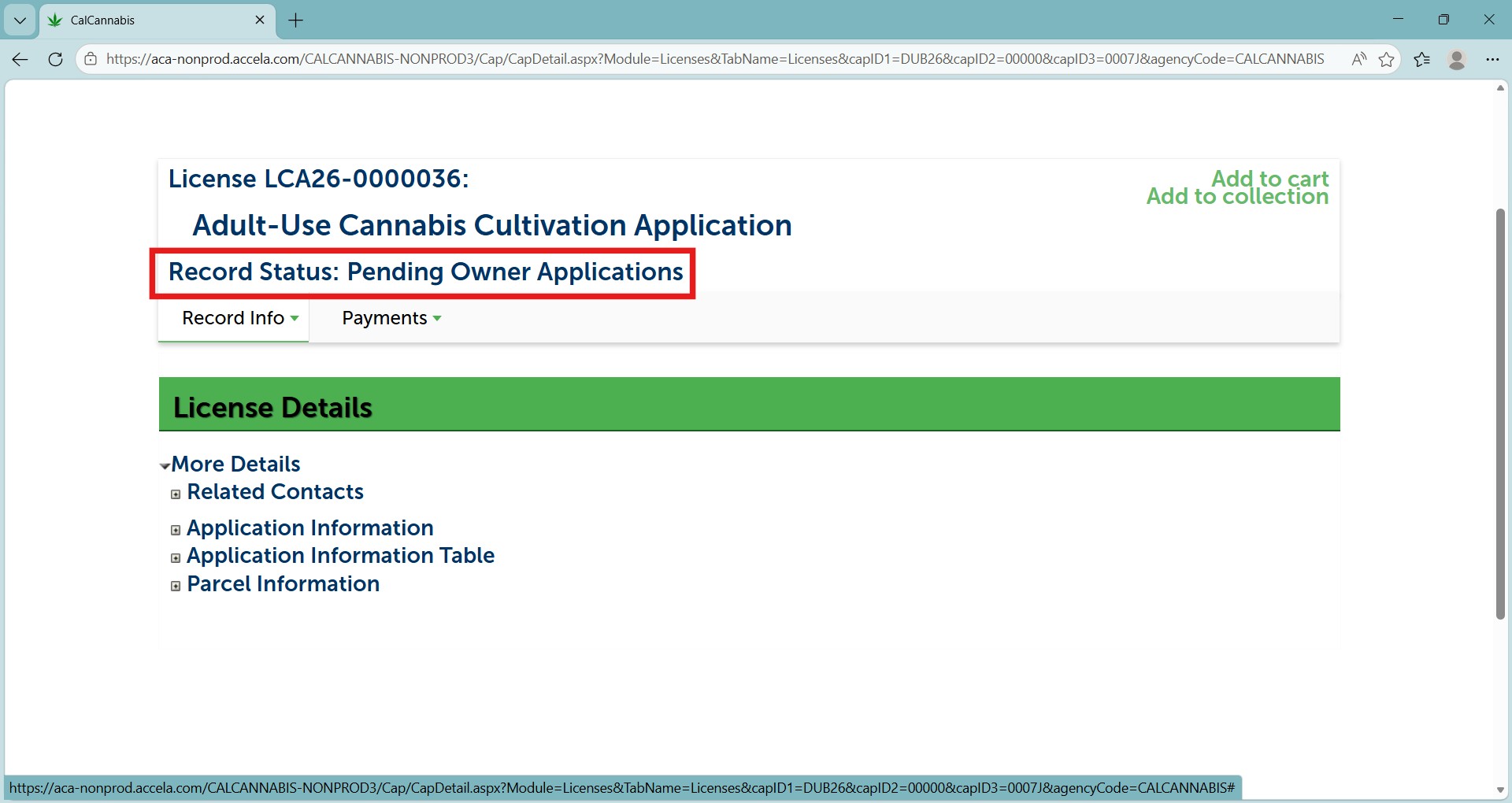
Note: The main application now appears in your Licenses list with the status “Pending Owner Applications”.
Continue to next article
-
CLS: Next steps for owners
This guide outlines the subsequent actions required in the owner application process. Information is included on owner application notifications, live scan applications, and specific sections of the owner application such as contact information, birthdate, place of birth, SSN/ITIN/NIN, ownership information, acknowledgments, and history of convictions. The guide also provides instructions for reviewing and submitting required…