
Last reviewed: August 3, 2026
Before you can apply for a cannabis cultivation license, you will need to create an account on the Cultivation Licensing System.
From the Accela Home page, shown here, you can:
- Register for a new account
- Login to an existing account
- Search for active licenses
- Learn more about the system
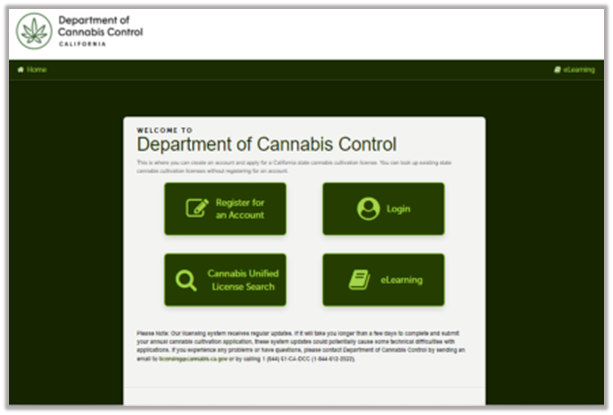
Click Register for an Account to begin.
Login Information
Enter your login information, including a username, email address, password, and security question and answer.
- Choose your username. It will consist of 4-32 characters, including letters, numbers, and the following special characters: @ _ – .
- Enter your email address.
Note: One person, one email address. The email address used in registration should be used for the rest of the application. For more guidelines, refer to this guide: CLS email address guidelines
Selecting a password
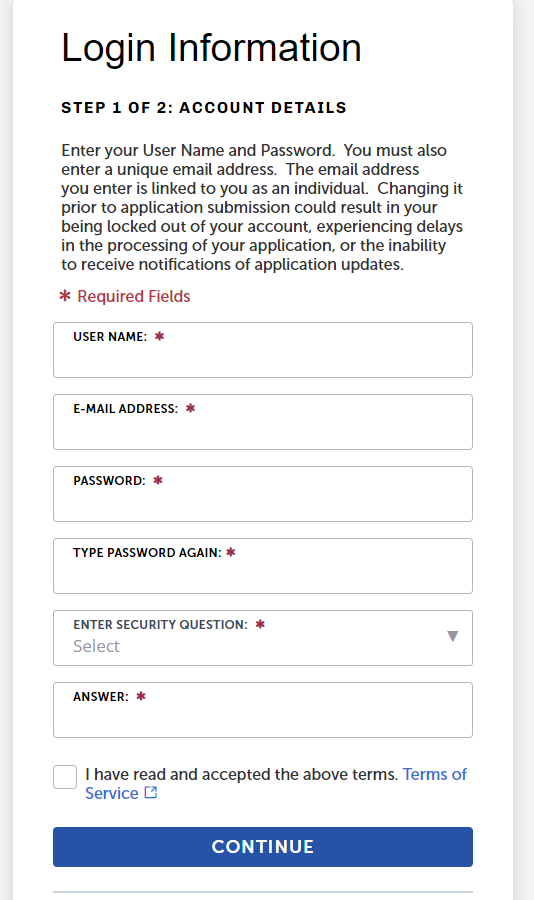
Enter your Password twice. Password requirements are:
- 8-20 character(s)
- Must contain at least:
- 1 upper-case letter
- 1 number
- 1 special character, such as: (? @ $ )
- Cannot contain your username or any of your previous 5 passwords
If your password violates these rules, you’ll see an error message specifying the problem.
Help text
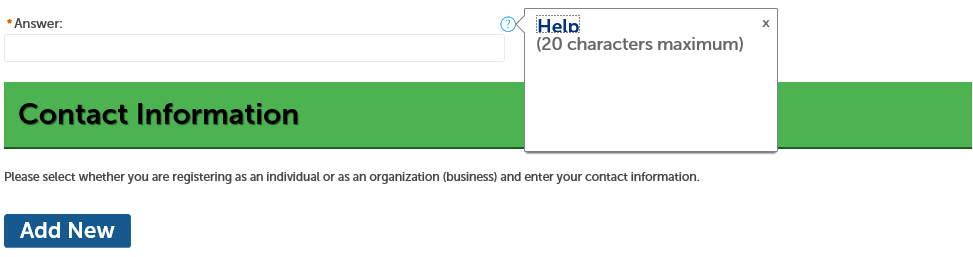
View Help text by clicking on a question mark icon. Click the X in the upper right corner to close the Help text.
Security Question
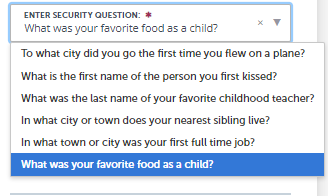
Select a question from the drop down.
Respond in the “Answer” field. It is case-sensitive. You can change your security question at any time.
Read the terms of service and check the box to accept the above terms.
Click Continue.
Note: You will need to answer this security question if you attempt to reset your password. Your answer will be case-sensitive. Contact the Department of Cannabis Control at 844-61-CA-DCC (844-612-2322) to have your password reset and a temporary password sent to your email address if you forget your password. Additionally, you can email the department at info@cannabis.ca.gov to request a password reset.
Contact Details
This window collects your personal contact information. All fields (with or without asterisk) on this screen are required; skipping any will result in delays.
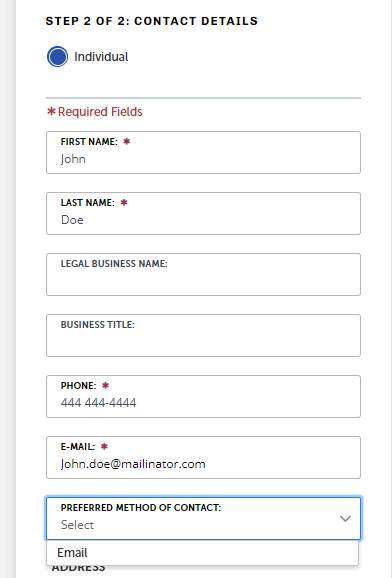
Click Individual under “Contact Details”.
- Ensure your email matches your previous entry. If it does not, it will cause an error in your application.
- Choose a preferred channel for communication from the dropdown list below “Email”.
- The “Country” field determines the phone number format. Ensure it is set correctly.
Contact Addresses
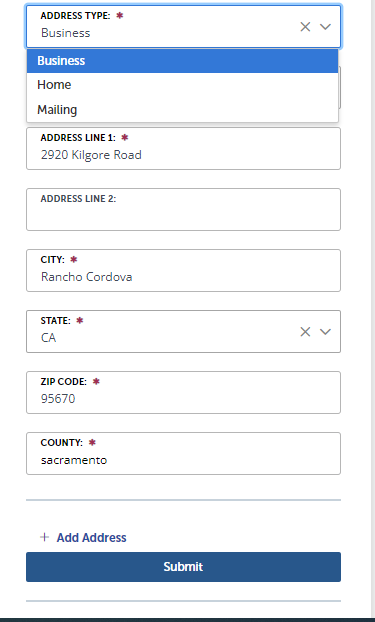
Choose the address type, then enter the address information in the appropriate boxes.
Click Add Address after entering the required information.
- All three address types are required:
- Business (your business’s physical address)
- Home
- Mailing (where your business receives mail)
- Note: Each type must be added, even if the addresses are the same.
Click Submit when finished.
Account Created
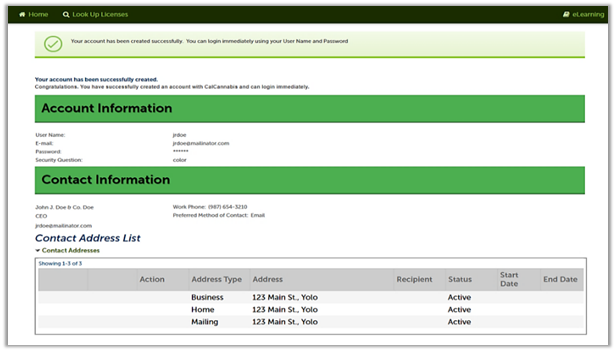
You have now created an account and are ready to log in. A green success message displays at the top of the screen, inviting you to login.
Continue to next article
-
CLS email address guidelines
Each person is uniquely identified by a name and an email address in the licensing system. Follow these email guidelines to ensure that email addresses are correctly associated with your account. Continue to next article