
Last reviewed: August 3, 2026
This guide provides instructions on handling email notices related to the application process. It covers steps including logging in, reviewing general disclaimers, selecting application types, adding contact information, acknowledging disclosures and declarations, and finalizing the review process. Additionally, it includes information on record issuance after these steps are completed.
Email notice
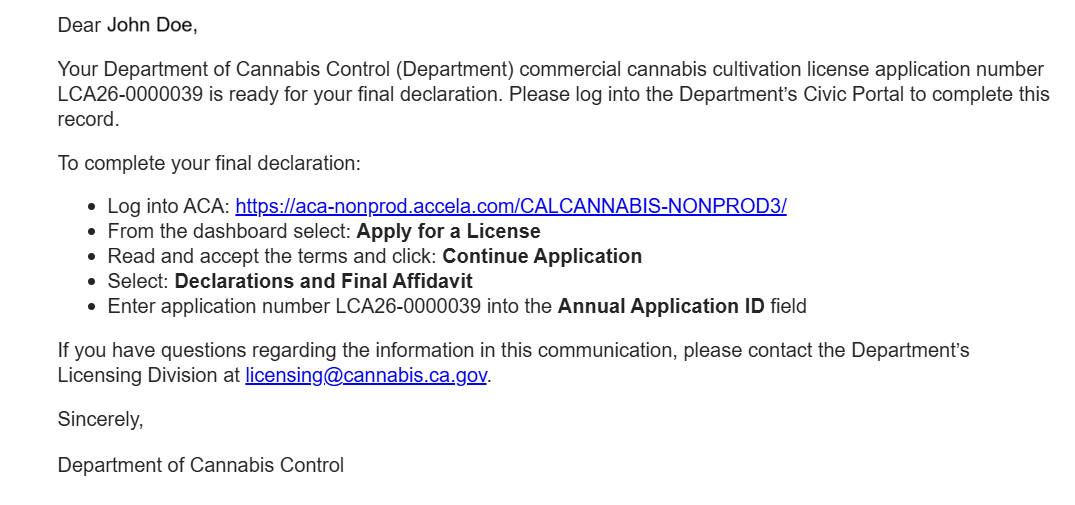
Once all Owner Applications are submitted, the DRP must enter and submit the Declarations and Final Affidavit form. This can only be submitted by the DRP.
The system sends the DRP an email notification that the form can be submitted. This message will also appear under “Announcements” in the licensing system.
Log in and general disclaimer
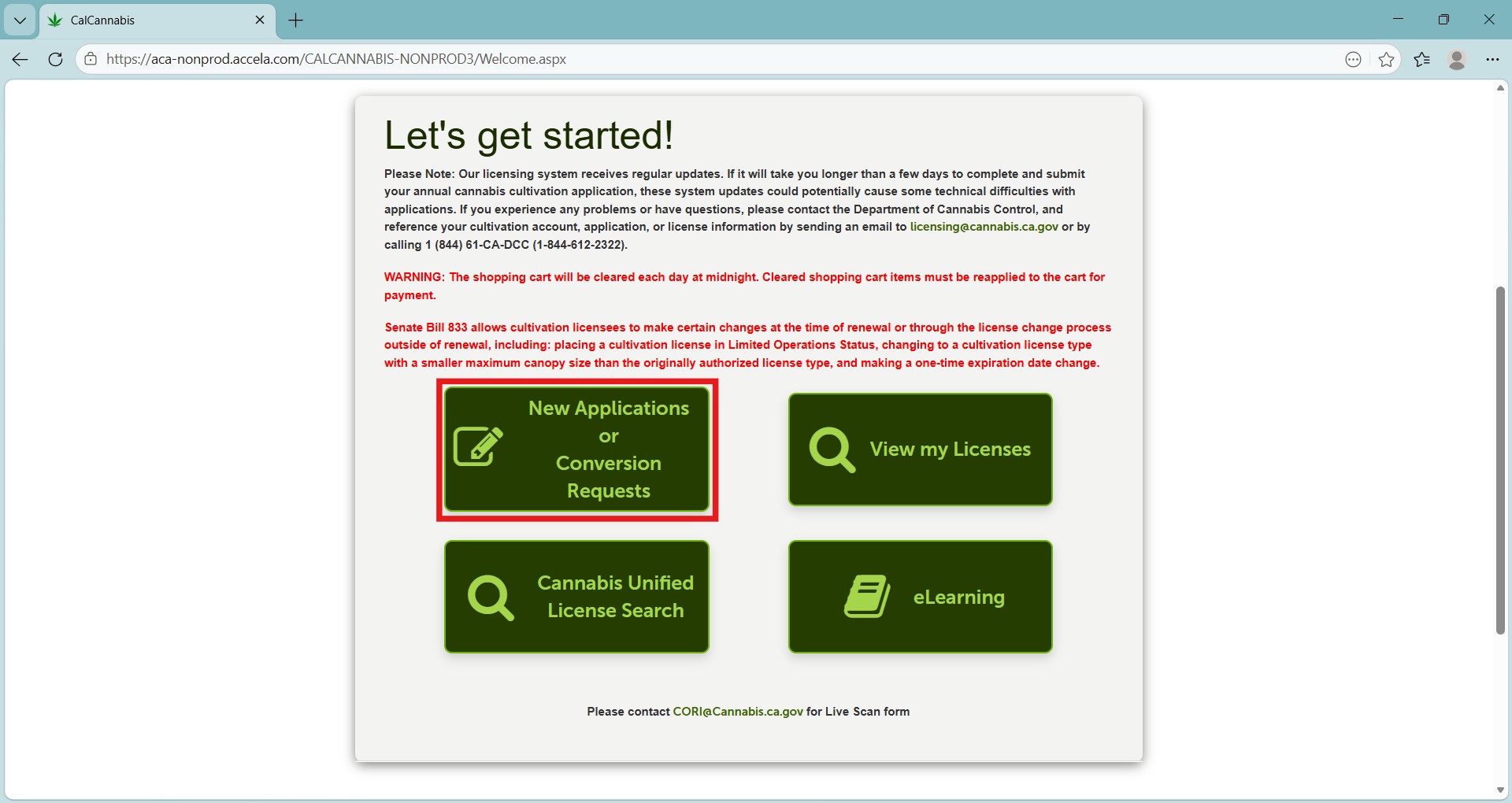
After the DRP logs into the licensing system, click New Applications or Conversion Requests.
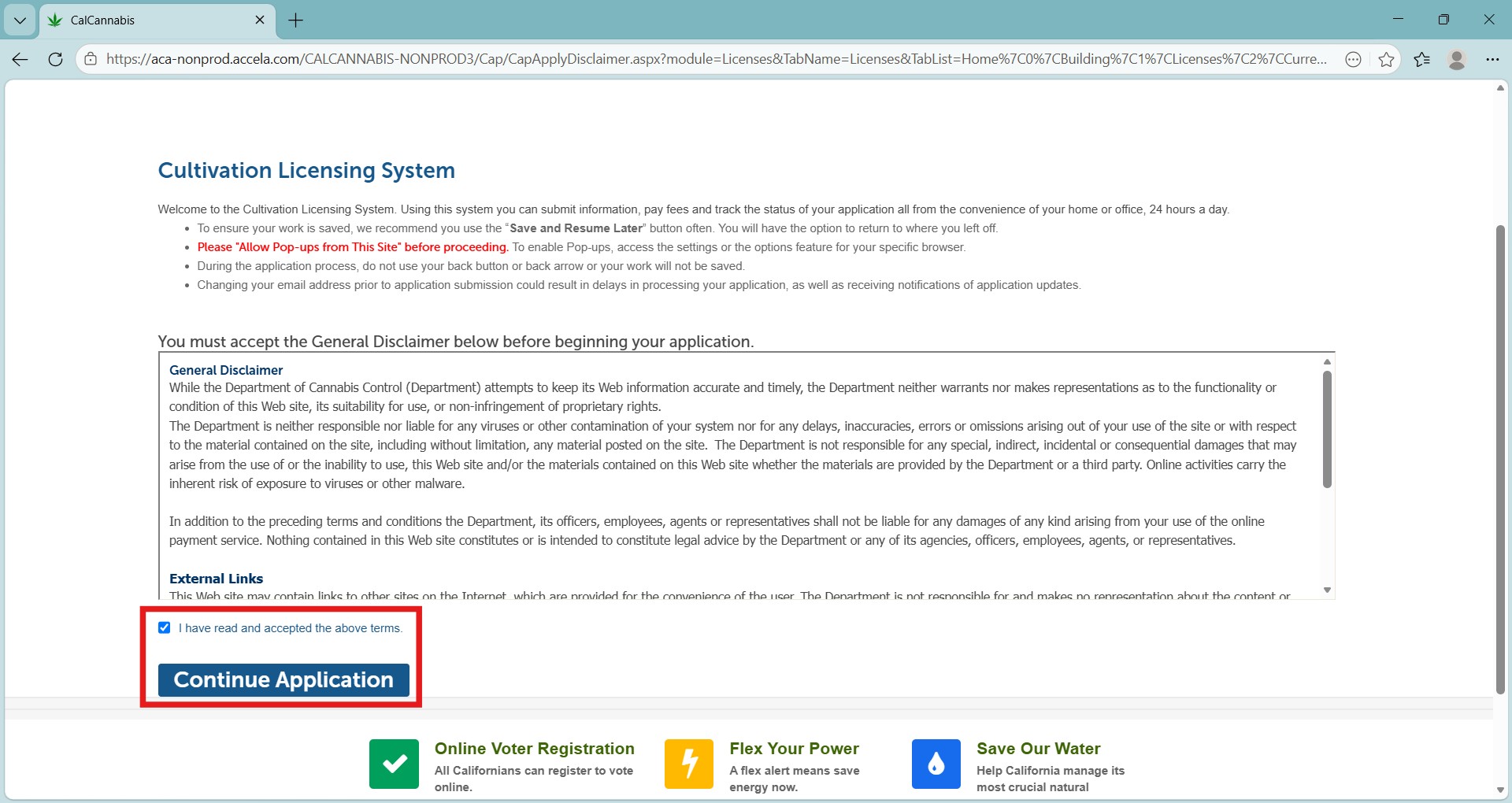
The following screen is the general disclaimer as seen previously. Select Continue Application to proceed.
Select an application type
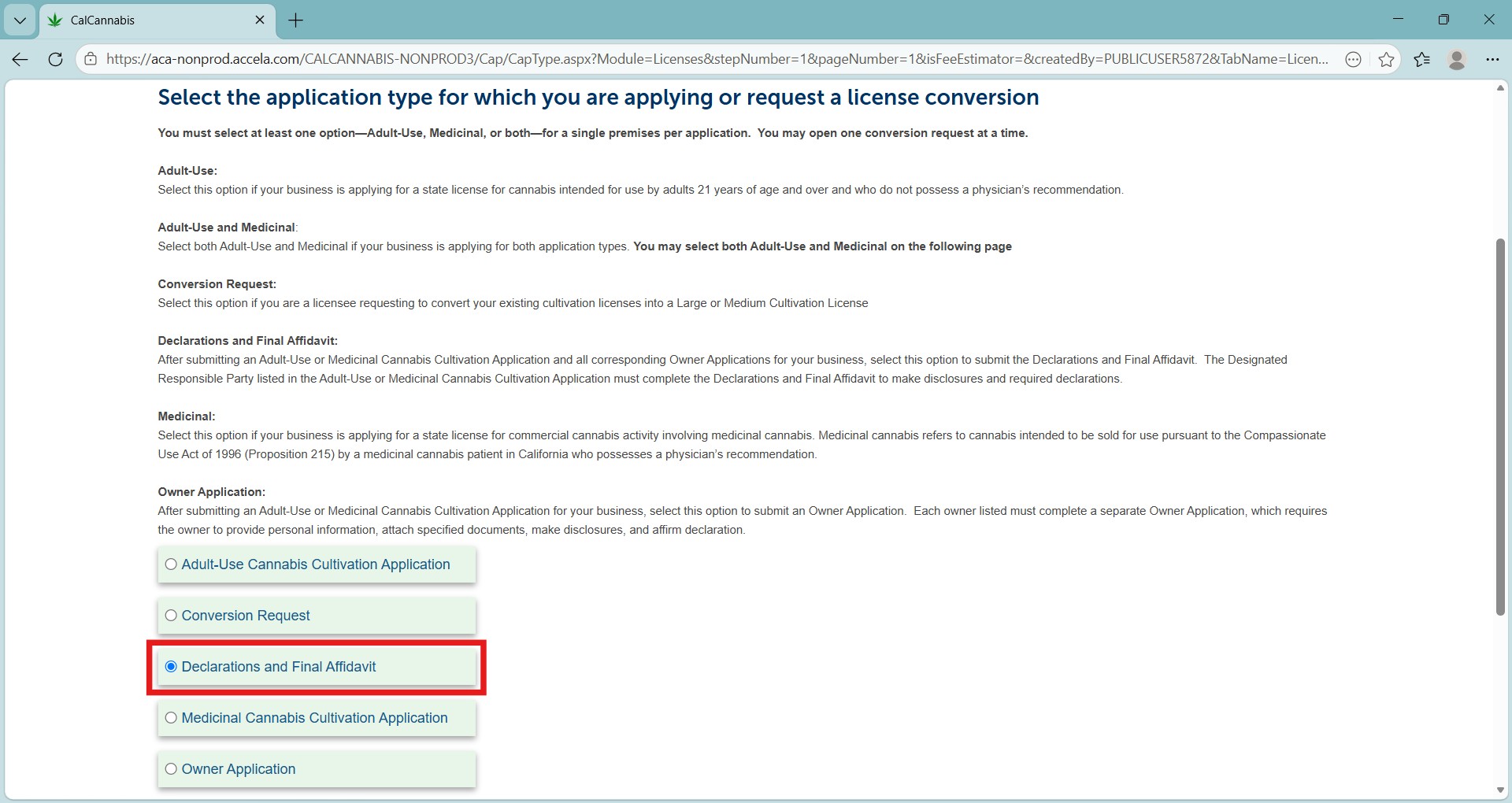
Select the Declarations and Final Affidavit and click Continue Application.
Add your contact information
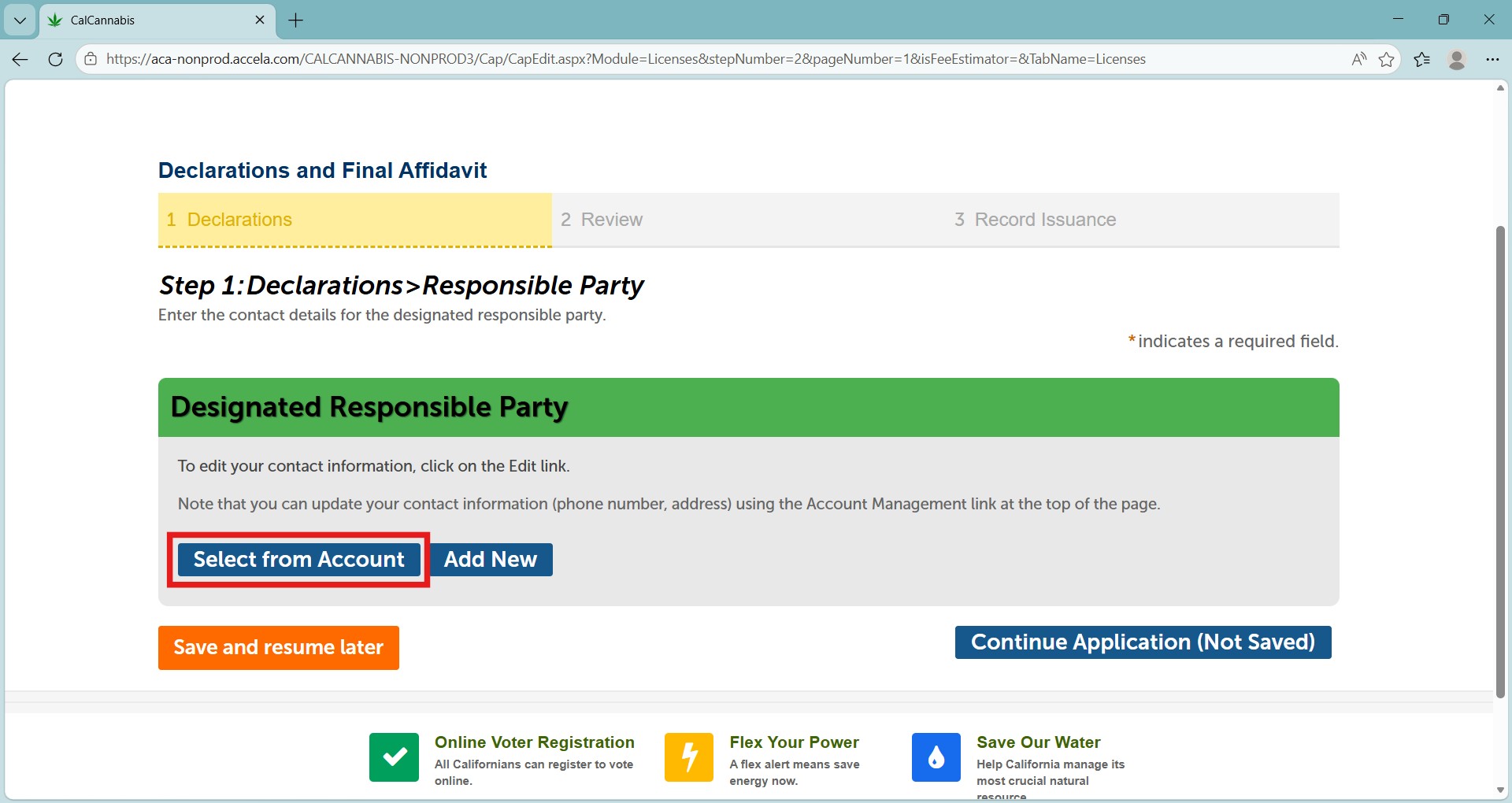
Click Select from Account to add the contact information from your registration. The Mailing address type is preselected.
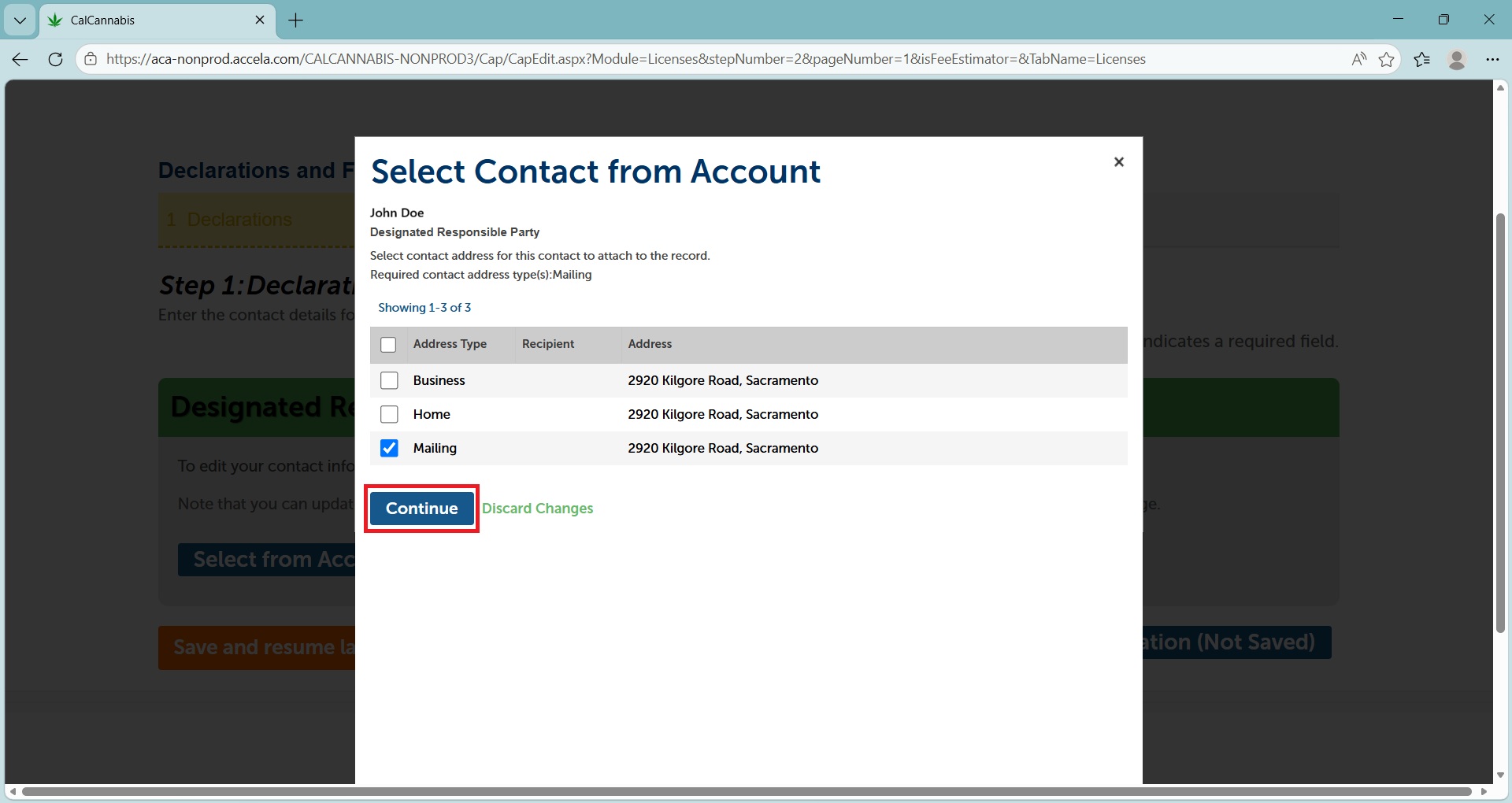
Click Continue to save, then click Continue Application.
Acknowledge disclosures
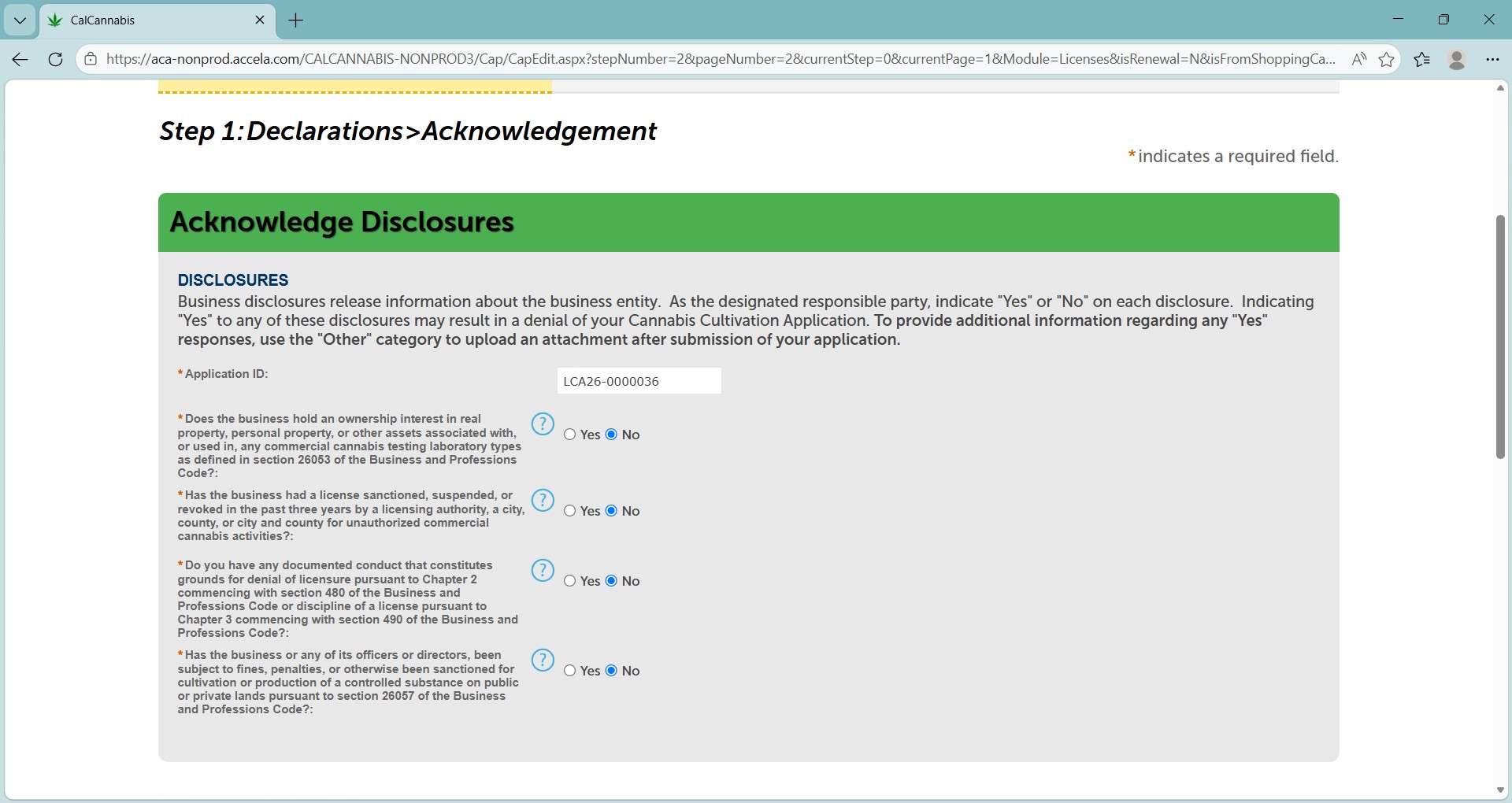
Enter the Application ID for the license application associated with this form. Read this section carefully and answer the questions, using the blue “Help” links for more information.
Answering Yes to any of these questions will require further documentation and may result in the denial of your license.
Acknowledge declarations
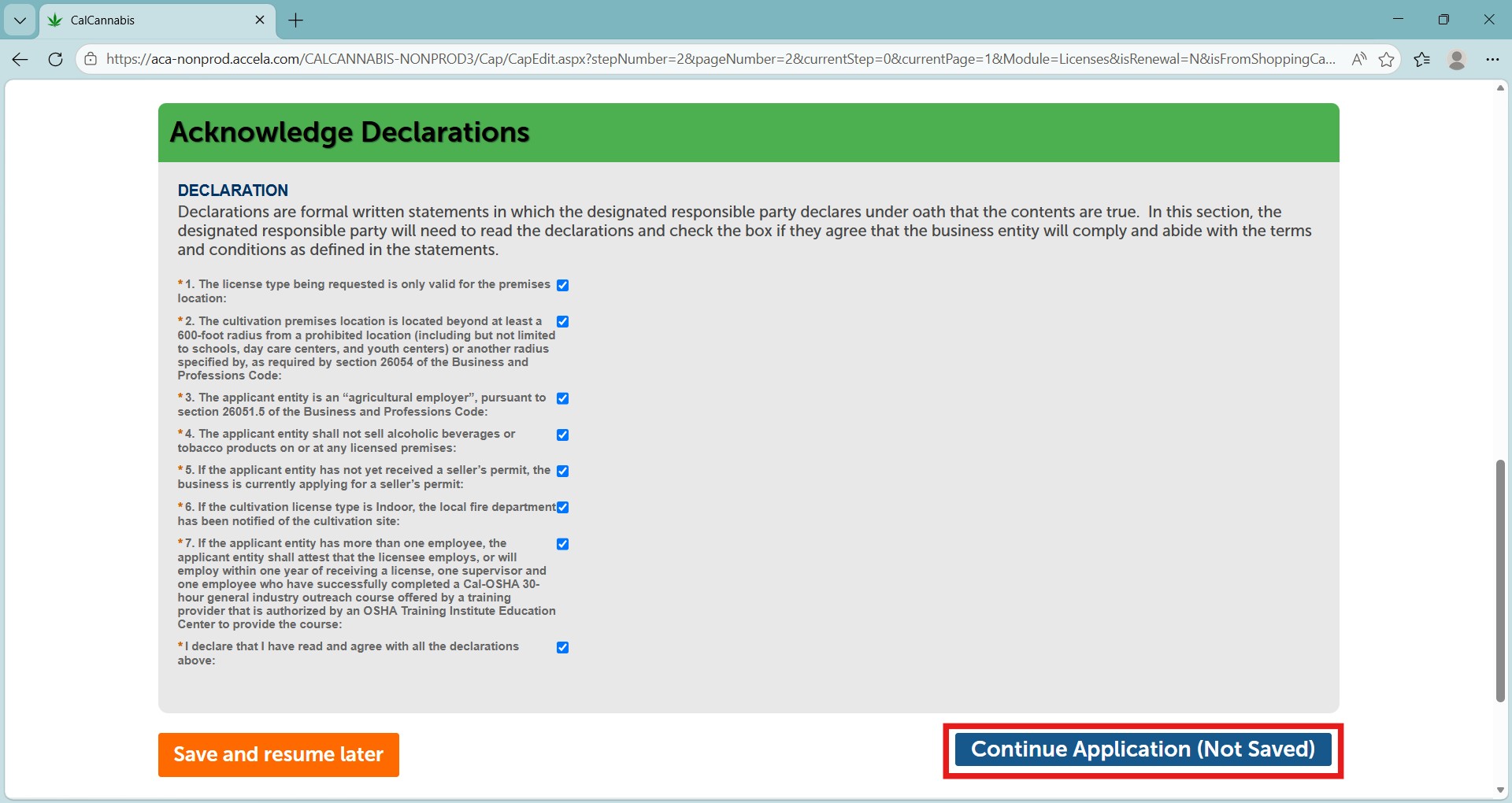
In this section check the boxes to indicate you understand each statement and comply with the terms.
Click Continue Application.
Review
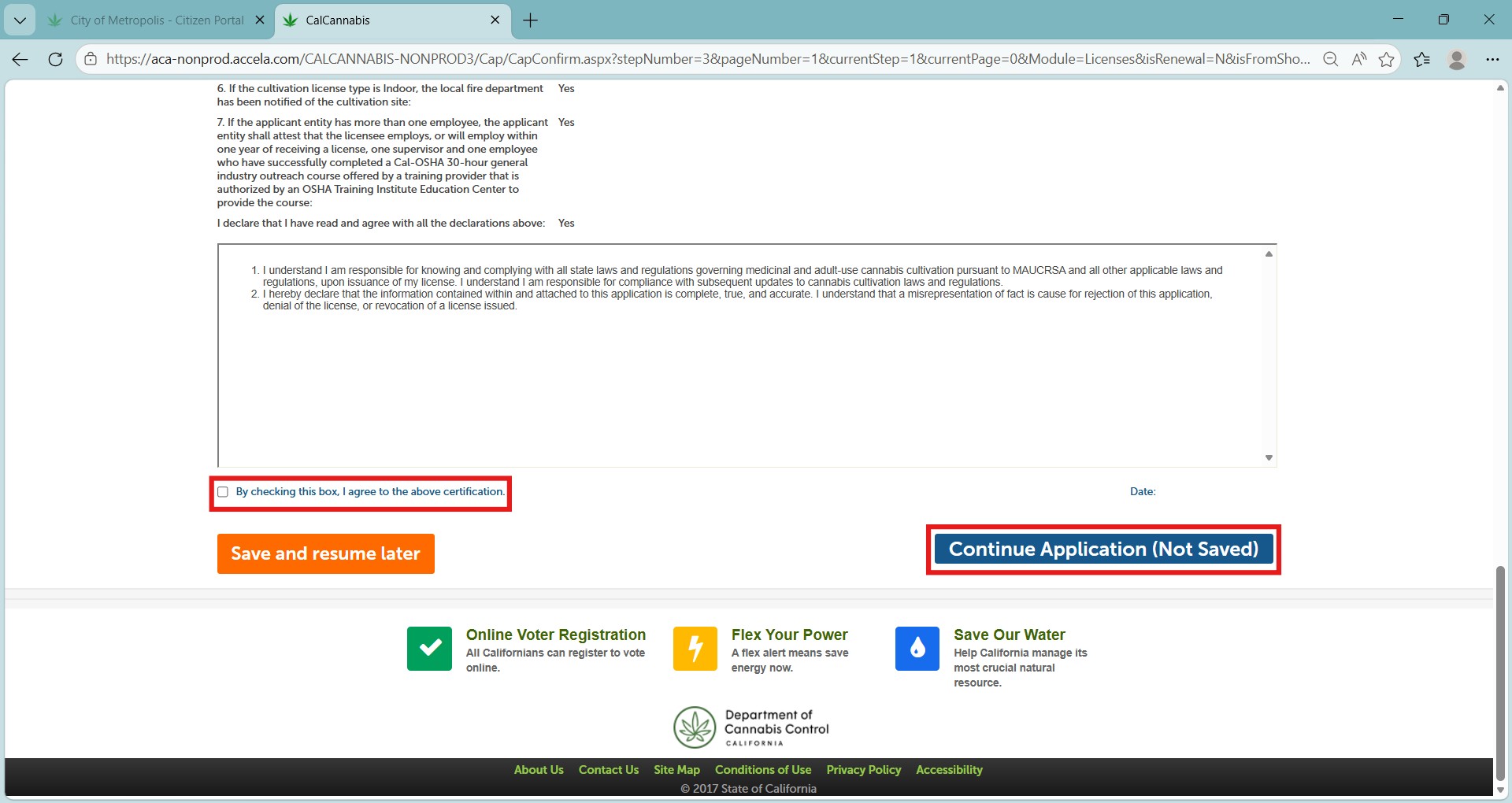
Next is your chance to review this form. Click Edit to revisit any sections and change responses if needed.
Then, check the box to certify your form before clicking Continue Application.
Record issuance
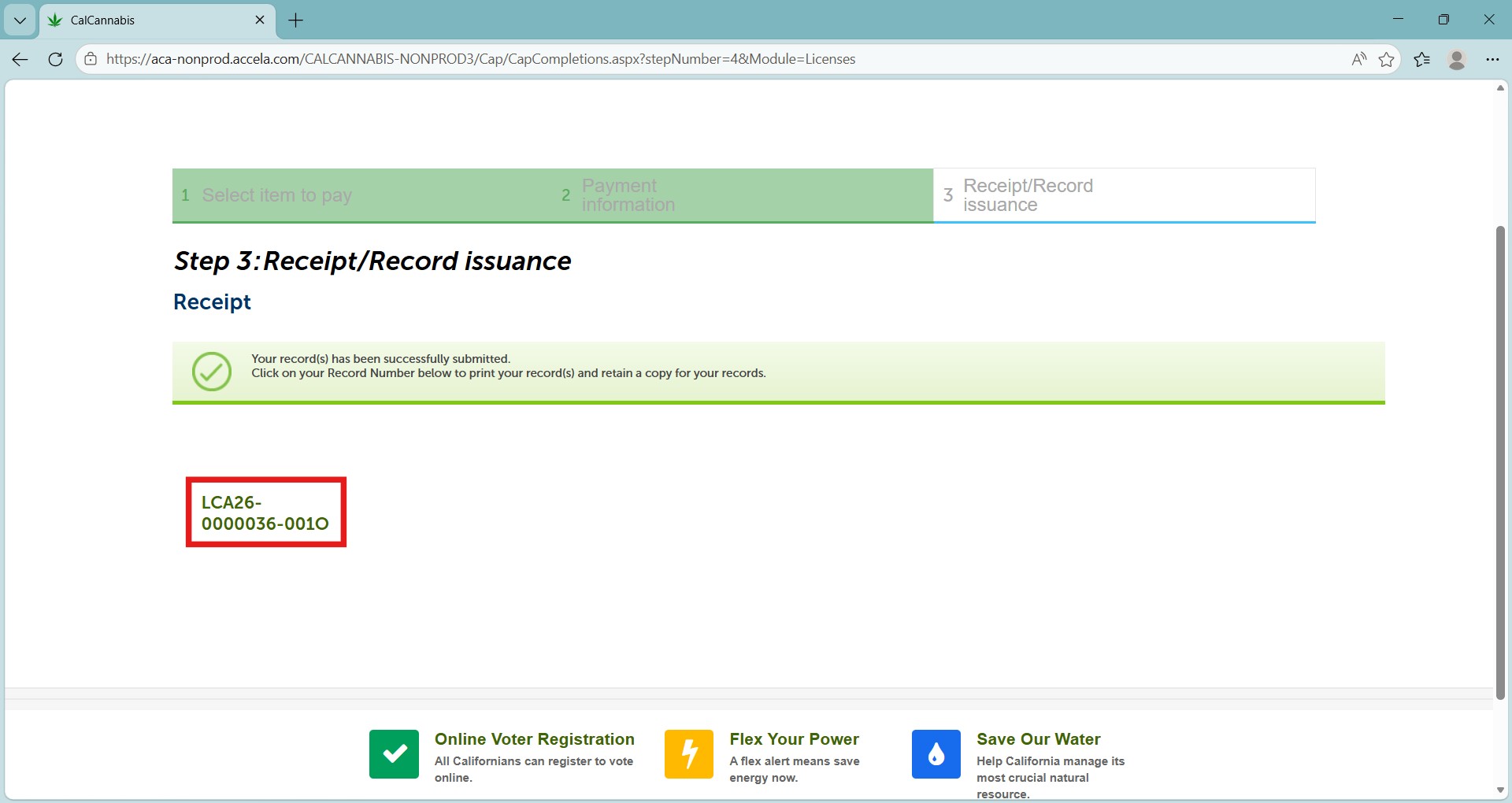
After certifying and clicking Continue Application, the Declarations form has been submitted, and the receipt shows the Application ID number.
Note that your main application, Owner Application, and Declarations form all share the same number identifier.
Continue to next article
-
CLS: How to pay the application fee
Once all of the Owner Applications and the DRP’s Declarations and Final Affidavit are submitted, you can pay the application fee. Correspondence After submitting the Declaration and Final Affidavit, the system sends an email to the DRP and displays an announcement with information to log in, find the applicant record, and open the attachments section…