
Last reviewed: August 3, 2026
This guide outlines the subsequent actions required in the owner application process. Information is included on owner application notifications, live scan applications, and specific sections of the owner application such as contact information, birthdate, place of birth, SSN/ITIN/NIN, ownership information, acknowledgments, and history of convictions. The guide also provides instructions for reviewing and submitting required documents, reviewing the owner application, and managing additional owner applications.
The Department of Cannabis Control’s Licensing Division cannot review the application until 3 other actions are taken:
- All owners submit an Owner Application (covered next)
- The Designated Responsible Party submits the Declaration and Final Affidavit
- The application fee is paid either online by credit card or bank transfer, by check and mailed to the DCC, or in person (at the office of the one of the DCC offices in Rancho Cordova, Eureka, or North Hollywood). See DCC website for details on payment methods and office locations.
Owner applications
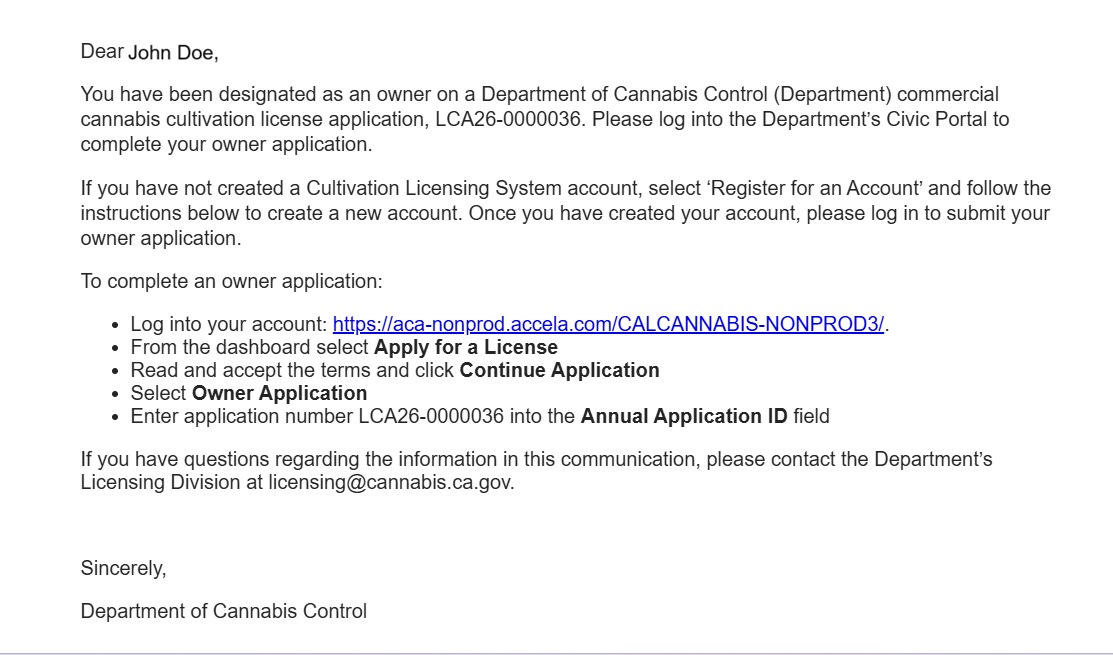
Note: On receiving the main application, the system sends an email to each additional owner with instructions on how to log in and submit an Owner Application. For new accounts, the owner must complete registration by providing their personal information.
All owners must submit an Owner Application. You cannot complete another owner’s application.
Owner application notification
The Licensing system sends emails to all owners on the application, instructing them to log into their account and complete the Owner Application.
Those who do not already have a CLS account must complete the registration process.
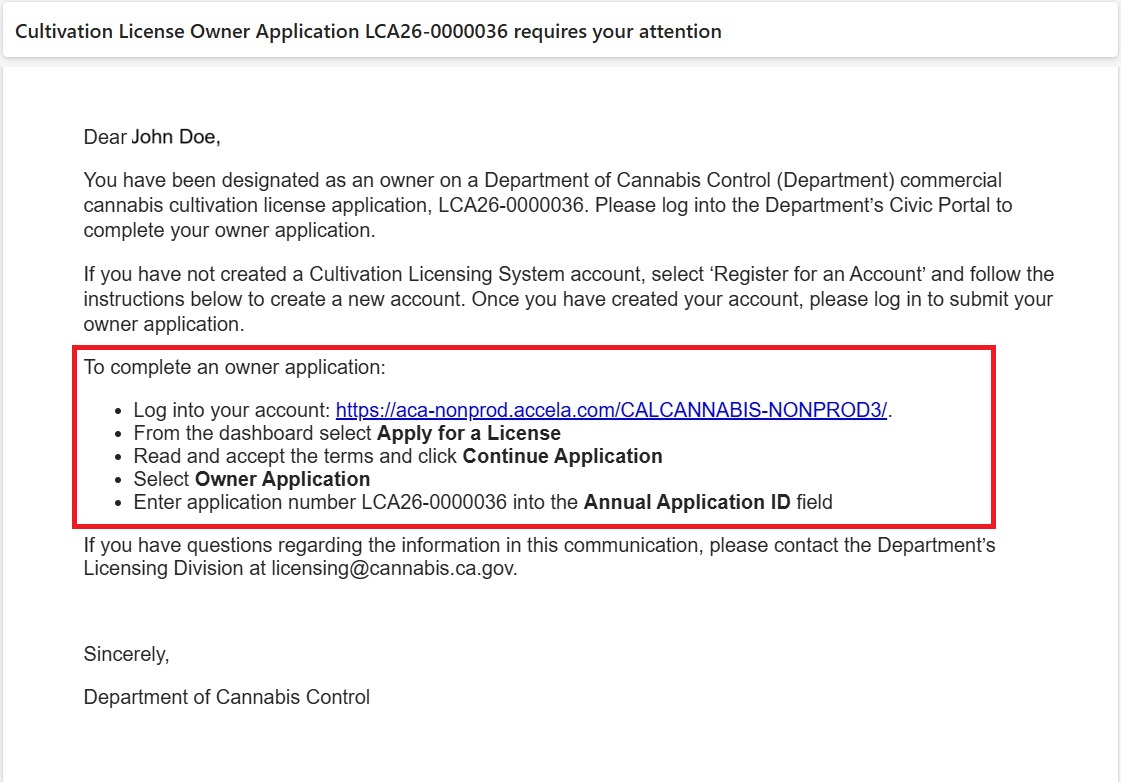
Creating the Owner Application is like creating the main application, just select Owner Application from the second page.
Live scan application
Each owner must fill out an application for fingerprinting at a live scan location.
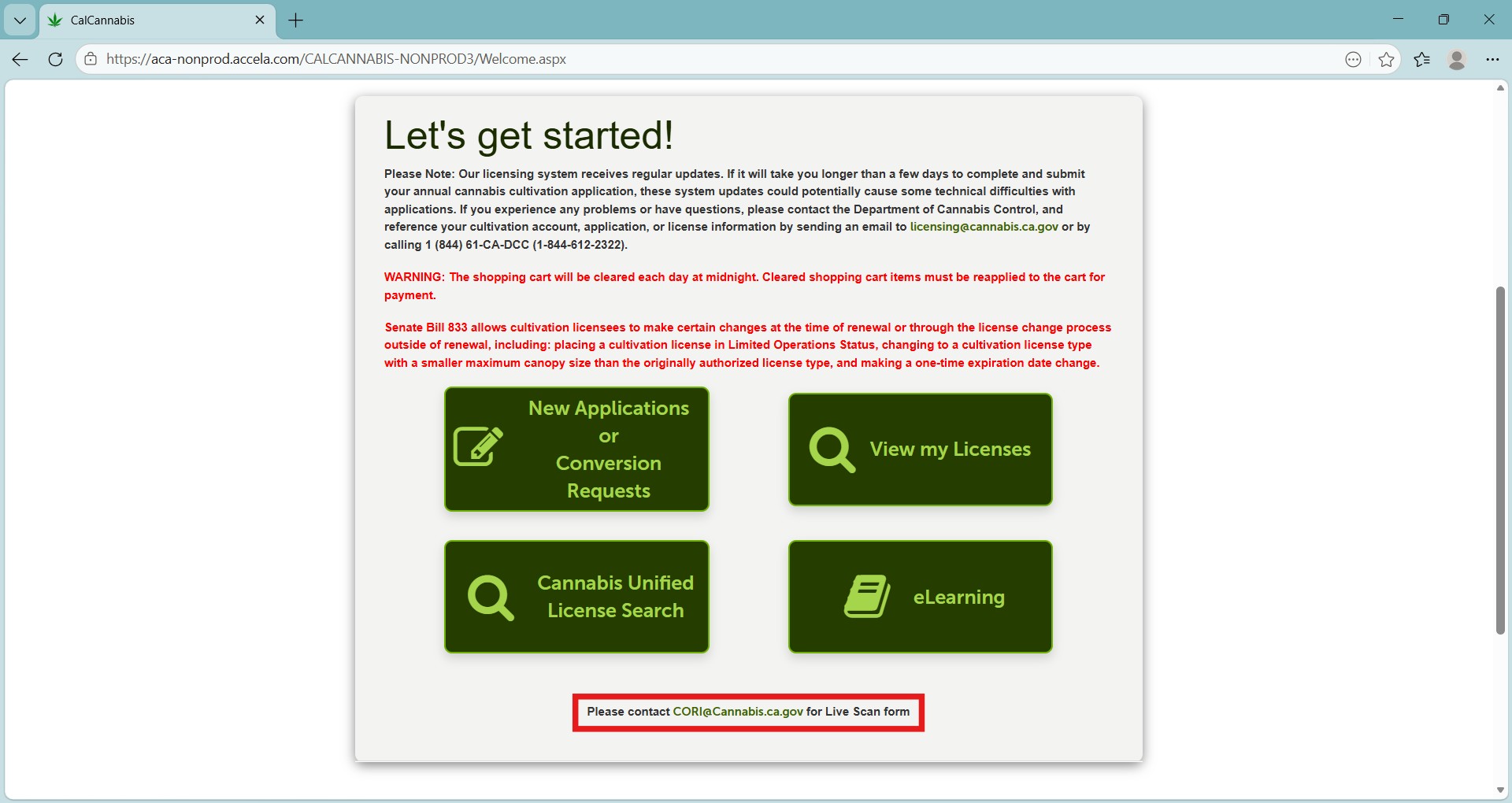
Email CORI@cannabis.ca.gov to request a live scan application.
Applicant’s owner application
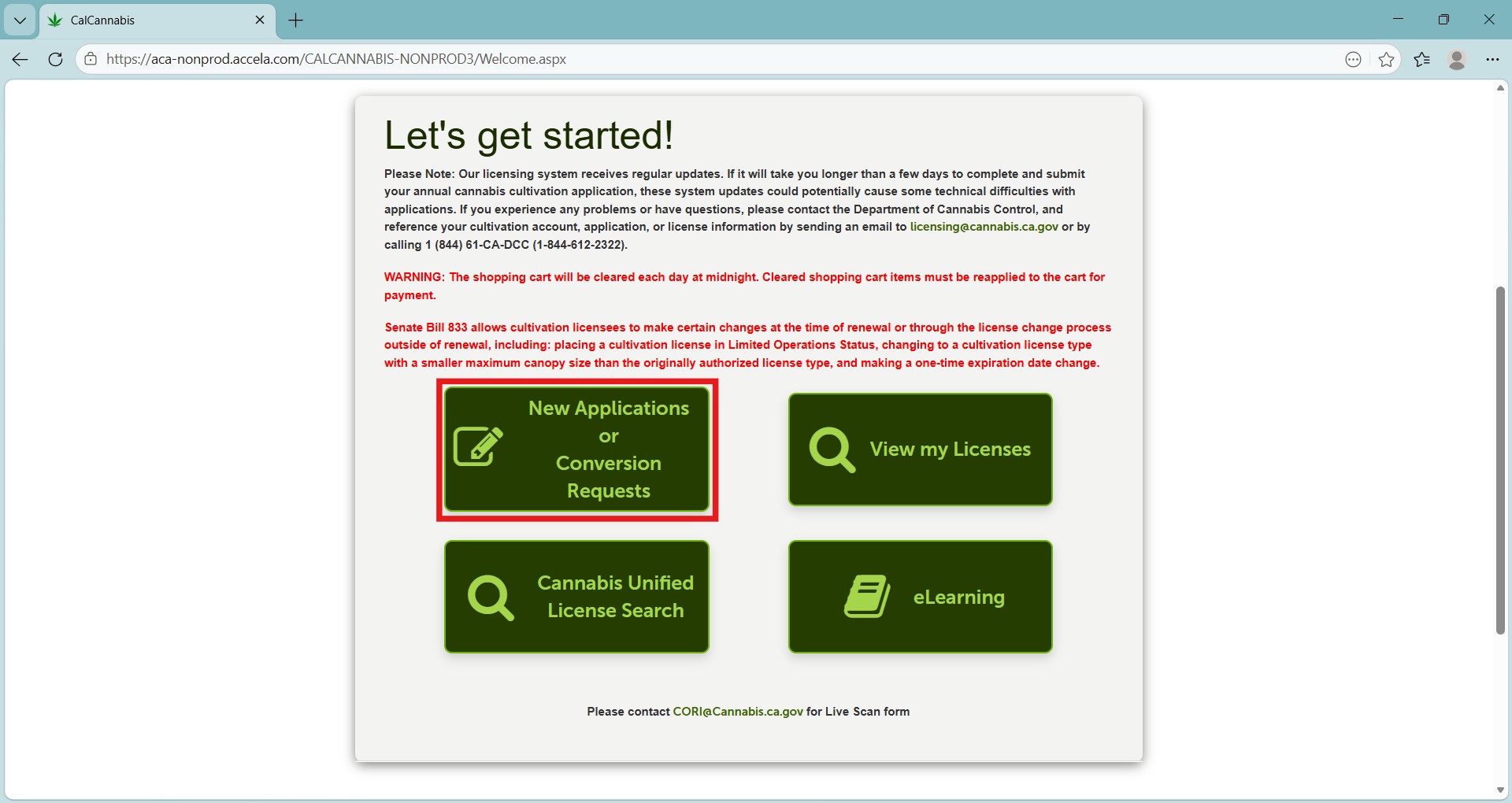
After logging in, click New Applications or Conversion Requests.
General disclaimer
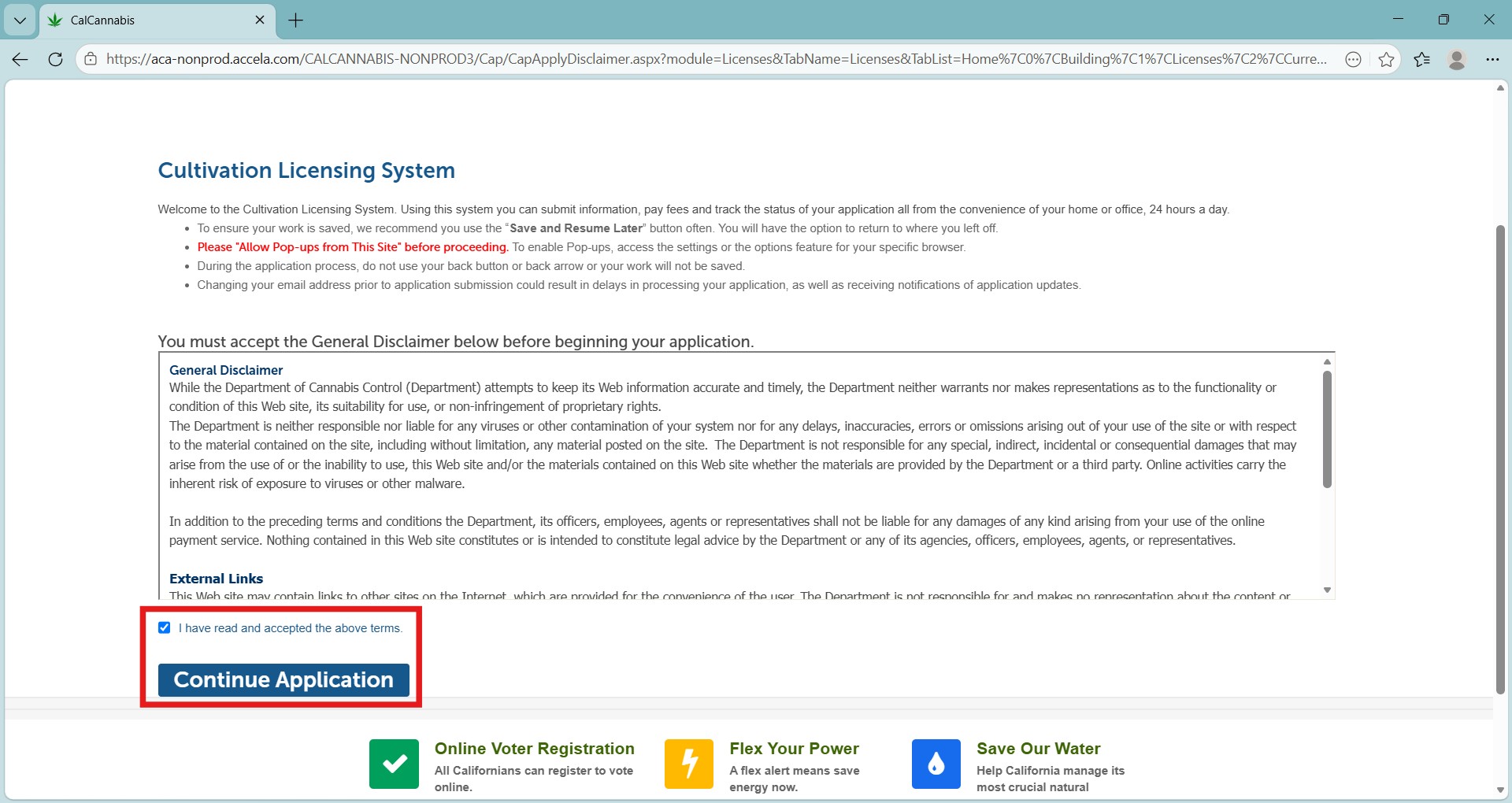
Check the box to accept the terms, then click Continue Application.
Select the owner application
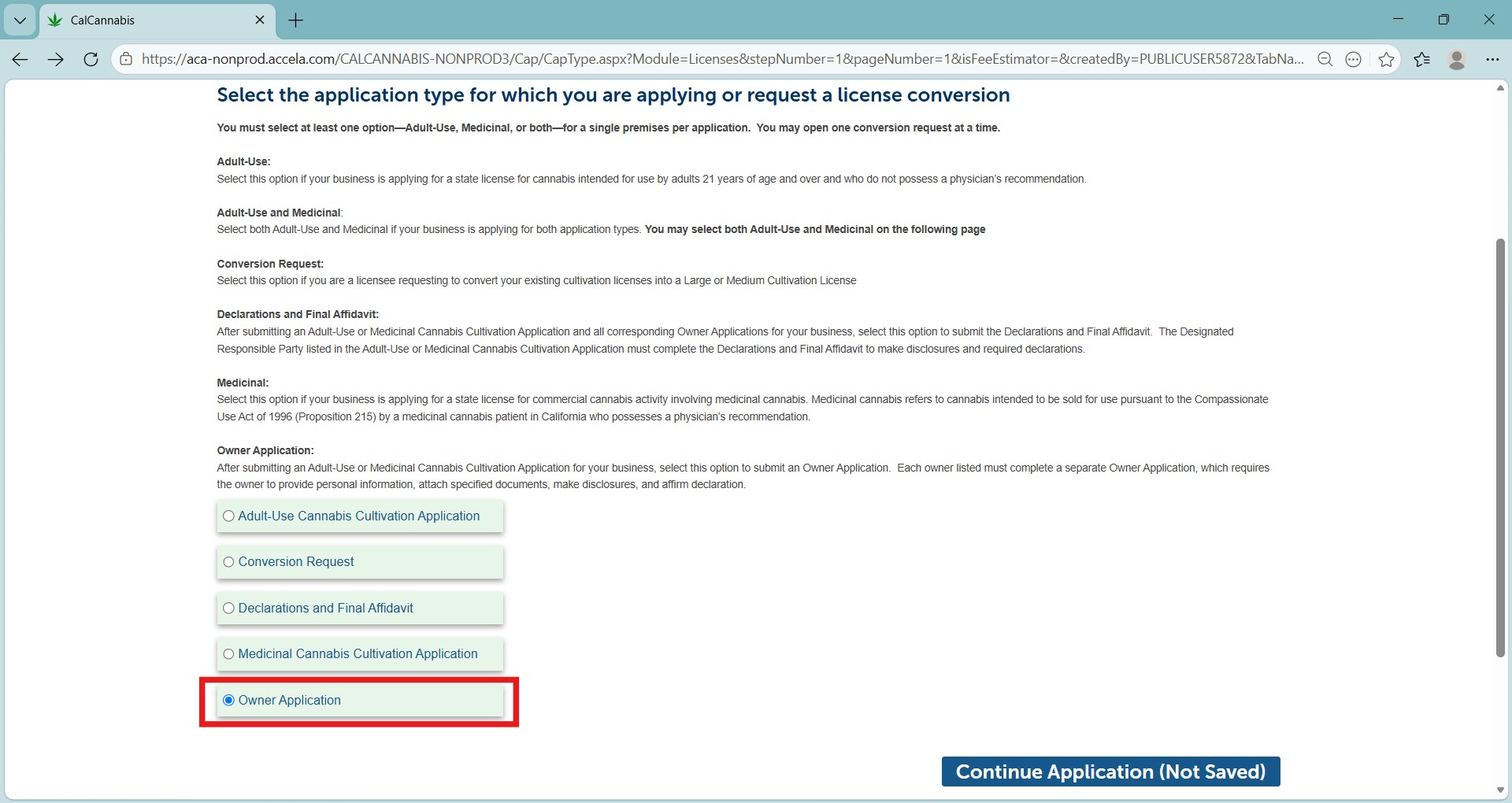
Select Owner Application, then click Continue Application (Not Saved).
Note: Your owner application must be submitted prior to the Declarations and Final Affidavit. The system will not allow the completion of the Declarations form until the owner application is submitted.
Contact information
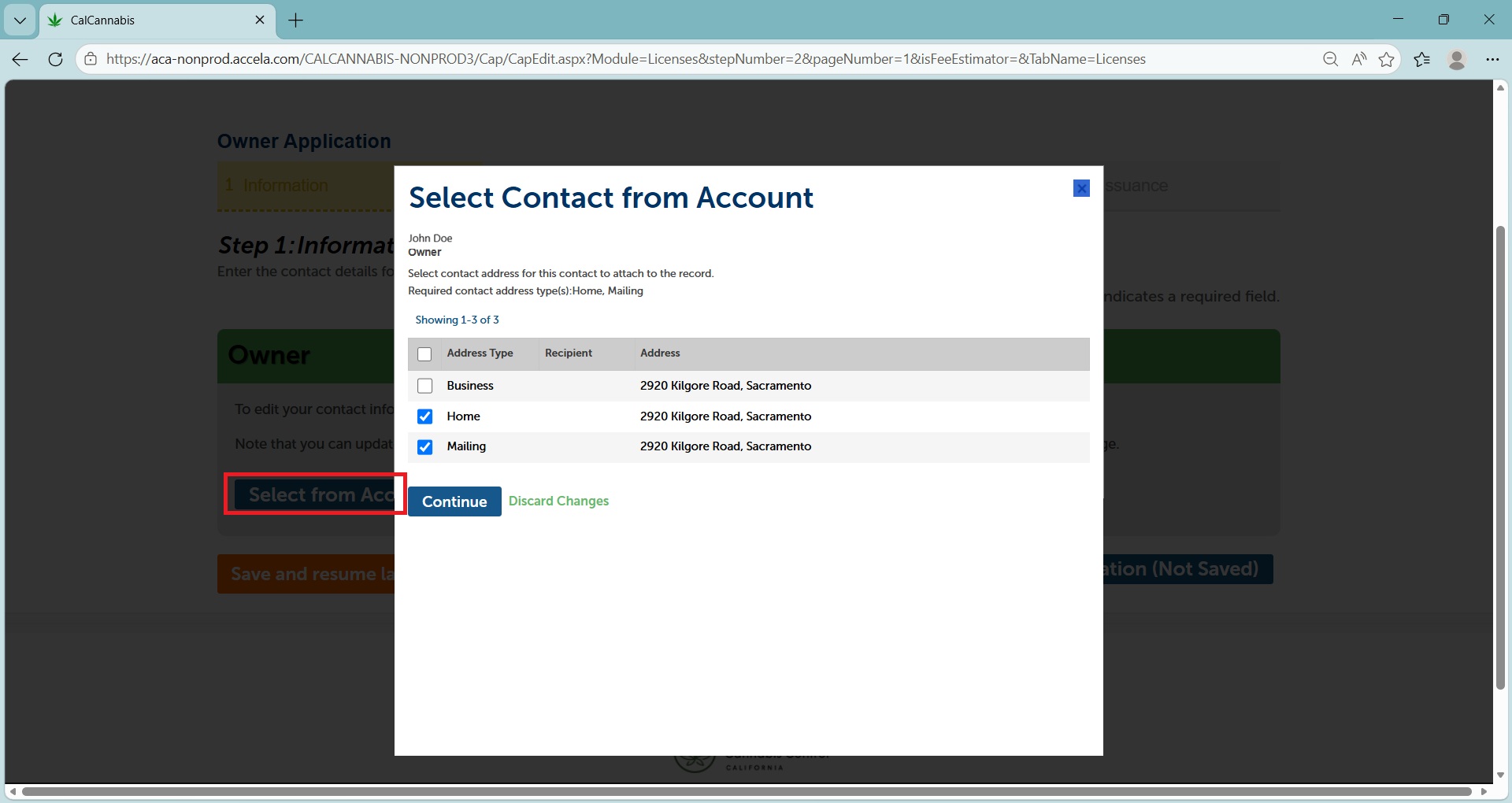
Choose Select from Account to prefill the form with your personal information from when you registered.
Your home address is preselected if you entered it during registration.
Birthdate, place of birth & SSN/ITIN/NIN
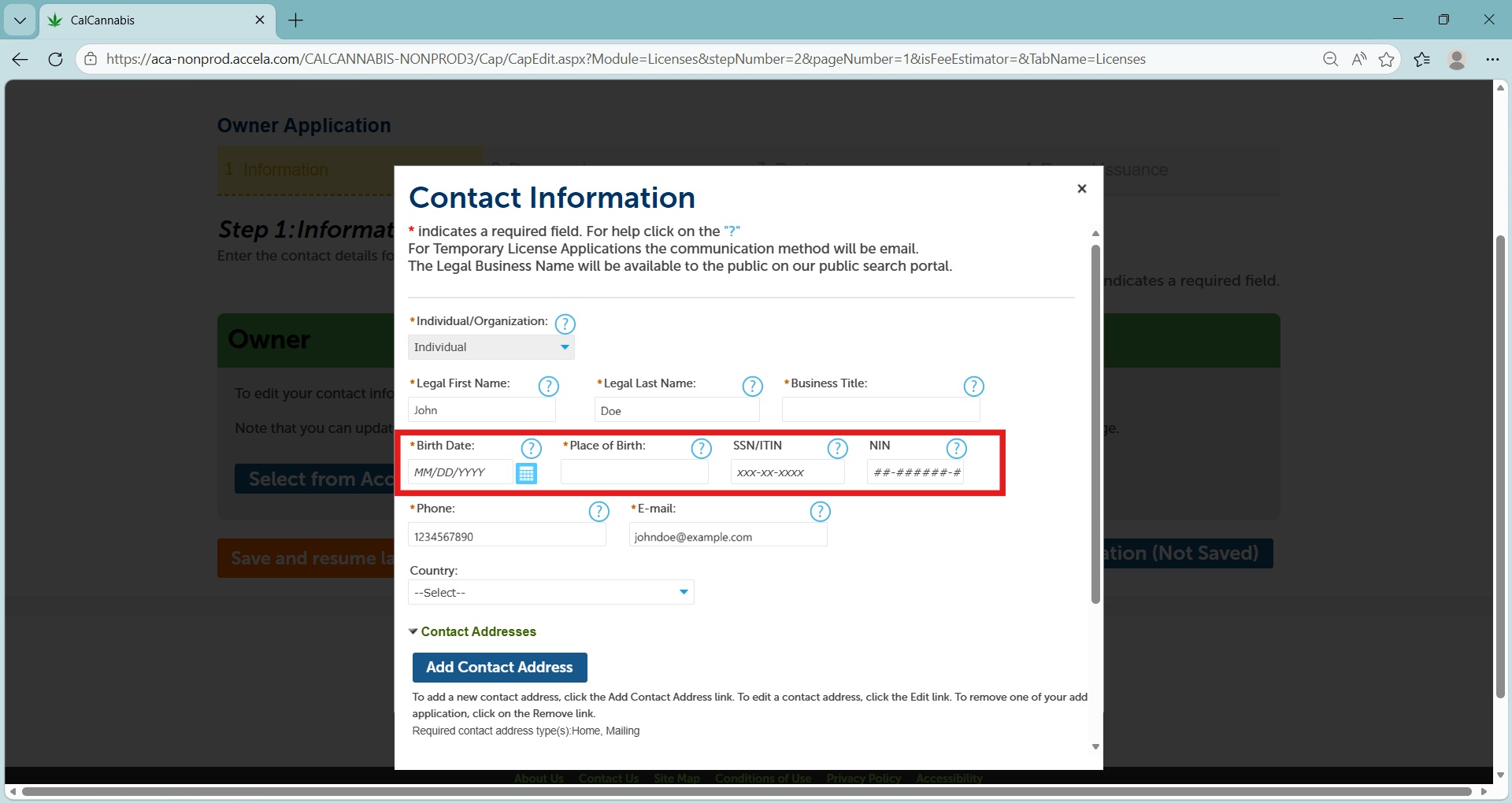
To apply as an owner, you must enter your birthdate, place of birth, and tax identification number. They must be entered now, as they were not required upon regestration.
If you must make any changes to your contact information, do so now.
Click Continue at the bottom of the pop-up window when finished.
Ownership information
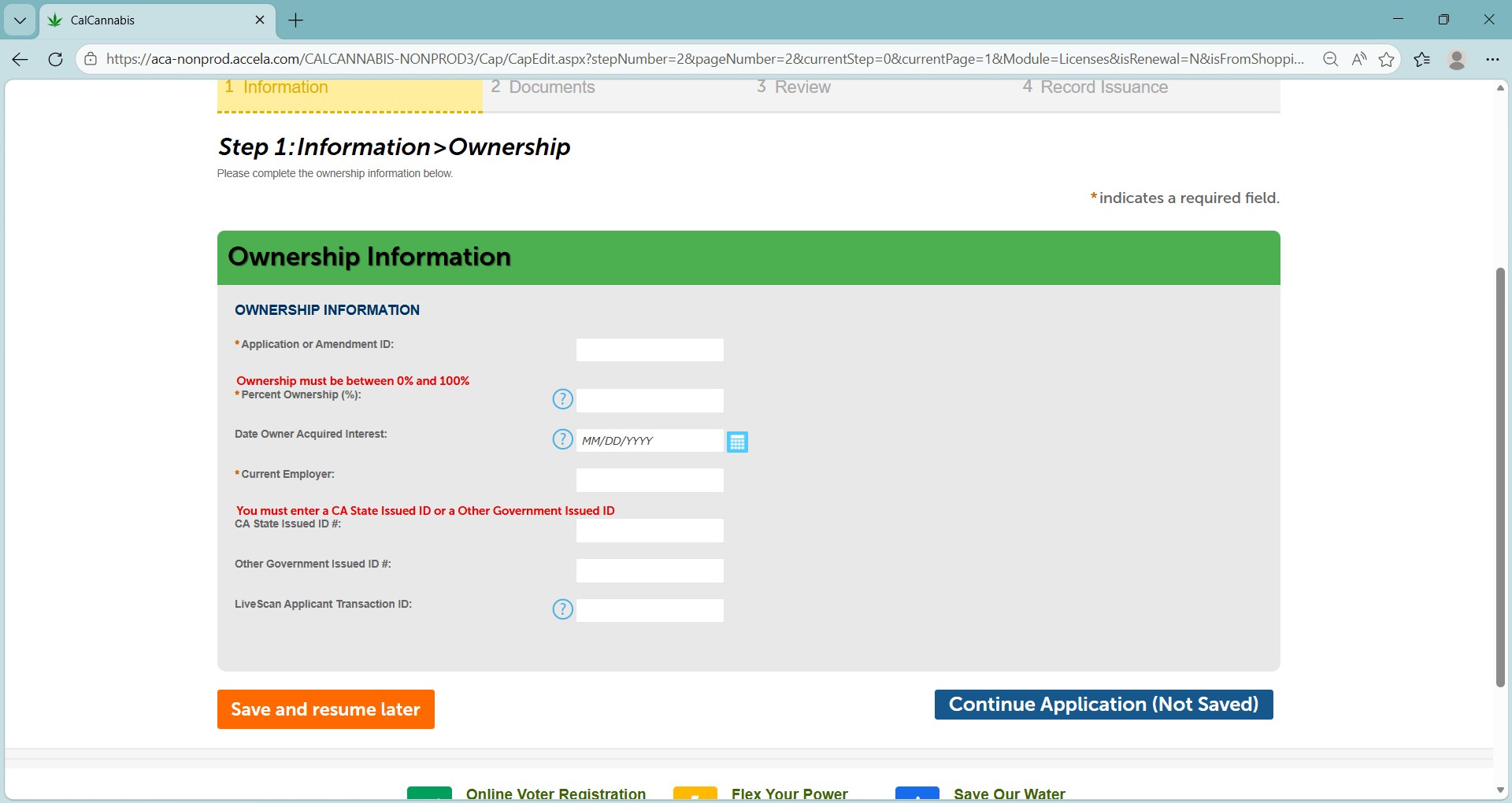
Enter the required information here. Most fields are required.
Find the Application ID number of your main license application in the Licenses list on your home page.
A Live Scan site will give you a Transaction ID with the receipt for your fingerprinting.
Acknowledge owner disclosures section
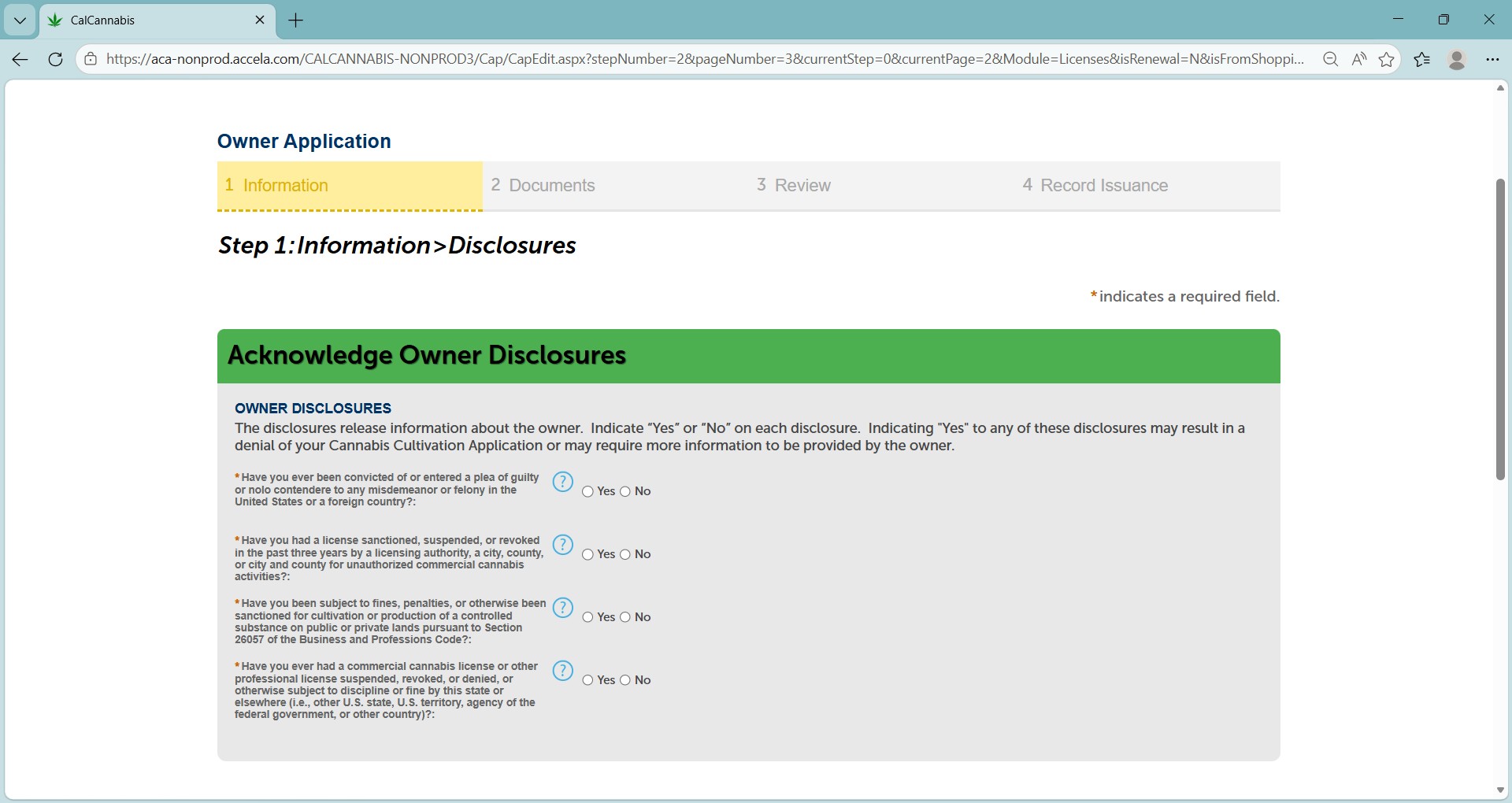
Respond Yes or No to the questions displayed.
Note: Answering Yes to any of these disclosures may result in denial of your application or may require you to submit additional information.
List history of convictions section
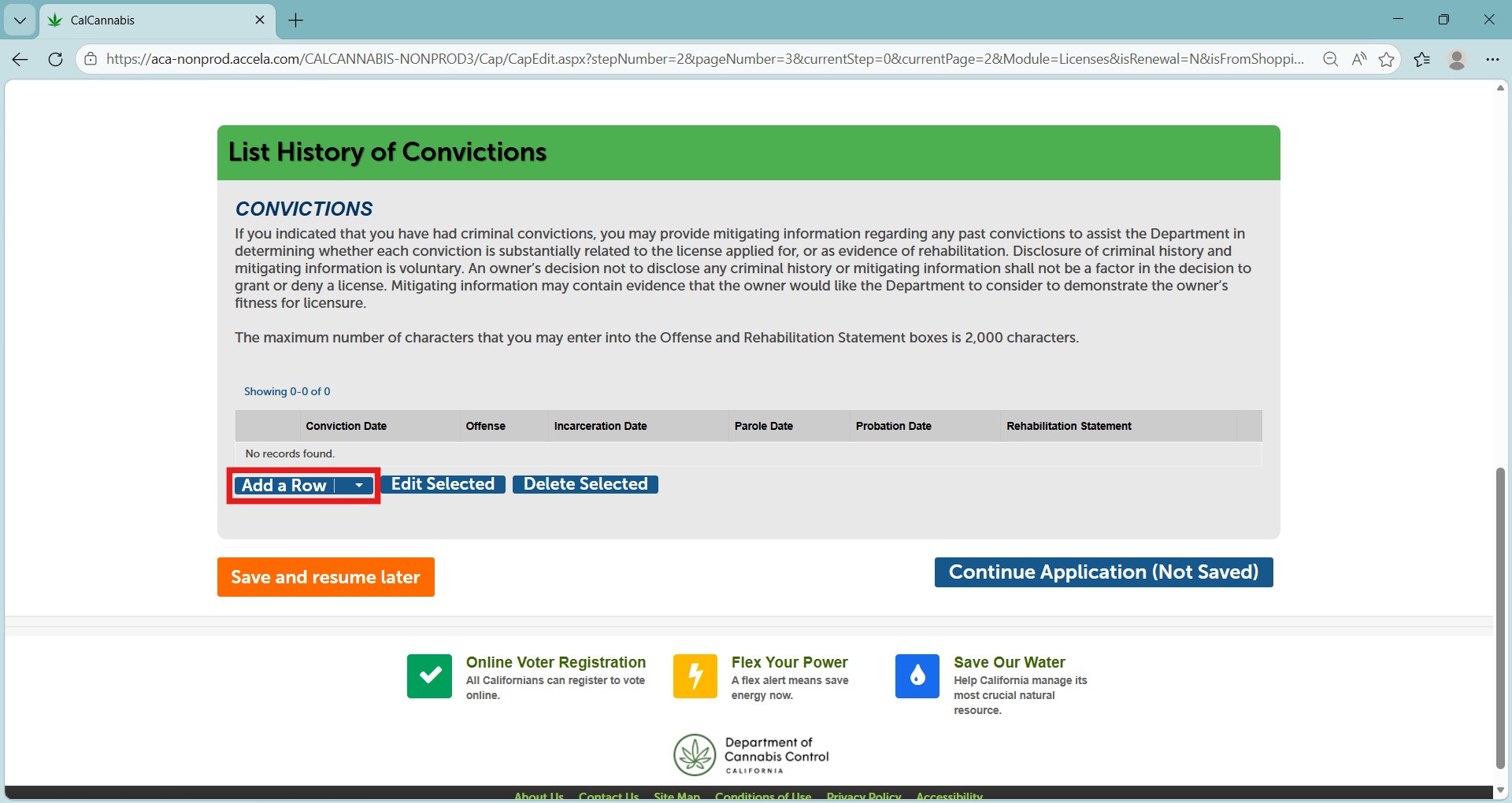
Any history of criminal convictions – state, federal, or international – can be reported on the owner application.
Click Add a Row to open a pop-up window and add information about each conviction.
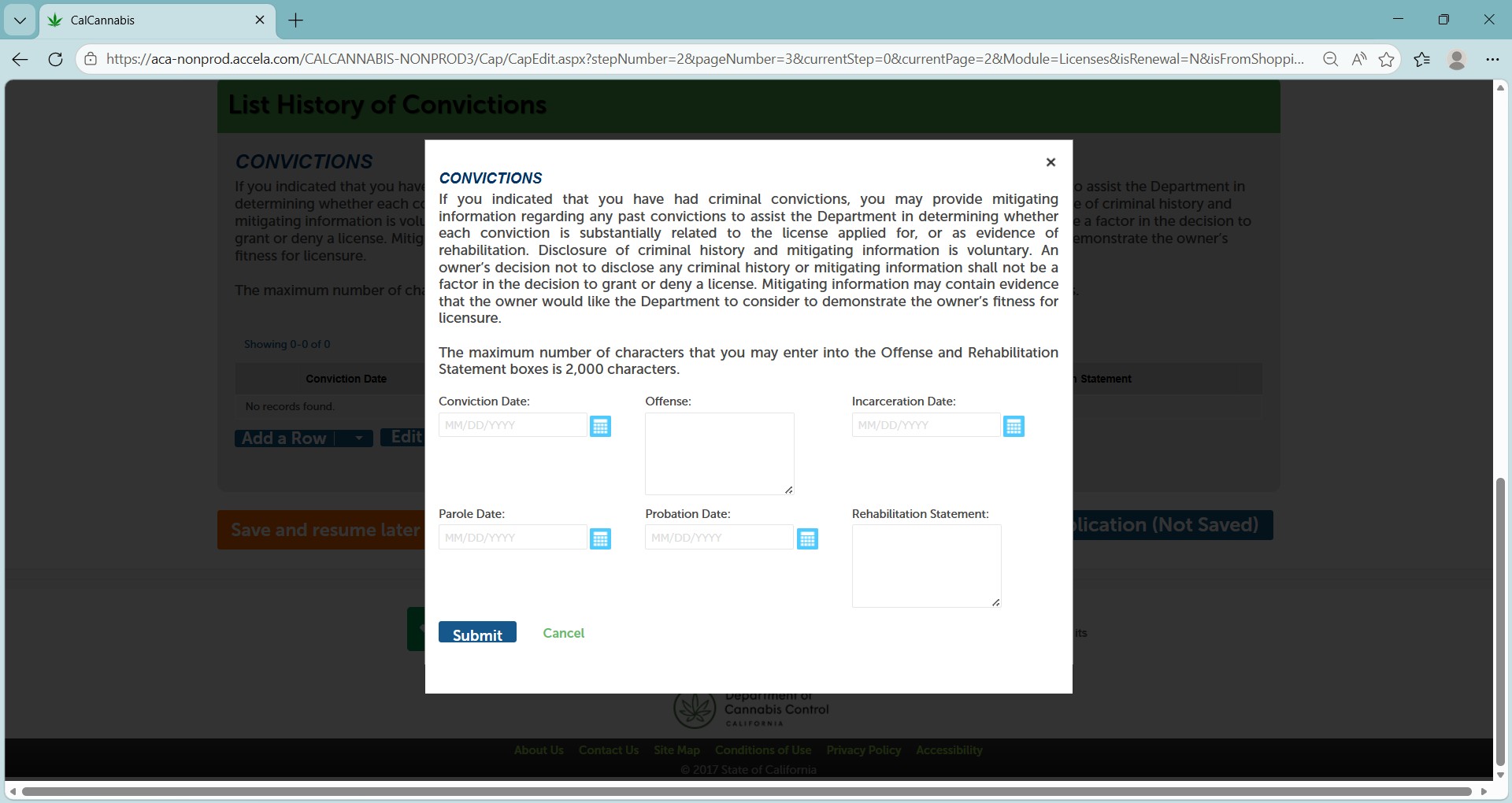
Enter the offense, conviction, incarceration, probation, or parole date. A rehabilitation statement may be entered as well.
Click Submit when finished.
Click Continue Application when done with this page.
Required documents section
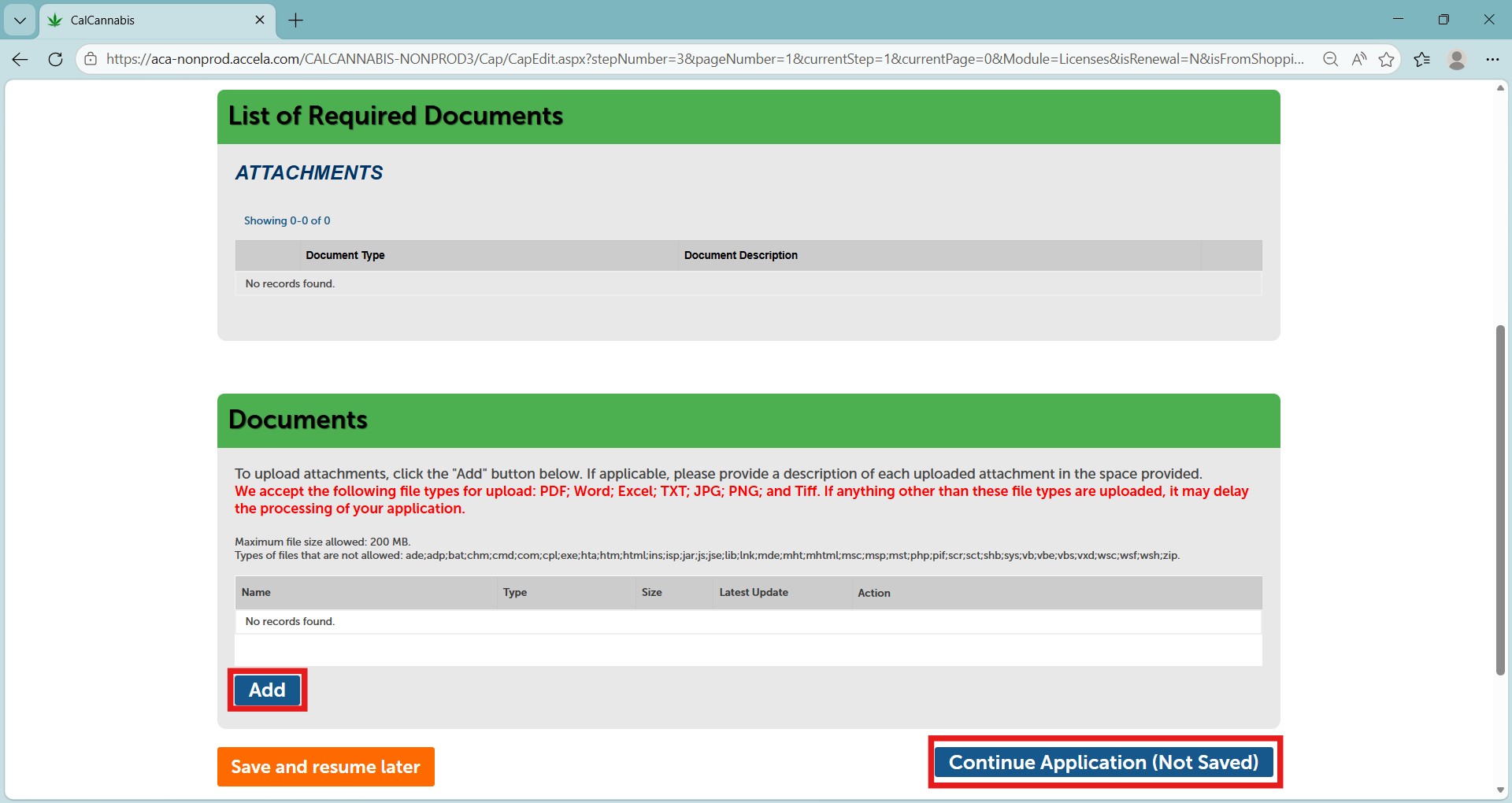
On this page, upload a digital copy of the fingerprint processing application. Click Add to open a pop-up window and select your files.
After adding the required file, click Continue to close the pop-up and return to the main page.
Note: If you wish to upload other documents related to convictions or other special situations, add them through this window and identify them in the following step.
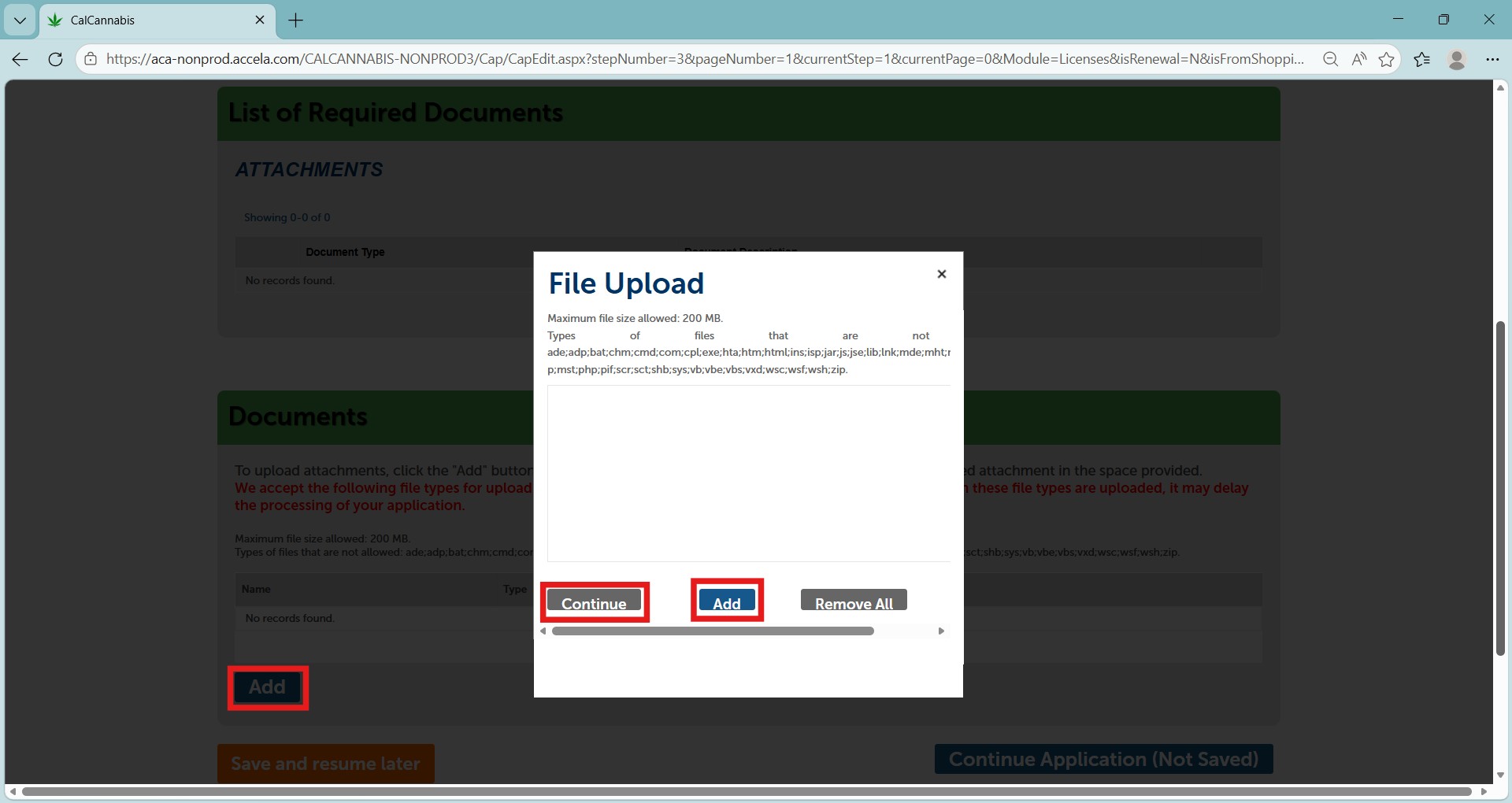
After attaching the document, identify the file using the Type dropdown list. If needed, enter details in the optional description field below.
Click Save when done. You cannot proceed until you have clicked Save to finish uploading your files.
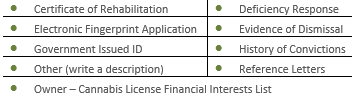
To the left are the document type choices.
Owner application review section
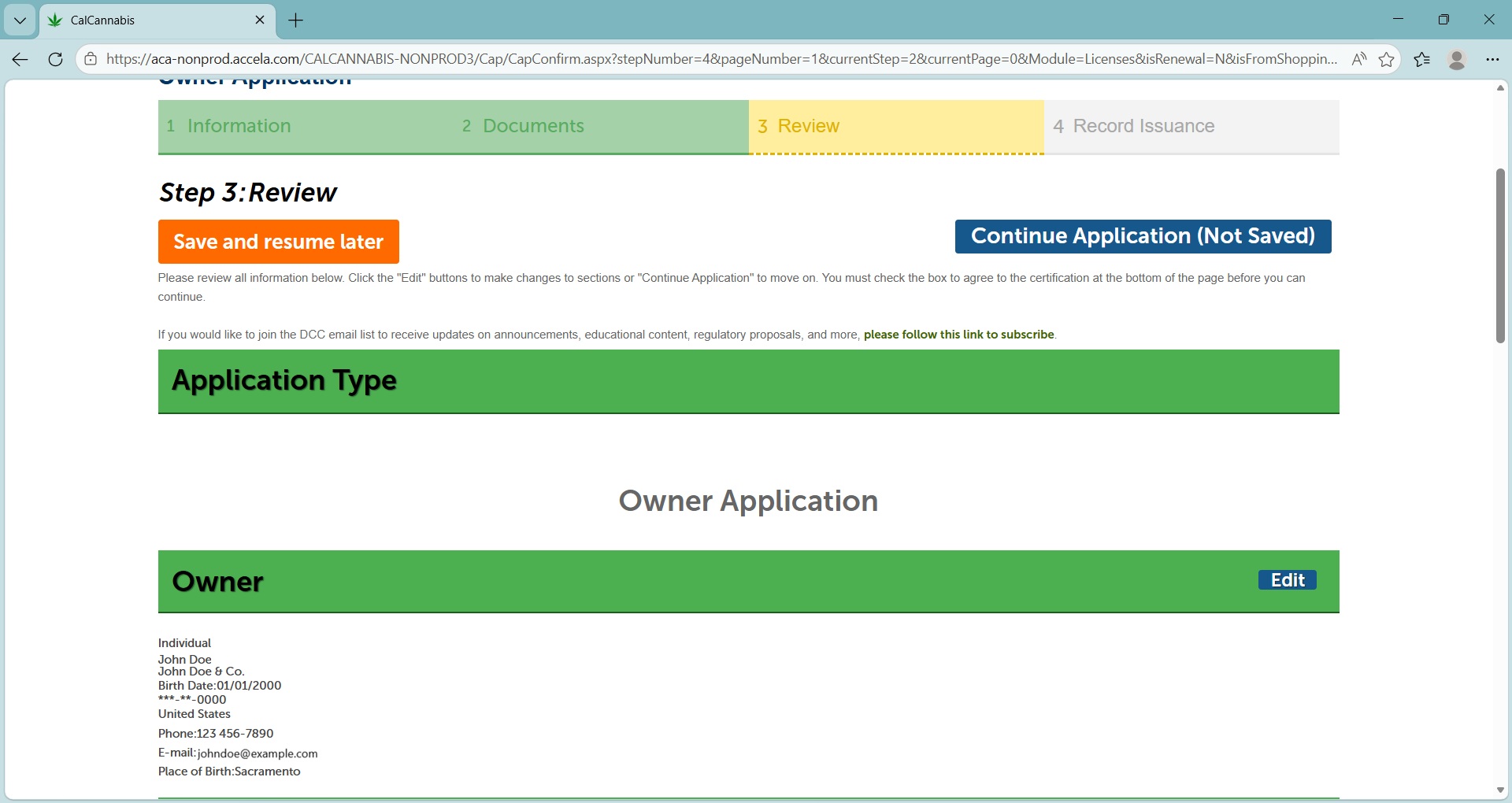
Next is the Review screen, where you can see all entries in the Owner Application. To revise any section of the application, use the blue Edit buttons.
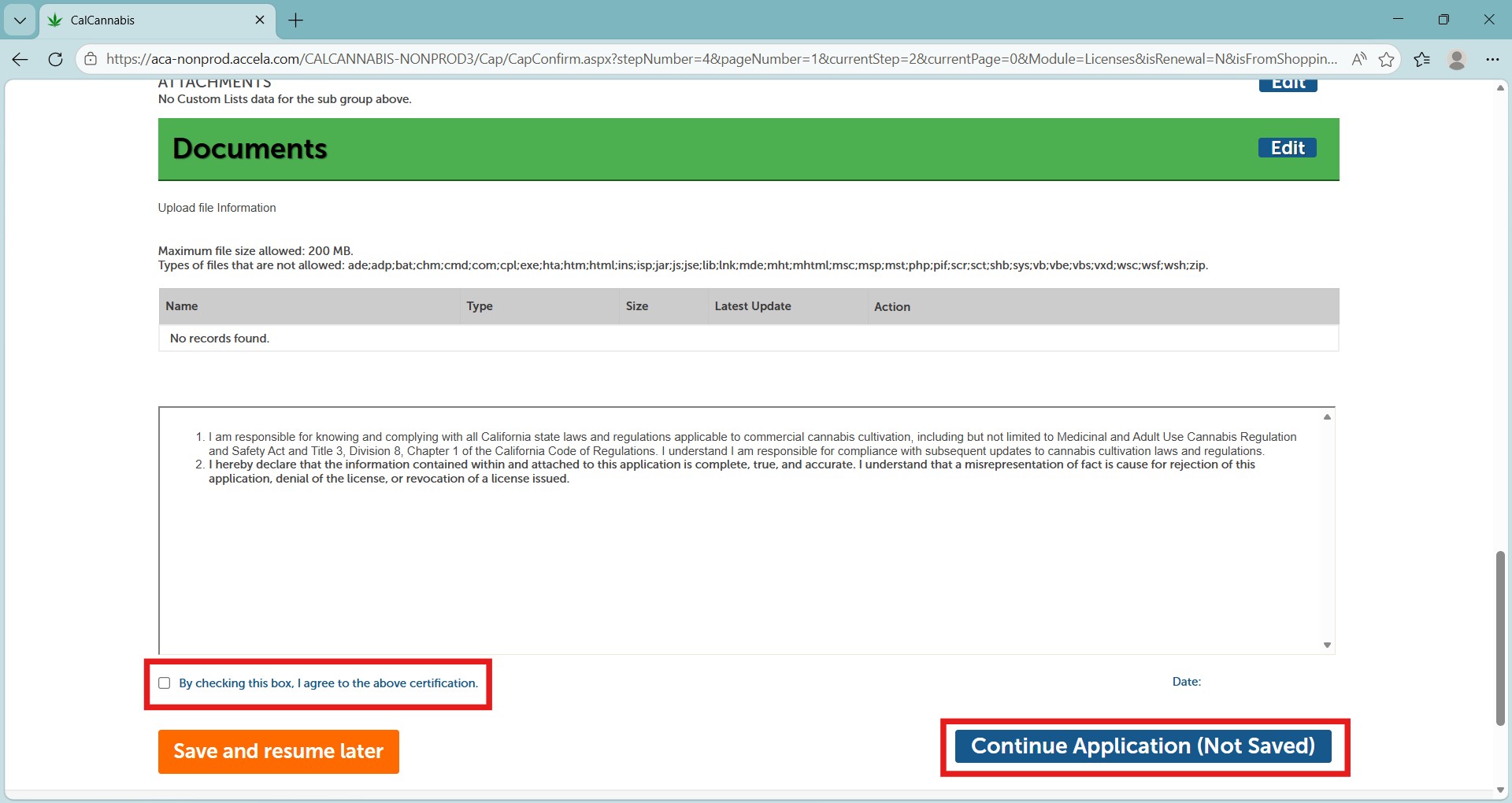
Click the checkbox at the bottom of the screen to certify your application, then click Continue Application. This submits the DRP’s Owner Application to the DCC.
Additional owner applications
Each additional owner must complete and submit an Owner Application using the same steps.
When the main application is submitted, additional owners receive an email with instructions to create their account or log into an existing account. From there, they can enter and submit their Owner Application following the same process.
Continue to next article
-
CLS: Declarations and final affidavit
This guide provides instructions on handling email notices related to the application process. It covers steps including logging in, reviewing general disclaimers, selecting application types, adding contact information, acknowledging disclosures and declarations, and finalizing the review process. Additionally, it includes information on record issuance after these steps are completed. Email notice Once all Owner Applications…