
Last reviewed: August 3, 2026
This guide provides comprehensive instructions on submitting additional documents and meeting application requirements.
- This includes:
- Steps for uploading and labeling attachments
- Checking review status
- Completing license fee payments
- It also covers:
- Application approval procedures
- Managing pending payment status
- Printing your license certificate
- Accessing additional resources
After you submit your main application, you may open that application record to attach additional documents. For example, a document listing more financial interests than you can enter in the normal application process.
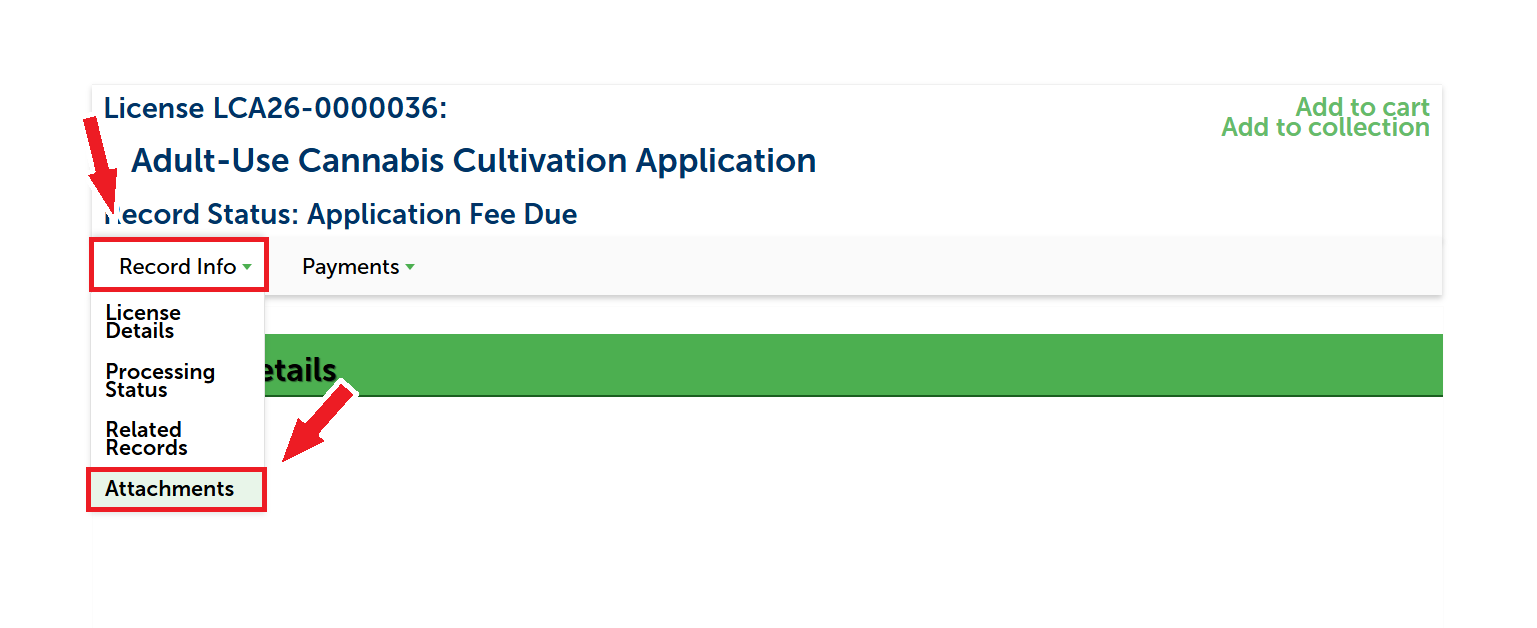
Go to the Licenses list and find your submitted application.
Click on the blue link to your application in the License Number column.
Under the Record Info dropdown list, select Attachments.
Upload additional documents
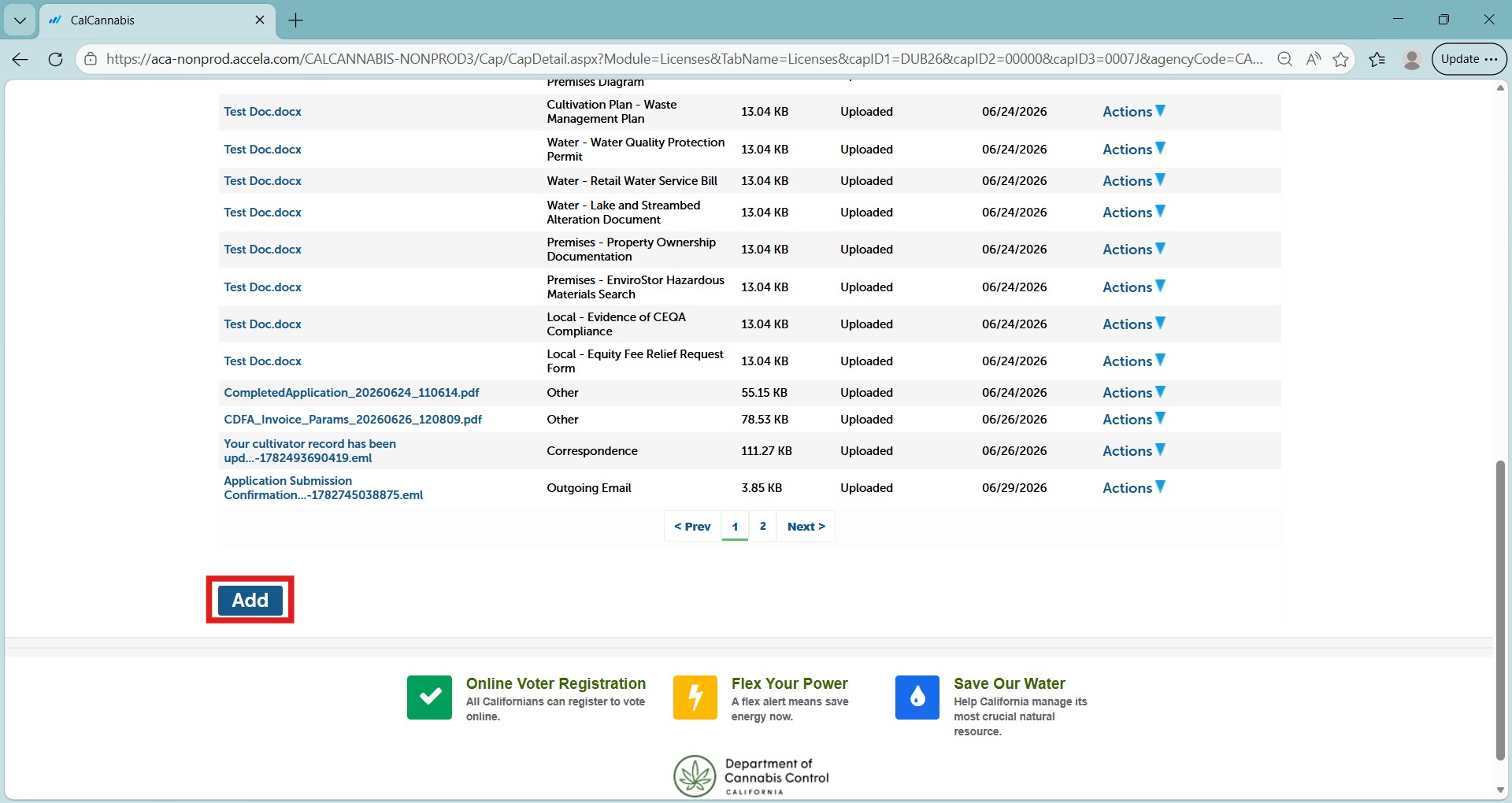
Click Add at the bottom of the attachments list to attach additional documentation to your application.
Note: You may not be able to upload additional documents to the license application record during some portions of the review process. Please contact licensing@cannabis.ca.gov for further assistance.
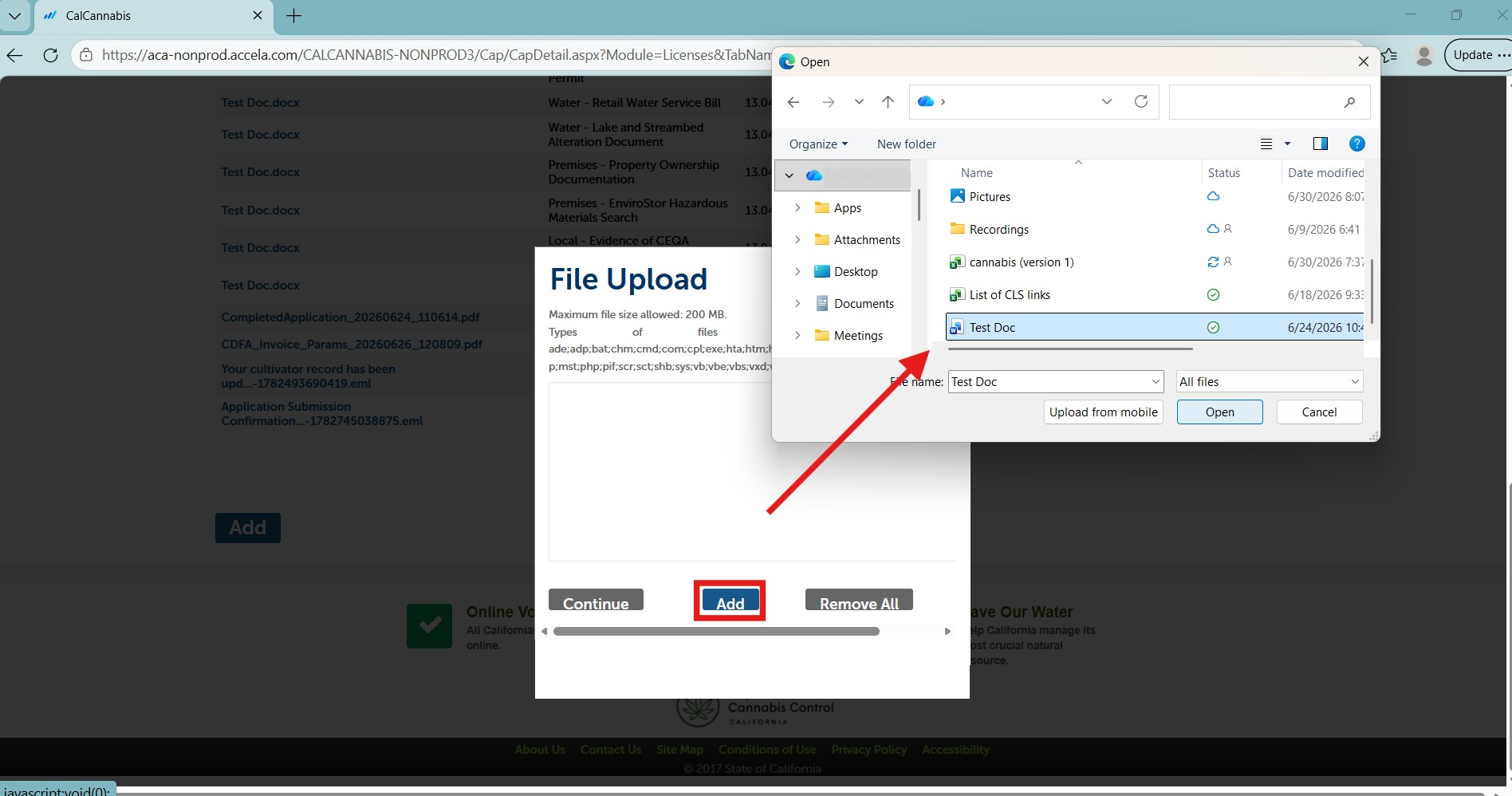
Click Add in the file upload pop-up window to search the file you want to upload.
Select and click Open to attach the file.
Click Add again to choose another document or click Continue to close the pop-up window.
Label your attachments
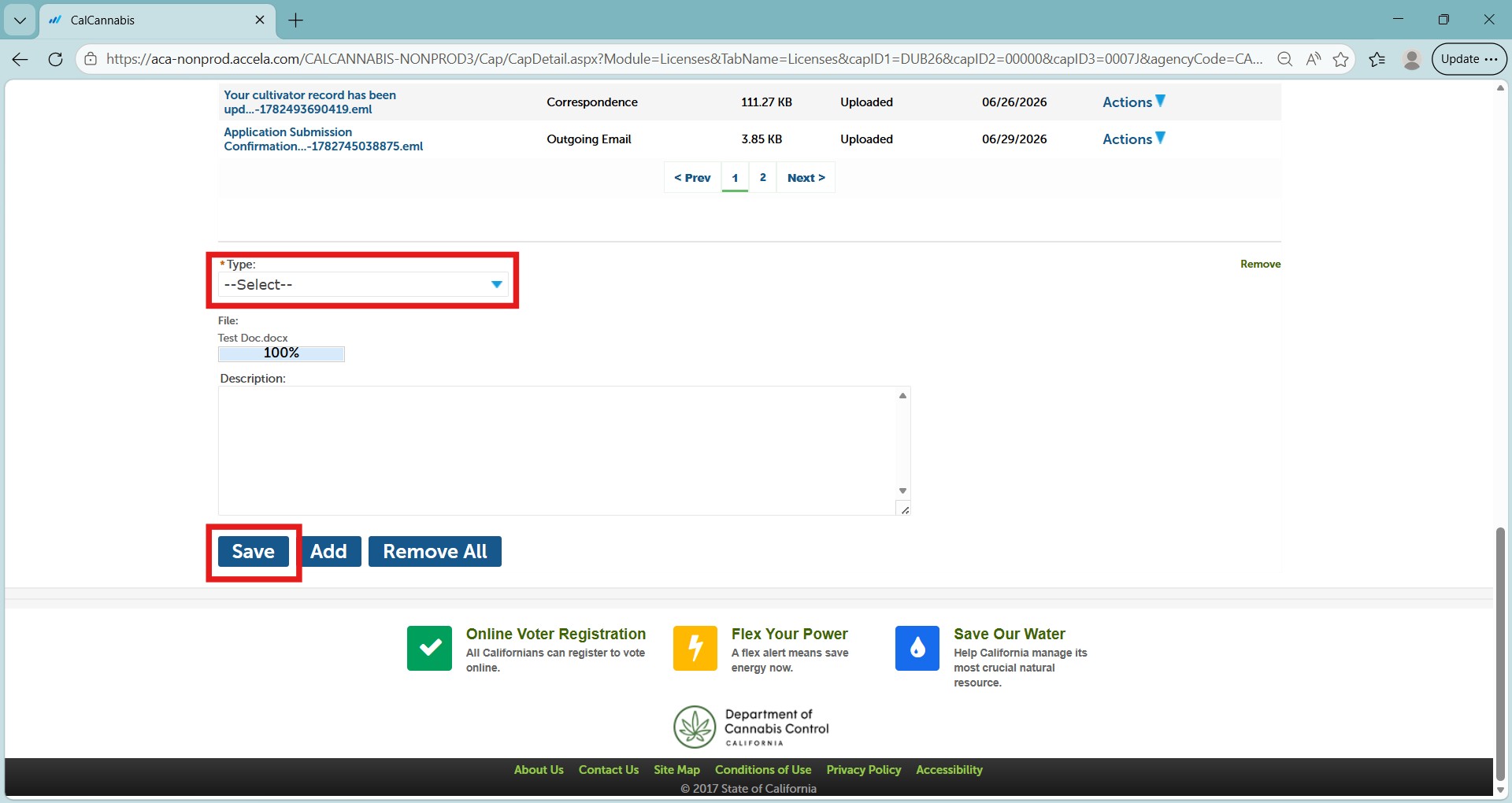
In the “Type” dropdown list, select the label for the document you just attached.
Note: If your document is a list of financial interests for your cultivation business, select Business Entity – Cannabis License Financial Interests List.
Click Save to upload your attachment(s).

A success message confirms your attachments were received.
Application approval
The DCC’s Licensing Division will review your application and may contact you if there are any questions or issues. You can check the review status under the “My Licenses” tab, as shown below. If your application is approved, you will move on to pay your license fee.
Check review status
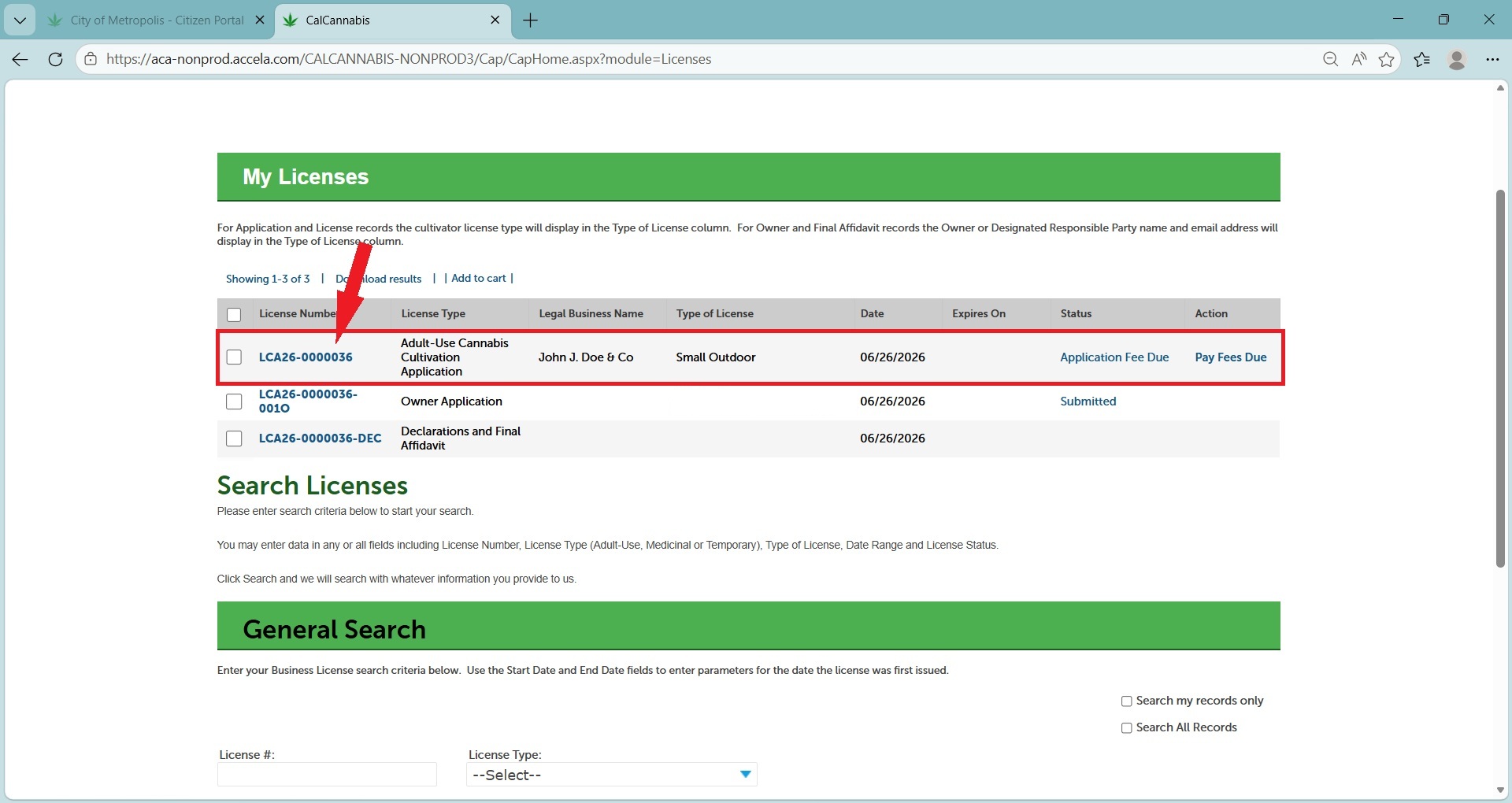
Go to the licenses list. The Small Outdoor cultivation license application shows a status of “Pay Fees Due”.
Click the blue application number to see the progress of your application’s review.
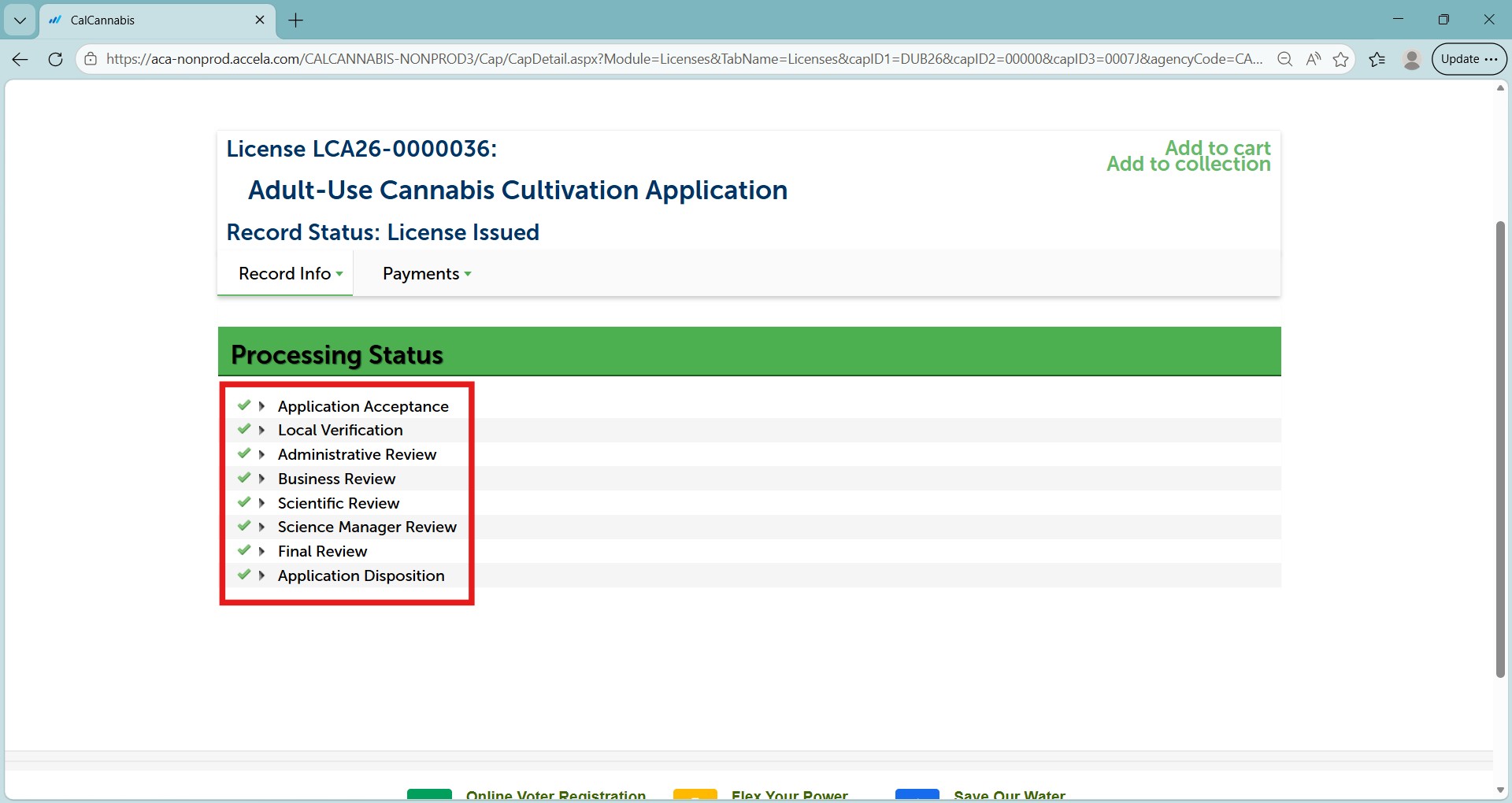
View the Processing Status using the “Record Info” dropdown menu. An hourglass icon displays next to review steps that are in progress, and a green checkmark or gold asterisk displays next to completed steps.
Pay the license fee
If your application is approved, you must pay the license fee before your cultivation license can be issued. The system sends the Designated Responsible Party an email advising that the License Fee is due.
Pending payment status
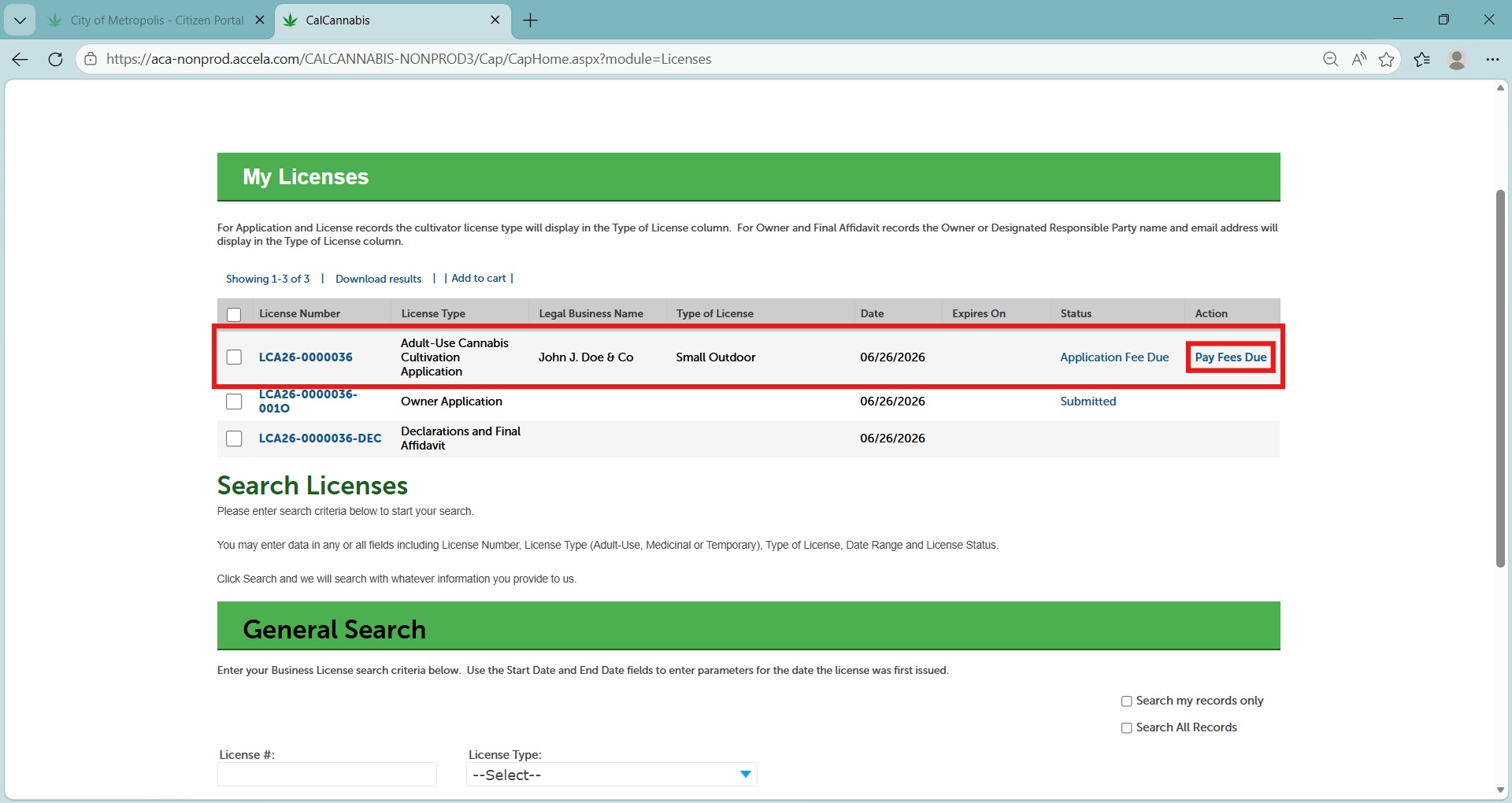
The application status is Pending Payment, with an action of Pay Fees Due.
Click on Pay Fees Due to return to the payment processing step.
Follow the same process covered earlier for paying the application fee.
Once your license fee is paid, you will receive an email or postal letter notification that your license is issued. Return to the My Licenses list and click on your Active cannabis cultivation license.
Note: Do not click on your cannabis cultivation application. The license certificate is only available in your active cannabis cultivation license.
Print your license certificate
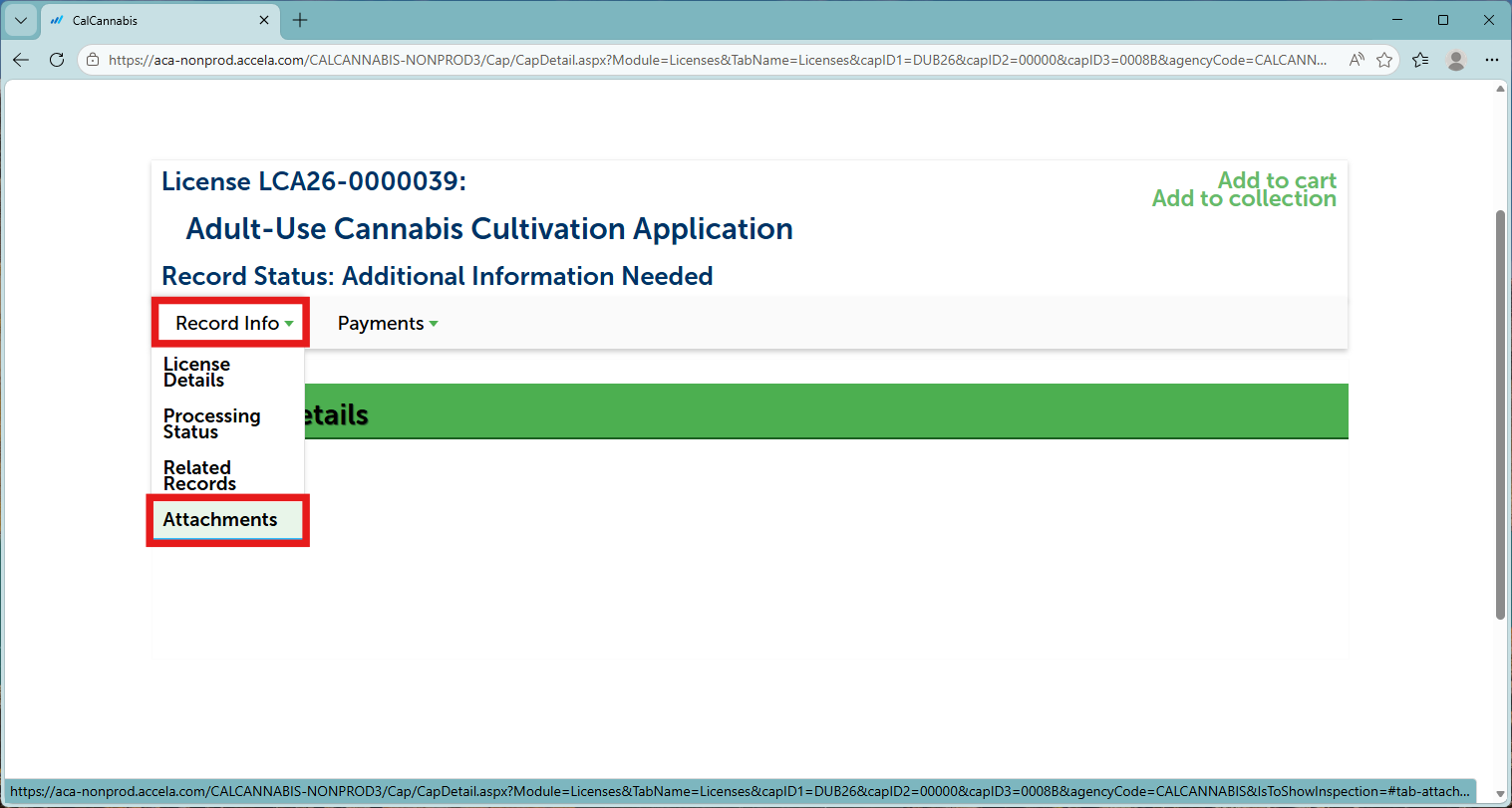
When your cultivation license is issued, you should print your license certificate to display on your premises.
Use the Record Info dropdown list to navigate to Attachments, where you will find your license certificate.
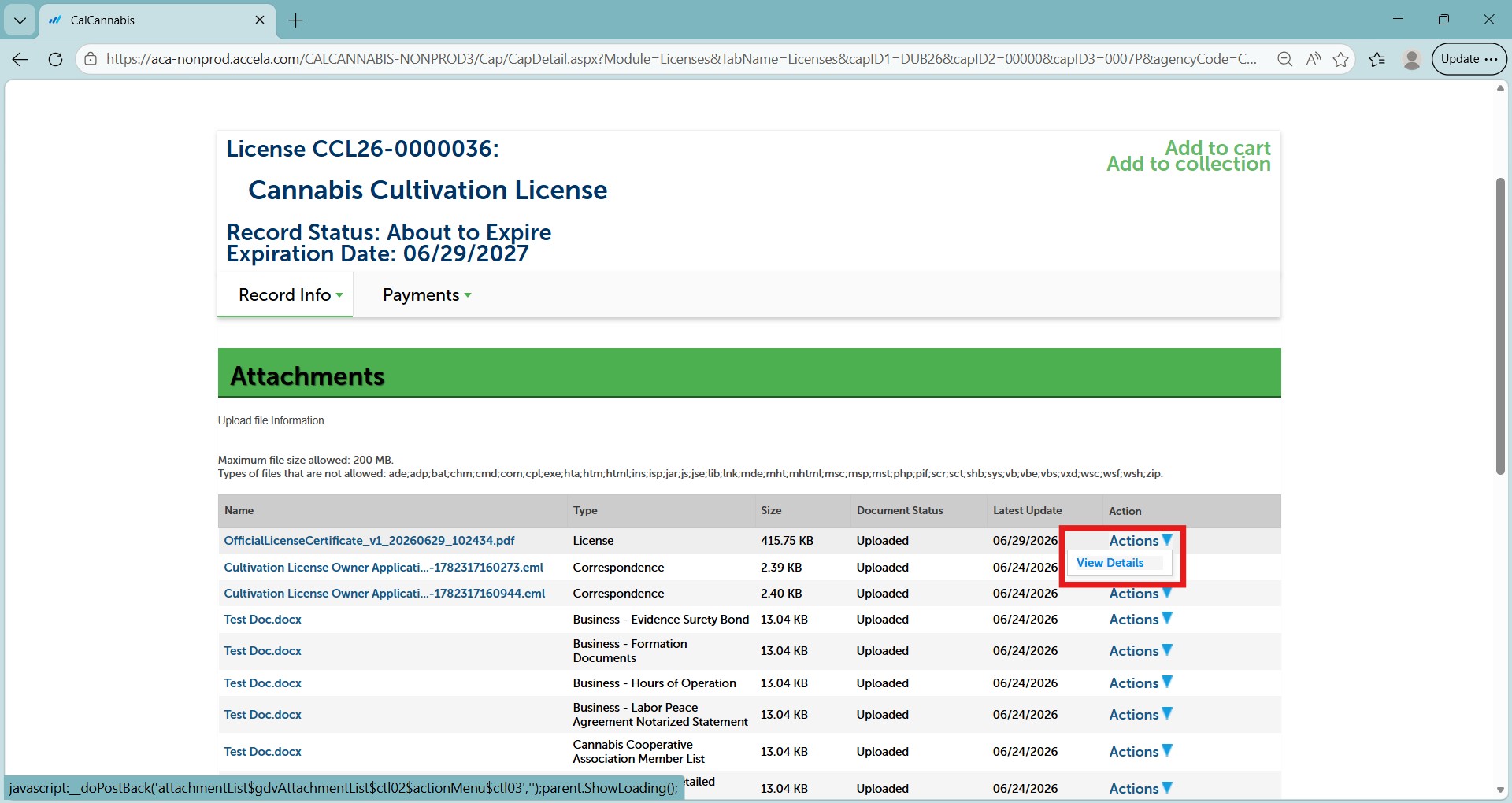
Your license certificate document is displayed in the Attachments list.
Click on the blue link for the name of the PDF document.
You may also need to click Open on a pop-up dialog box to open the PDF in your browser, depending on which browser you use.
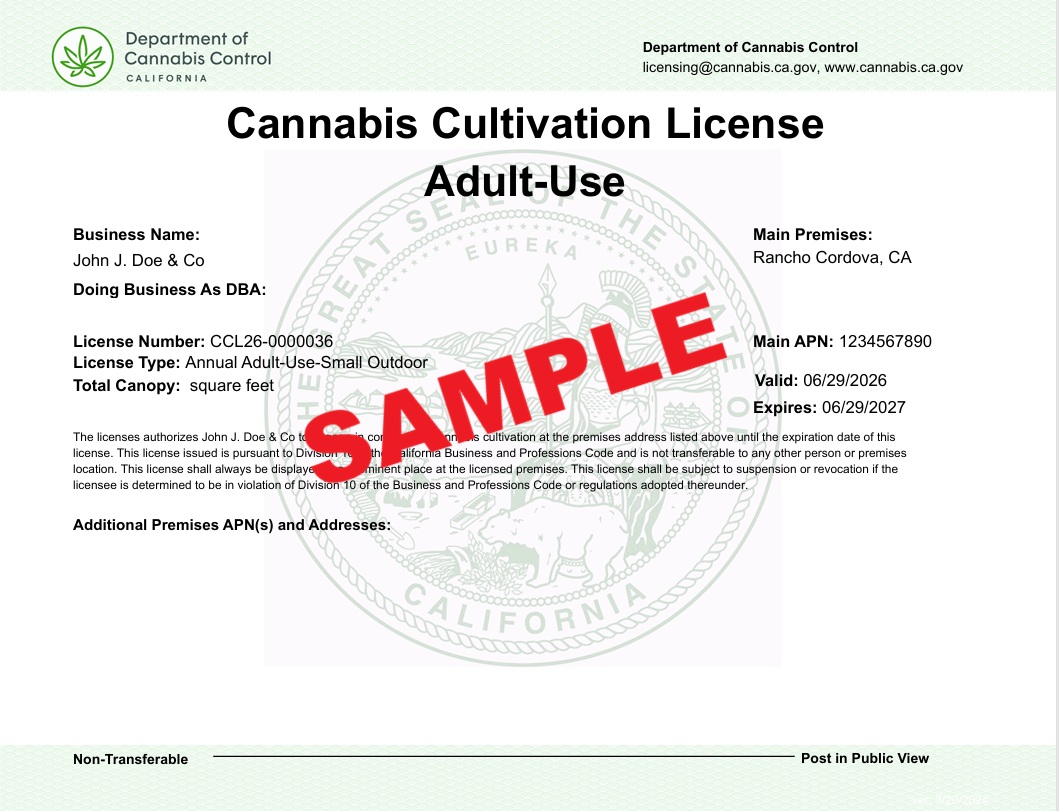
Your license certificate displays. You can print it from here.
Additional resources
As a reminder, you can find more information and guides for using the Cultivation Licensing System (CLS) on our application resources page or by visiting our website under applicant resources.
Contact us
By email: licensing@cannabis.ca.gov or by phone: 1-844-61-CA-DCC (844-612-2322).